

At a glance
What it is for
The customer decides here how they want to hear from MaihueGO: for example, no promotions by email but yes by push. Notices that protect the account or the money (security, payments, the service) always arrive, so the screen shows them locked.How to get there
- From the inbox: tap the sliders button at the top right (Preferences).
- From the Account tab: Settings › Notifications.
What the customer sees
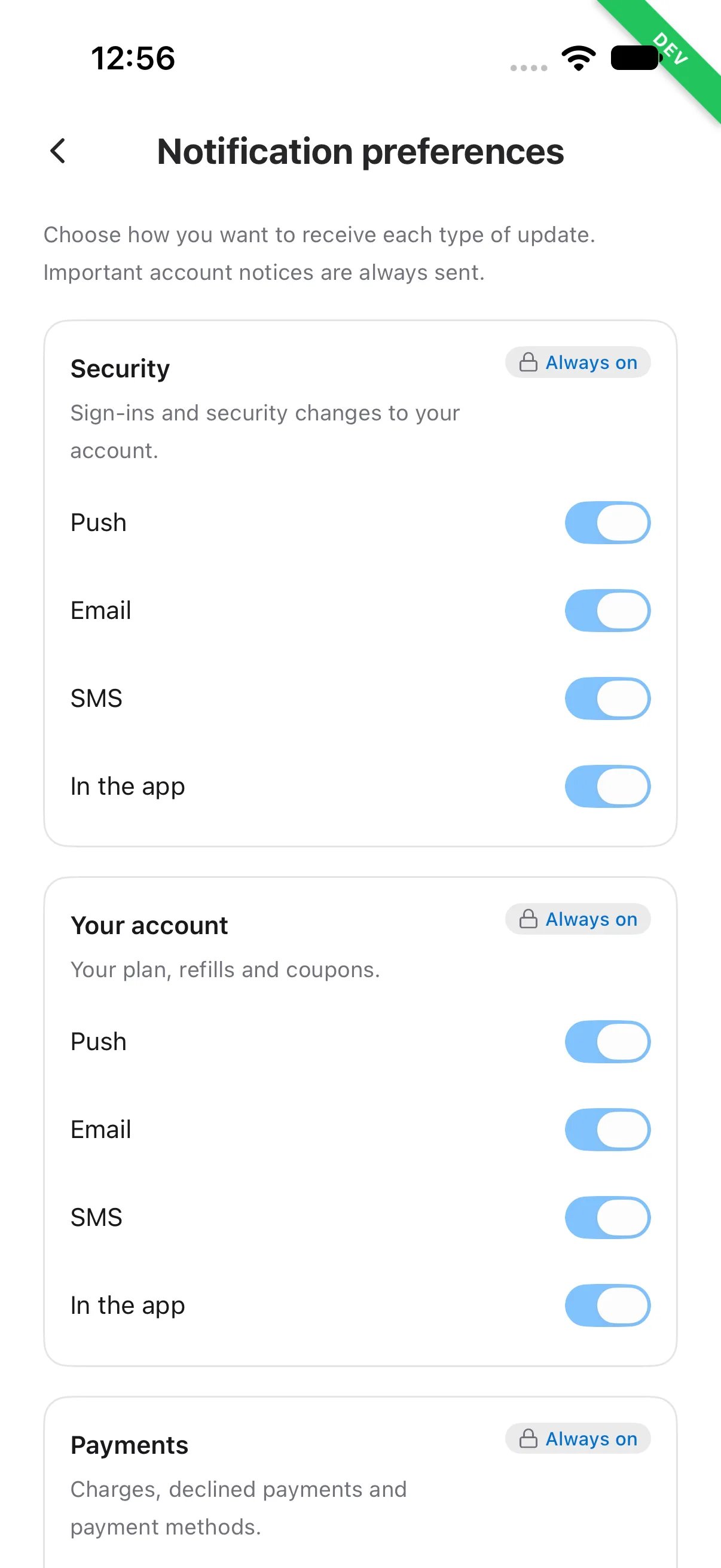
The preferences: one card per type of notification, with a switch per channel. Locked cards say Always on.
The categories and what they cover:
The events under Specific updates and their name in the app. Each name shows in the app language (Spanish,
English, French, Italian or Portuguese):
A card shows only when the event has at least one active channel in the catalog, and it shows only those channels.
Step by step
Stop promotions on one channel
1
Open the preferences
From the inbox, tap Preferences; or go to Account › Settings › Notifications.
2
Find Promotions and news
It is the last category card.
3
Turn off the channel
Tap the switch of the channel, for example Email. It is saved at once; there is no save button.
Turn off a specific notification
1
Scroll to Specific updates
It is below the category cards, when there are events you can turn off.
2
Turn off the channel of that event
For example, under the Club coupon card, turn off Push to keep getting it only by email.
Turn push back on when the phone blocks it
If the yellow banner Push notifications are turned off shows, tap Open settings and allow notifications (see Push permission). When you come back, the banner disappears.Business rules
States and messages
Errors
Why it works this way
The customer must be able to stop promotions on any channel. A charge that failed or a sign-in from a new phone, on the other hand, must reach them even if they muted everything, so those categories cannot be turned off. Inside Your account some notices are nice to have but not essential (a coupon that arrived), and the catalog marks them one by one so the customer can mute only those. Preferences belong to the account and not to the phone because the same notice can go out by email, SMS or push: one decision covers every channel and every device.Technical detail
FAQ and support cases
I turned off promotions but I still get notifications
I turned off promotions but I still get notifications
Check what they are. Security, payment, service and account notices are not promotions and always arrive.
Promotions turned off on one channel (for example Email) still arrive on the channels left on (for example
Push). And a customer with two accounts (for example personal and company) has preferences per account.
Why can't I turn off Security or Payments?
Why can't I turn off Security or Payments?
They protect the account and the money: a sign-in from a new phone or a declined charge must reach the
customer. The app shows them with Always on.
Push is on here but nothing arrives
Push is on here but nothing arrives
The phone may block push to the app. If it does, the screen shows the yellow banner; follow
Push permission. Otherwise see the checklist in
Receiving and opening a push.
The change is never saved
The change is never saved
If every switch goes back with “We couldn’t save the change. Please try again.”, the login may have no person
account: the server shows the default preferences but cannot store a change. Report the customer’s email to
Technology.
The screen says Soon you'll be able to choose your updates here
The screen says Soon you'll be able to choose your updates here
The role of that login lacks the preference permissions. Customer roles have them; report the case to
Technology with the customer’s email.
An event under Specific updates shows its name in English
An event under Specific updates shows its name in English
The app names the events it knows in the customer’s language. A new event shows the English name of the
notification catalog until the app adds it: report it to the notification team.