

At a glance
What it is for
A release used to take several screens: create the version, publish it on each store, mark it mandatory, write the notes and only then announce it. The wizard collects all of it in one place, shows the effect before you confirm, and publishes everything with Publish release.How to get there
- General › Applications → the application → Releases → New release.
- The New release button in the application header opens the same wizard.
What you see
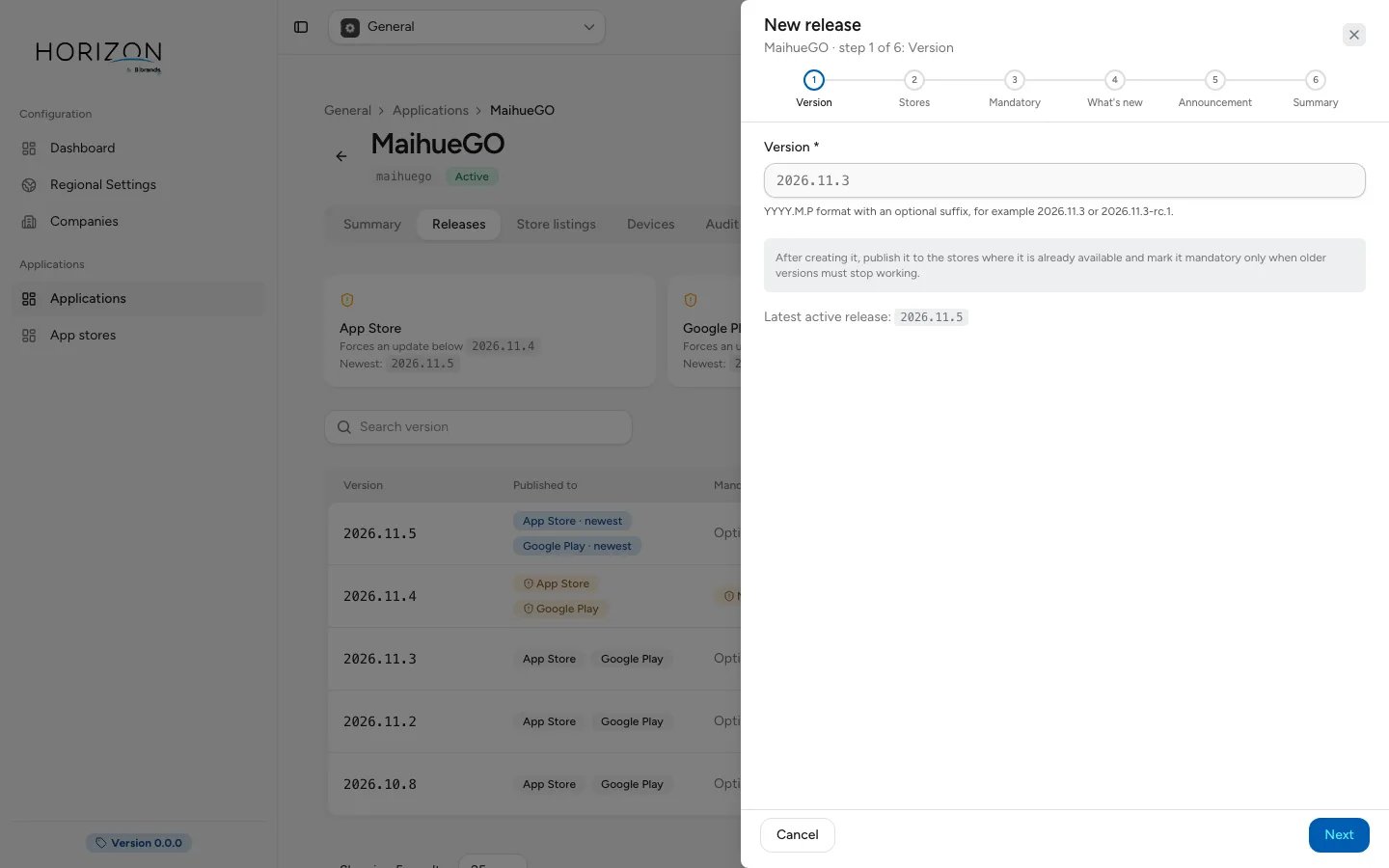
Step 1, Version: the CalVer of the new release and the latest active one.
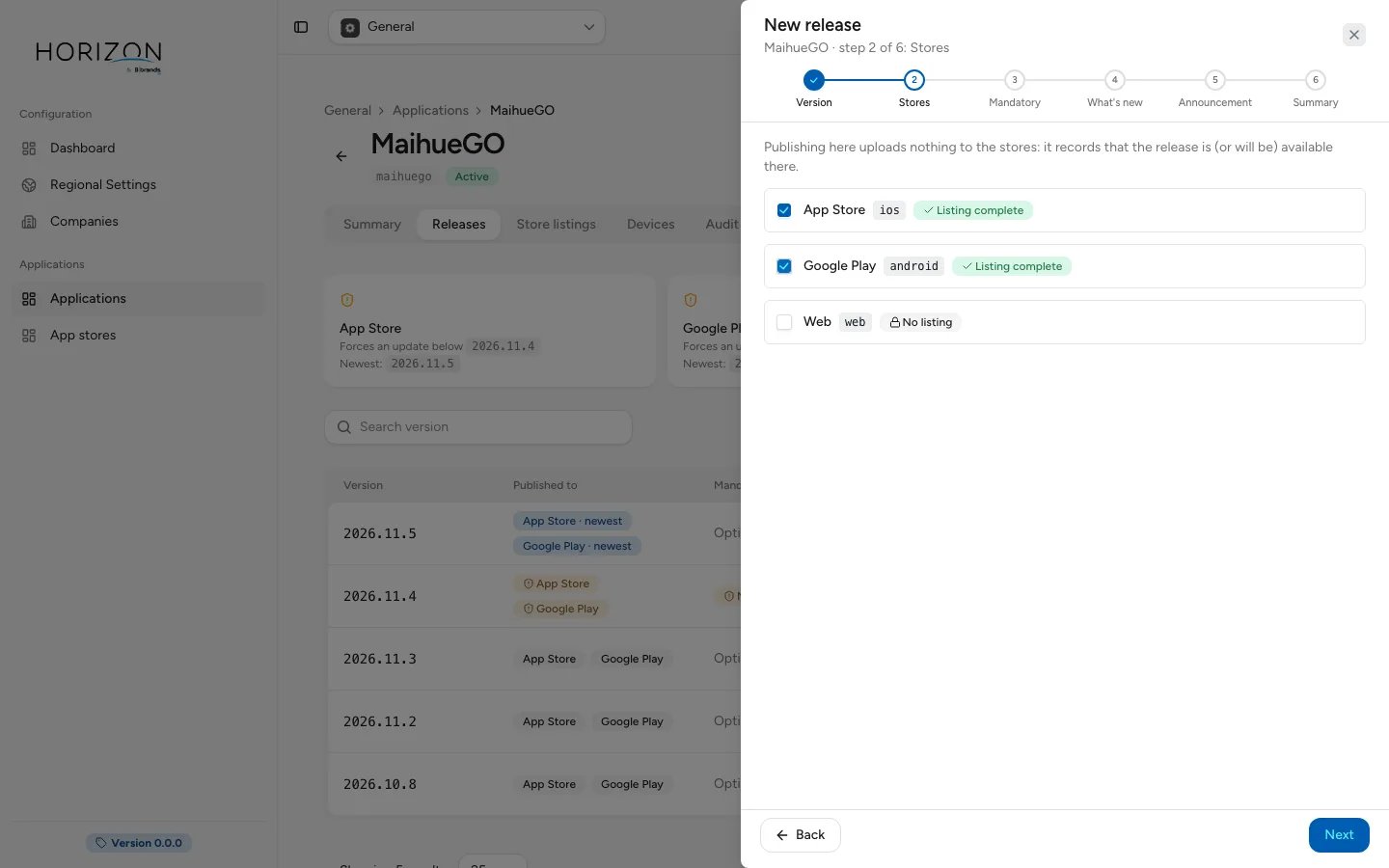
Step 2, Stores: only stores with a complete listing can receive announcements.
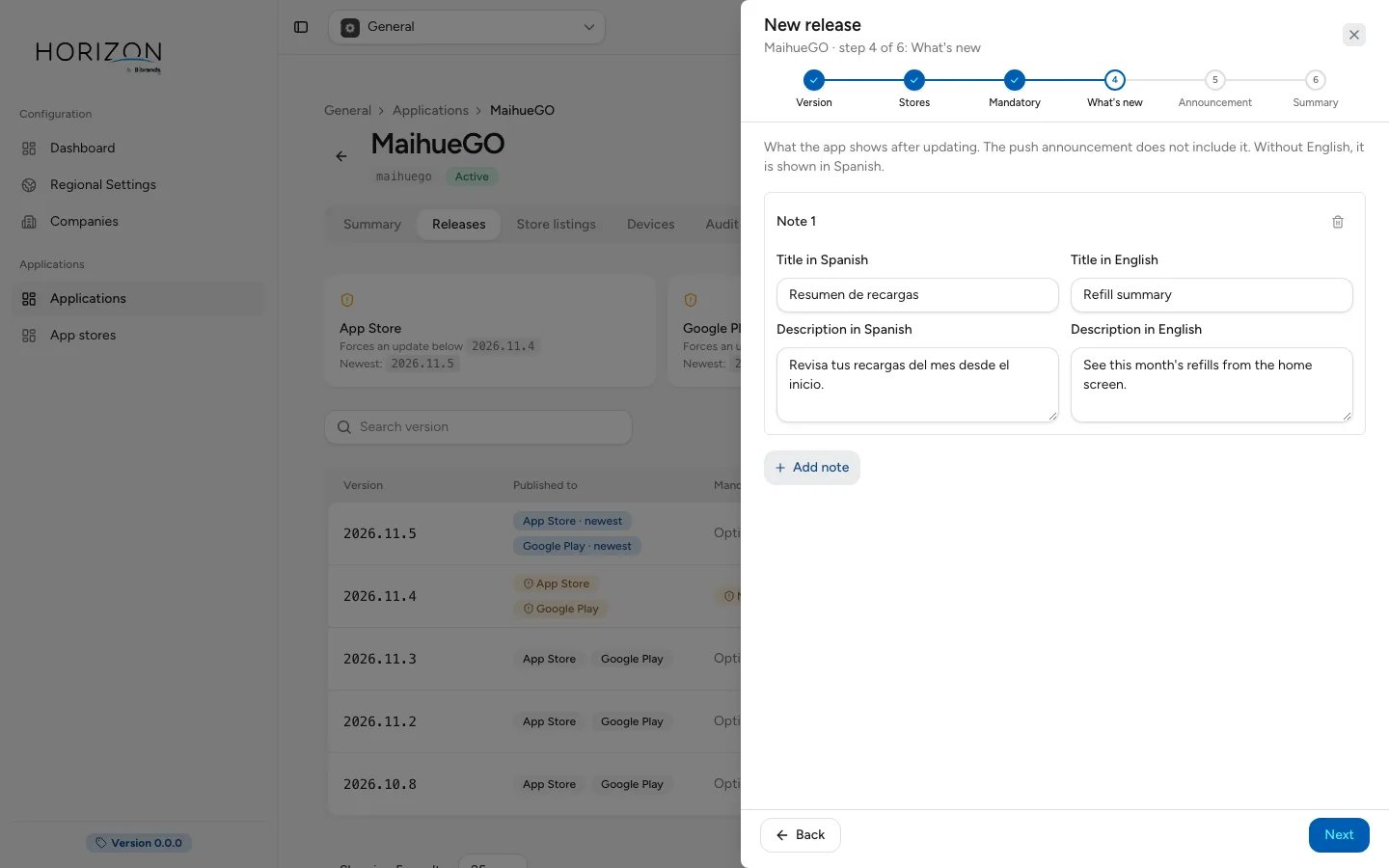
Step 4, the release notes in Spanish and English.
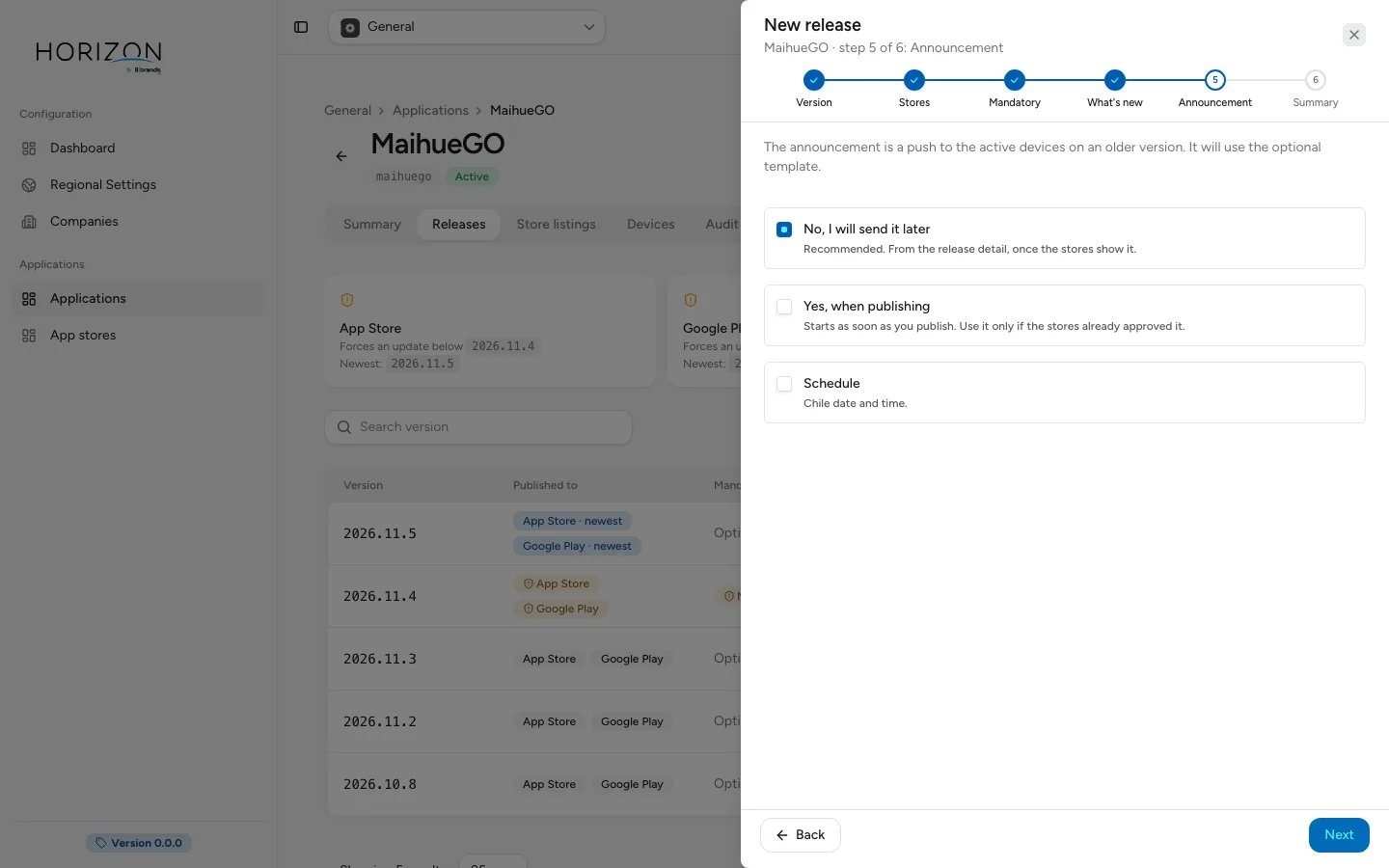
Step 5, Announcement: send it later, when publishing, or schedule it.
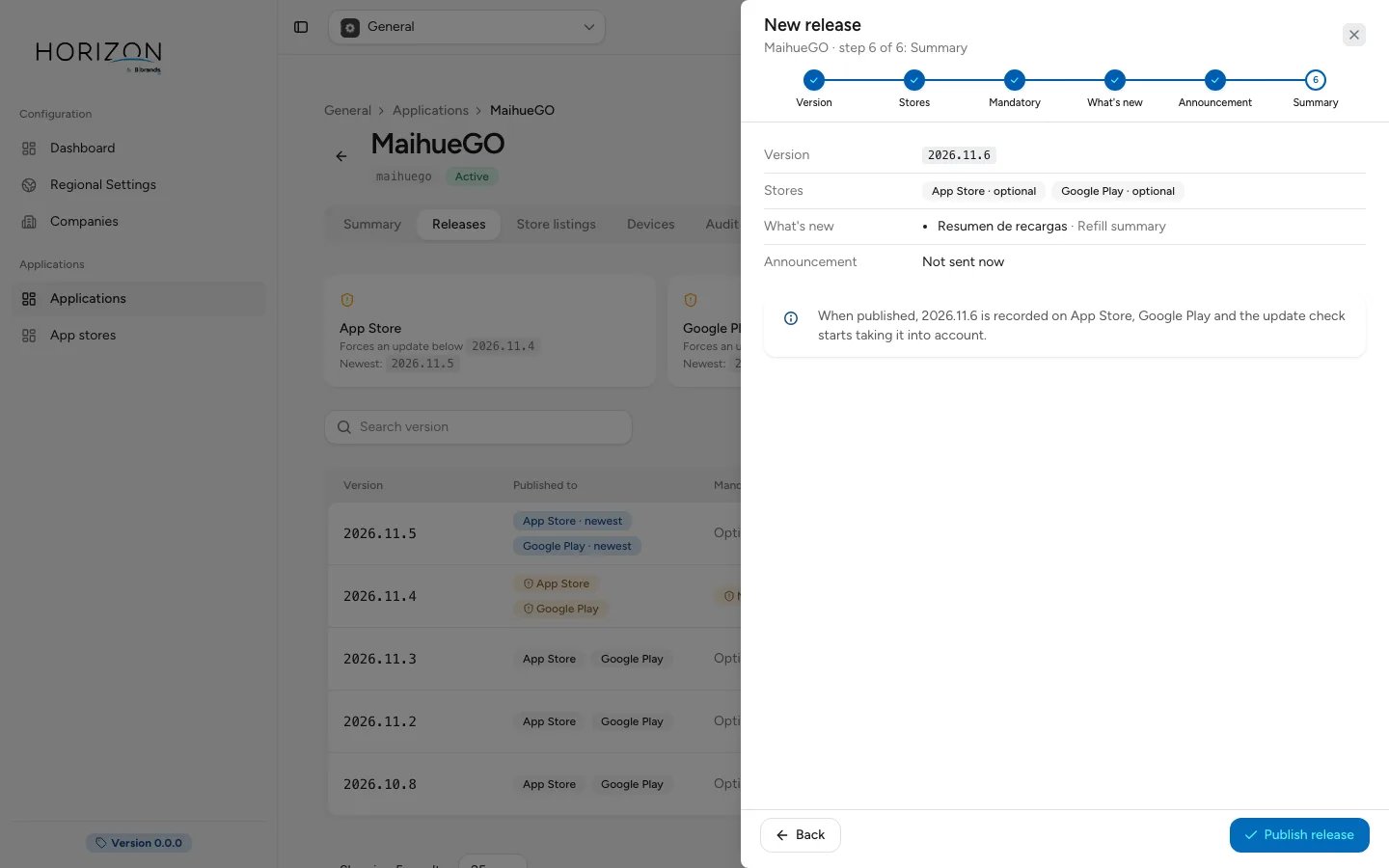
Step 6, Summary: what gets registered when you publish.
Step by step
1
Version
Type the Version in CalVer, the same one the installed app reports (
2026.11.5 or 2026.11.5-rc.1). The
hint “Latest active release:” shows the current one. If the version is not above every existing one, the wizard
warns: “This version is not above every existing one: it will not be the newest and cannot be announced.”2
Stores
Tick the stores where the version is (or will be) live. “Publishing here uploads nothing to the stores: it
records that the release is (or will be) available there.” Each store shows Listing complete or No
listing; “You can publish to a store without a listing or to the web, but that store cannot be announced.”
3
Mandatory
Turn Mandatory on only for the stores where older versions must stop working. The wizard shows “Today
active devices on this platform have an older version.” and asks you to tick “I understand that devices
with an older version will be blocked.”
4
What's new
Add the notes the app shows after updating: Title in Spanish (required), Description in Spanish, and
optionally the English ones. Add note adds another. “The push announcement does not include it.”
5
Announcement
Choose No, I will send it later (recommended: “From the release detail, once the stores show it.”), Yes,
when publishing (“Use it only if the stores already approved it.”) or Schedule with a Date and
Time (Chile). The template is the optional or mandatory one depending on the previous step. This step only
appears when announcements are on in the tier.
6
Summary
Check the version, stores, notes and announcement. “When published, is recorded on and the
update check starts taking it into account.” Click Publish release.
Business rules
States and messages
Errors
Why it works this way
The wizard writes through the same endpoints as the rest of the console, so every rule, audit row and installation link applies exactly as if you had done each step by hand. There is no single transaction for all of it: when a later step fails, the release stays and the wizard tells you what is missing instead of rolling back a version the apps may already be checking. The recommended choice is to announce later, because a push that arrives before the store shows the version leads users to the old one.Technical detail
FAQ and support cases
The Announcement step is missing
The Announcement step is missing
Announcements are off in this tier, or your role cannot read them. Publish without it and announce later.
I published to the wrong store
I published to the wrong store
Open the release and use Unpublish on that store. If it was mandatory, remove the mandatory flag first.
Can I edit the version after publishing?
Can I edit the version after publishing?
Yes, from the release detail, but the apps compare versions: change it only to fix a typo before anyone updates.