

What it is for
This page explains how you move between modules and screens: the module switcher at the top, the sidebar with the sections of the active module and the breadcrumbs above the title of each screen.What you see
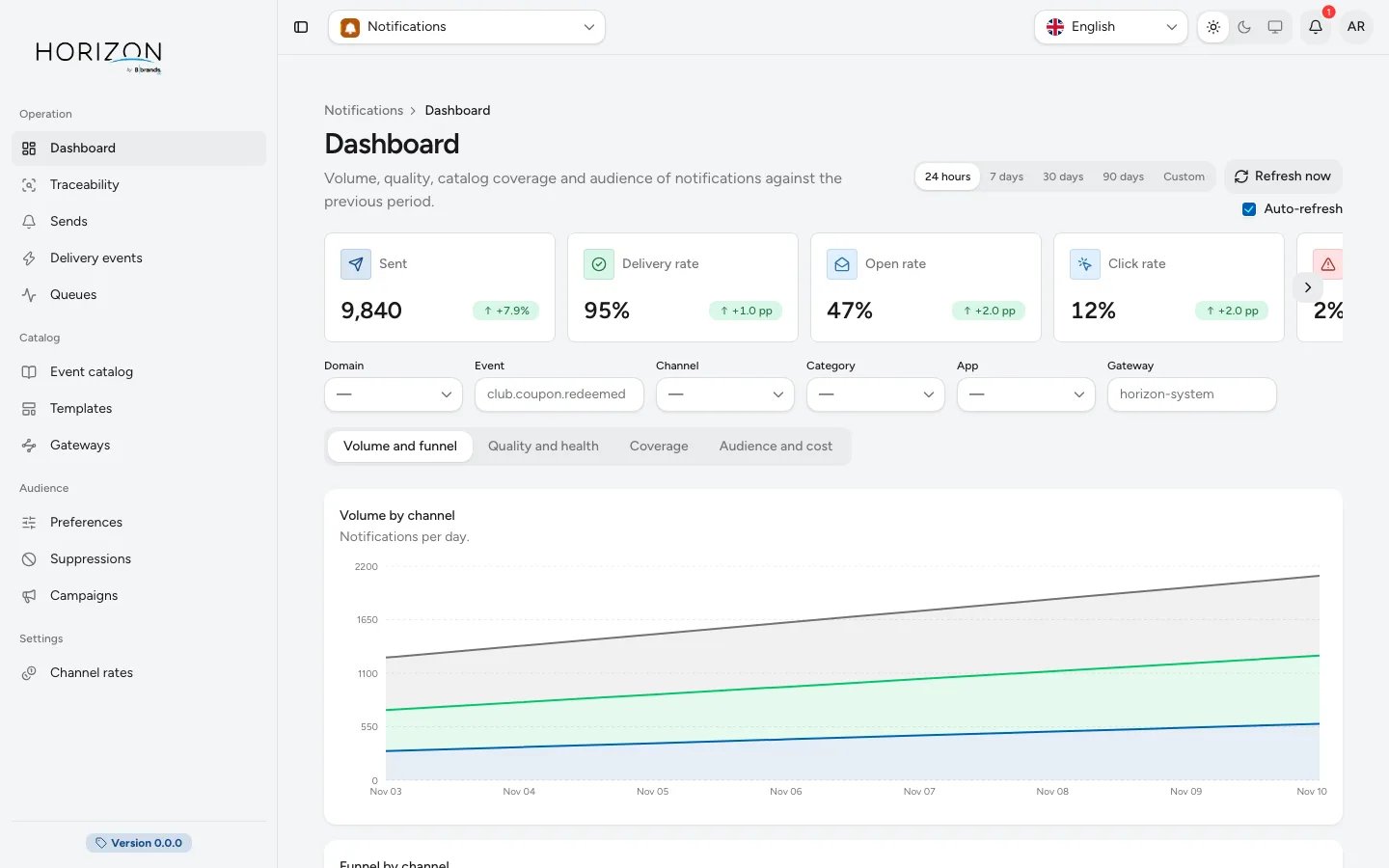
A module screen: top bar, sidebar with the sections and the content with breadcrumbs, title and description.
Step by step
Switch modules
1
Open the module switcher
Press the switcher in the top bar. It shows the active module, or Modules on a screen that belongs to none.
2
Choose the module
The list shows each module with its picture, its name and a description, in alphabetical order. Press the one
you need: its main screen opens.
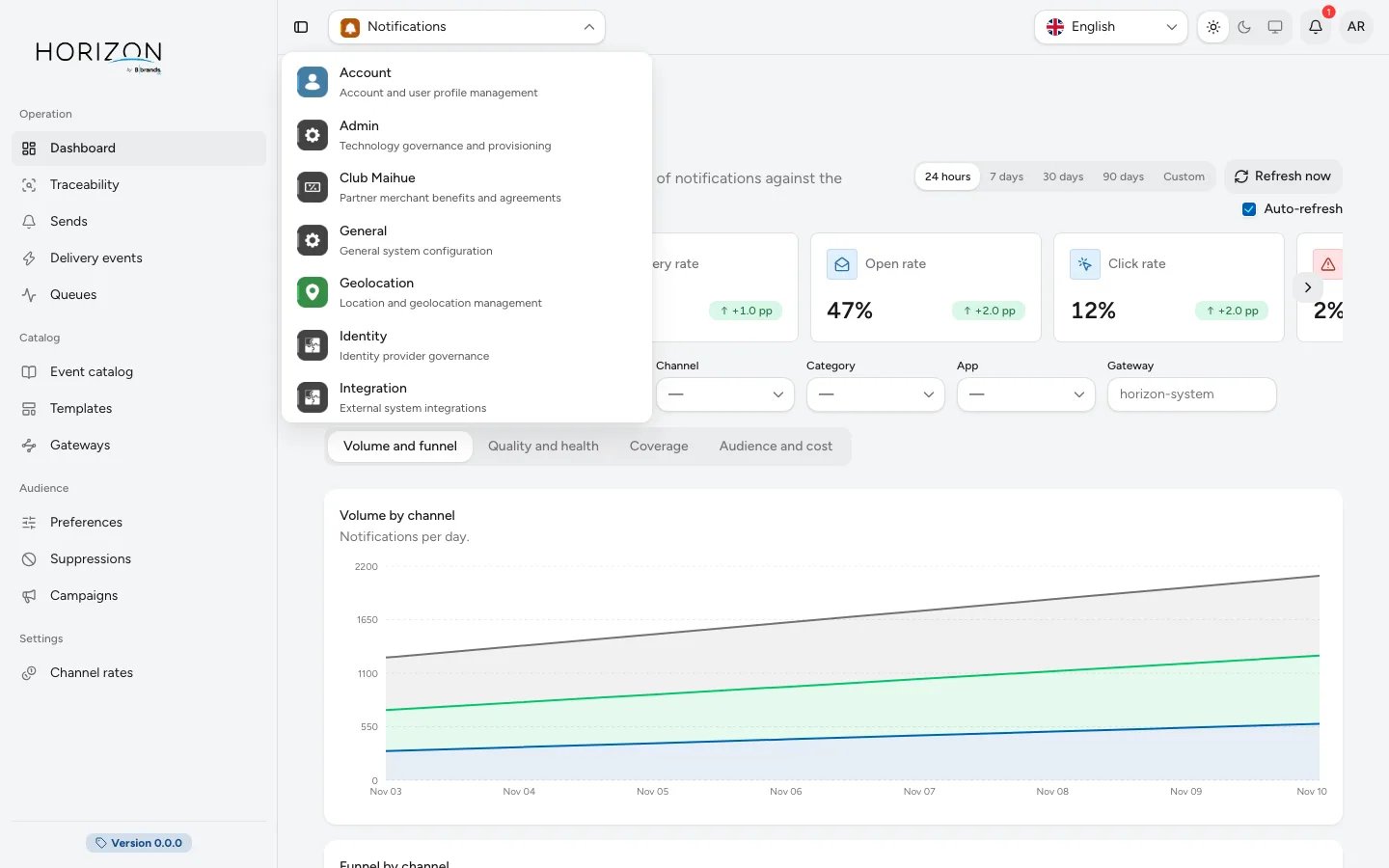
Module switcher open: each module with its picture, name and description.
In the switcher, module names show in English in both languages (for example Payment or Queue) and the
description shows in your language. The breadcrumbs use the name in your language.
Move within a module
1
Pick a screen in the sidebar
The sidebar groups the module’s screens under section headings. The screen you are on stays highlighted, also
when you open a record’s detail.
2
Go back with the breadcrumbs
Press the module or parent screen name in the breadcrumbs to go back.
Collapse the sidebar
Press the sidebar button, the edge of the sidebar or the shortcut Cmd + B (Mac) or Ctrl + B (Windows). Collapsed, the sidebar shows icons only, and each icon shows its name on hover. After a page reload the sidebar opens expanded again.Rules
FAQ and support cases
I can't find a module in the switcher
I can't find a module in the switcher
The switcher lists every module. If you see the Access restricted notice when you open it, you lack the
permission of that screen.