

What it is for
The bell in the top bar gathers the notifications Horizon sends to you: platform alerts, offline machines, exports ready. From the user menu you choose which notifications you want to receive on each channel.The bell
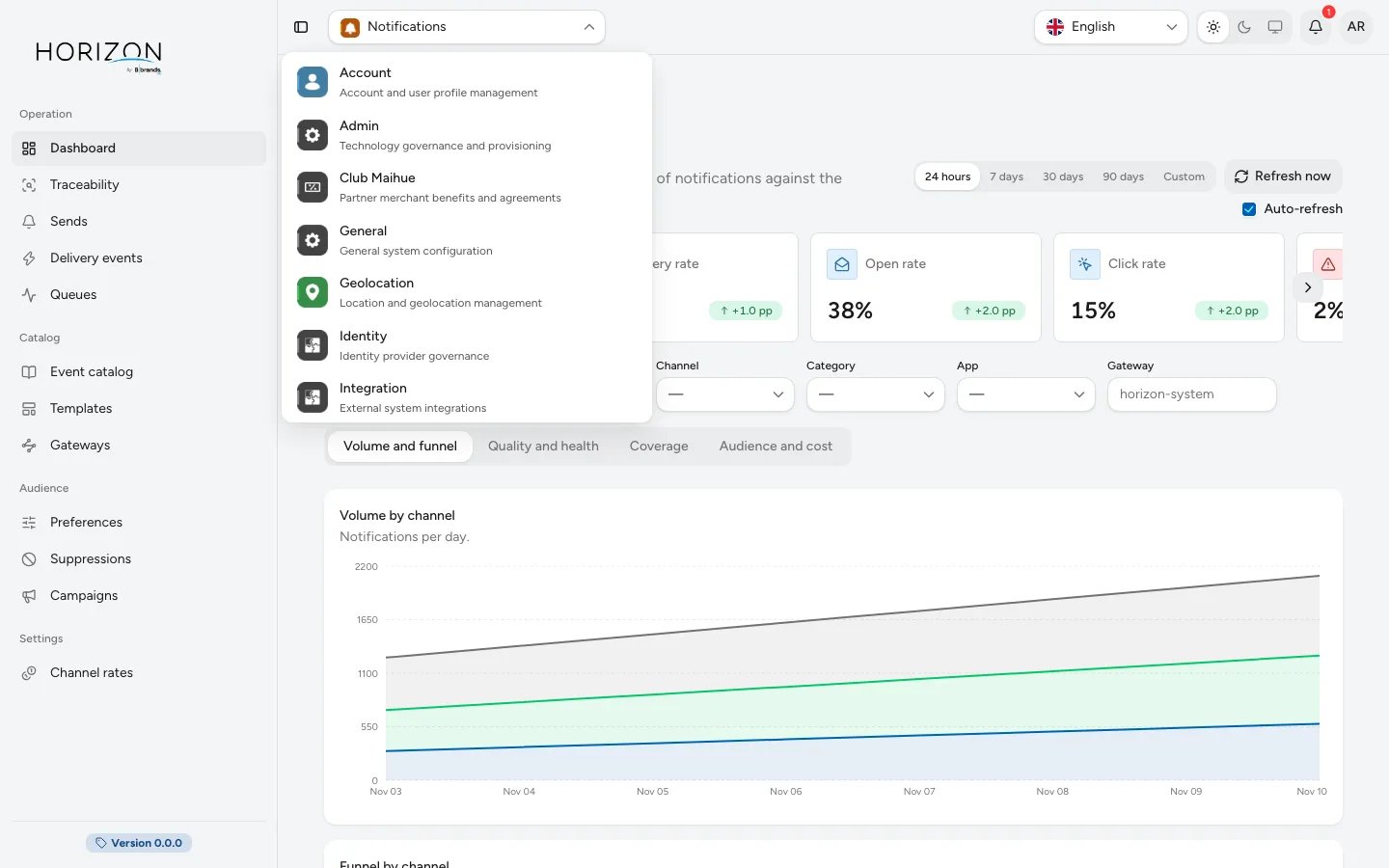
Bell open with one unread notification, two read ones and View all at the bottom.
1
Open the bell
Opening it marks the notifications as seen, but they stay unread until you open them.
2
Open a notification
Press it: it is marked read and takes you to the related screen. External links open in another tab.
3
Mark all as read
Press Mark all as read once you have reviewed everything.
The bell refreshes itself in real time and, as a fallback, every minute. It shows the latest 20 notifications;
older ones are in your full inbox.
Your full inbox
Press View all at the bottom of the bell. My profile › Notification inbox opens: “Every bell notice, newest first.”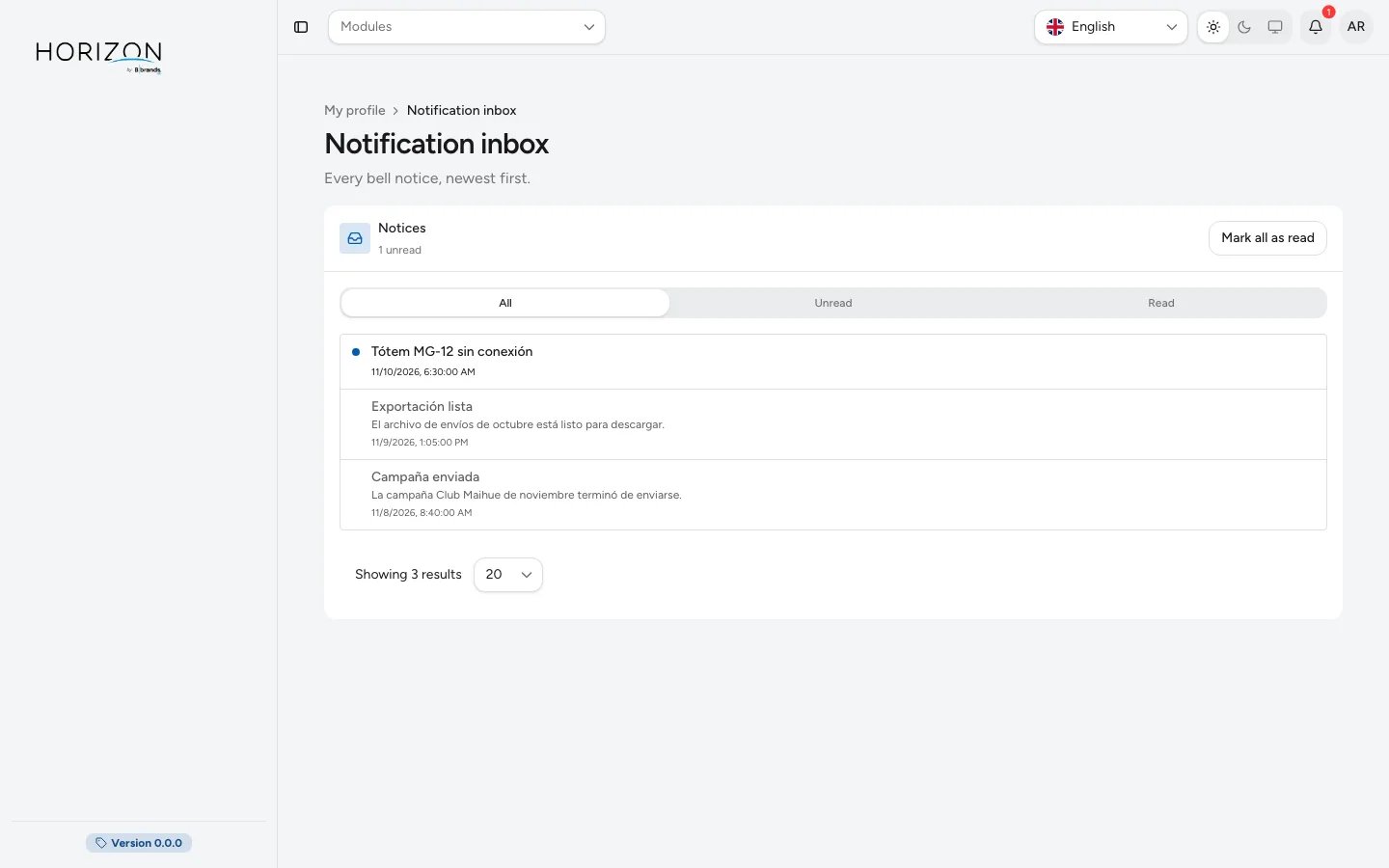
Full inbox with one unread and two read notifications.
1
Open the inbox
Open the bell and press View all.
2
Filter
Press Unread to see only what is pending, or Read to find a notification you already opened.
3
Open a notification
Press it: as in the bell, it is marked read and takes you to the related screen.
The inbox also refreshes in real time and every minute. Notifications with an expiry date (for example, a 30-day
campaign) leave it when they expire, as in the bell.
Your notification preferences
1
Open the user menu
Press your initials at the top right.
2
Press Notifications
In the Account section, press Notifications. My profile › Notifications opens: “Choose which
notifications you receive on each channel.”
3
Flip a switch
Each row is a category and each column a channel (Email, Push, In-app). Each switch saves at once;
there is no Save button. You see the toast Preference saved: “It applies to every session of your account.”
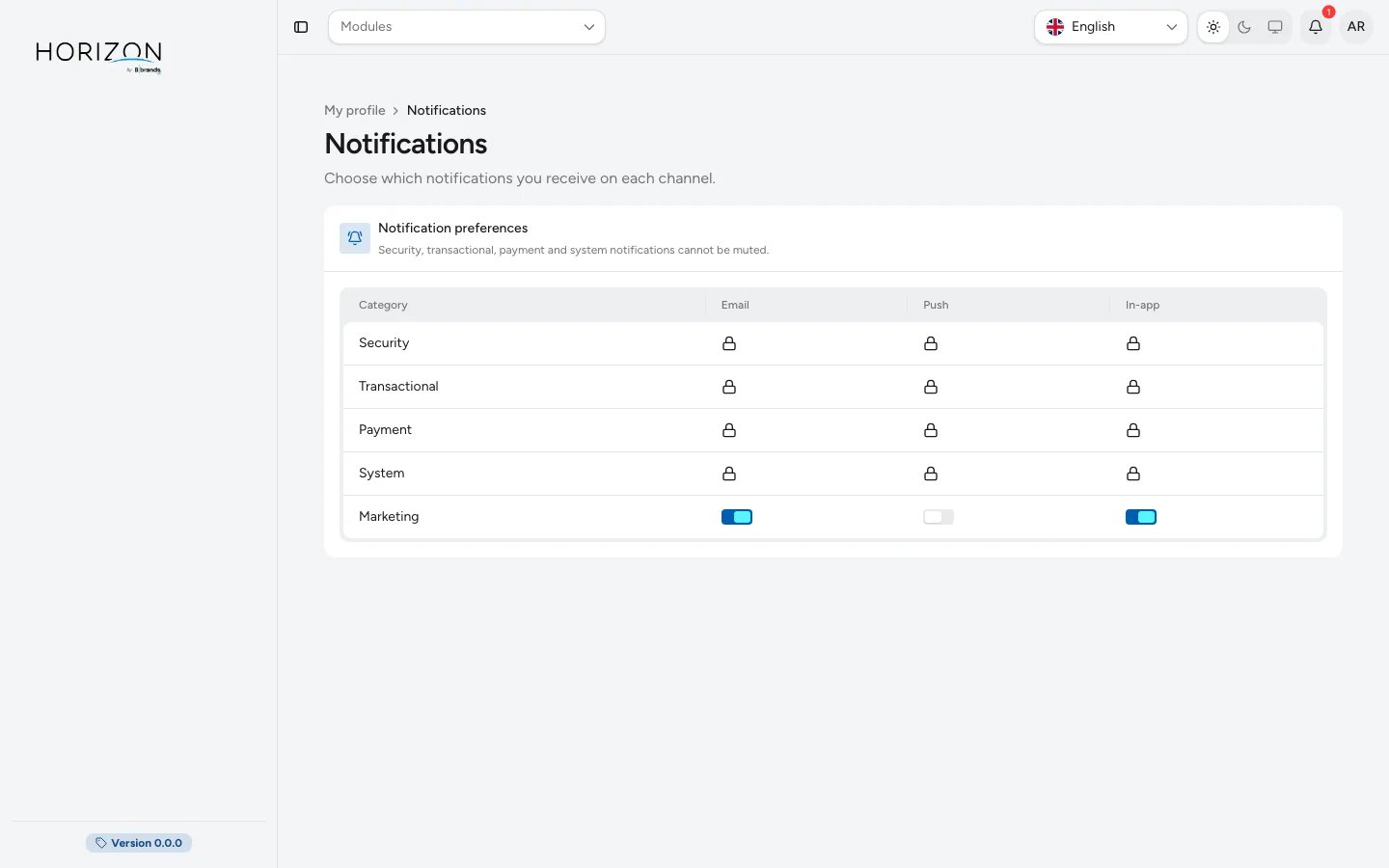
Your preferences: only marketing can be muted; the rest show a lock.
Business rules
Errors
FAQ and support cases
I want to stop receiving security alerts
I want to stop receiving security alerts
You can’t: security, transactional, payment and system categories cannot be muted.
I am looking for an old notification that is no longer in the bell
I am looking for an old notification that is no longer in the bell
The bell shows the latest 20. Press View all and move between pages, or use Read if you already opened it.
The bell does not show a notification I got by email
The bell does not show a notification I got by email
Each channel is independent: a notification may go by email only. The bell shows in-app notifications.