

What it is for
This page explains how you sign in to Horizon Enterprise with your B Brands account, what decides whether you may enter, and what to do when you see an access denied or session expired screen.How to sign in
1
Open Horizon Enterprise in the browser
Without an open session, Horizon takes you to the Sign in to Horizon page.
2
Choose how to sign in
Enter your Email and Password and press Sign in. You can also use one of the providers under or
continue with, or ask to Send me a link: you get an email with a link that expires in 1 hour and works
once.
3
Wait while your access is prepared
If your account belongs to the group’s staff, the Preparing your access screen may show for a moment while
Horizon opens your session with the permissions of your position. Then you enter the console.
Who may sign in
Horizon Enterprise is only for the staff of the group’s companies. You may enter if you are an active worker with at least one role in an internal company. Your permissions are the sum of the roles of your position in the internal companies plus the roles of your personal account.- Positions, seats and workers are managed in the Organization module (Organization chart, Branches, Seats, Cargos, Workers).
- Roles and permissions are managed in the Permission module (Permissions, Roles, Accounts and the Role ↔ Permissions, Account ↔ Roles and Account ↔ Permissions assignments).
What you see without access
There is no access request form inside Horizon today. Ask your manager or a Permission module administrator,
naming the permission shown in the At a glance block of the manual page.
When the session expires
- The session lasts up to 30 days in the same browser unless you sign out.
- Your permissions are checked again every 10 minutes: a role added or removed shows up without signing in again.
- If the server says your session is no longer valid, Horizon signs you out and takes you to sign in again (“Session expired: Your session expired. Sign in again to continue.”). After that you return to the same page.
How to sign out
1
Open the user menu
Press your initials at the top right.
2
Press Sign out
It is the last option of the menu. It asks for no confirmation: it signs you out of every Horizon app in that
browser and takes you to the sign-in page.
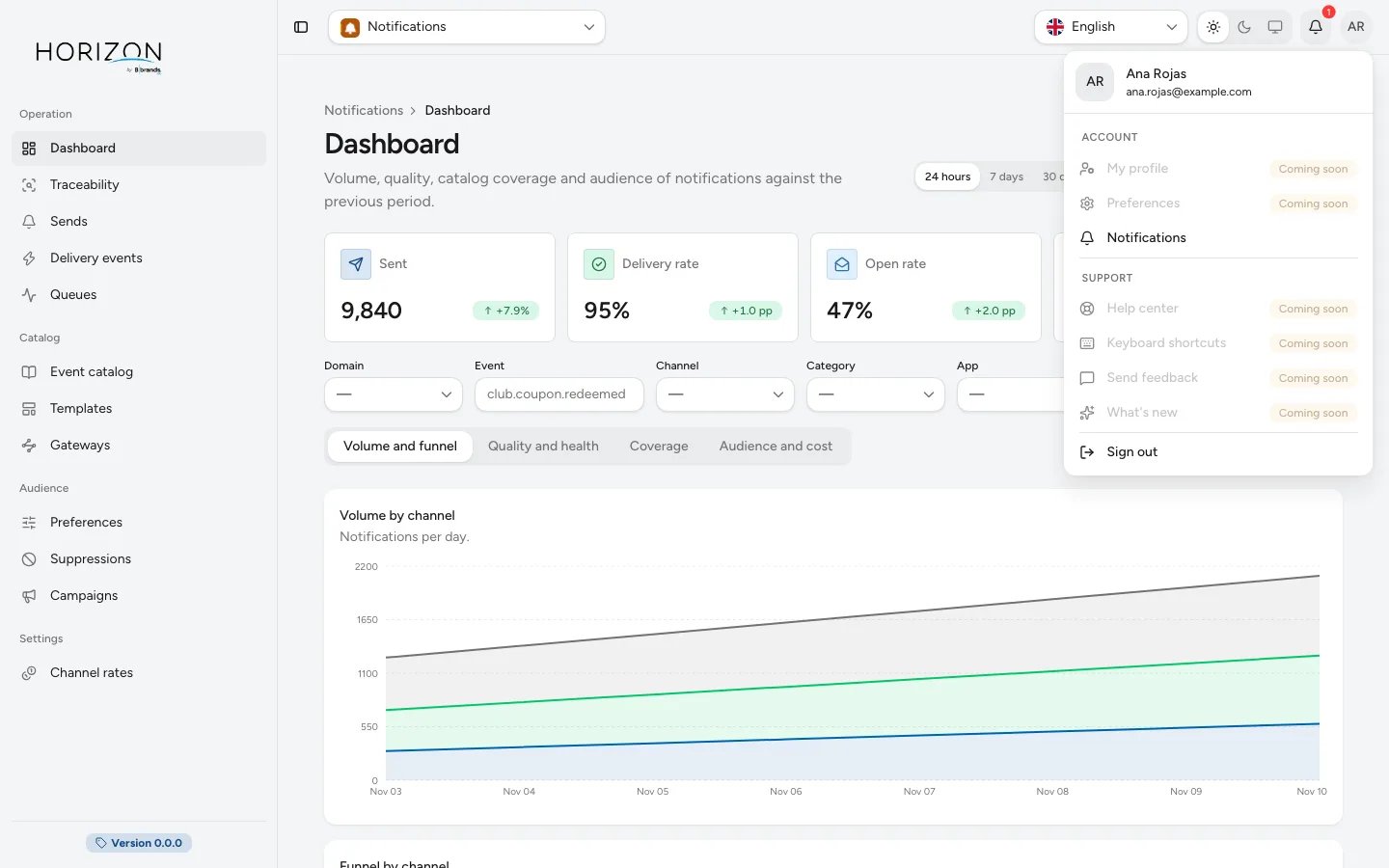
User menu with your name, your email and Sign out at the end.
FAQ and support cases
I see 'You don't have access to Horizon' but I work for the company
I see 'You don't have access to Horizon' but I work for the company
Your account has no position with roles in an internal company, or your position is inactive. Ask your manager
to check your record in Organization › Workers and Cargos.
I signed in but I don't see a module or an action
I signed in but I don't see a module or an action
You lack the role that grants that permission. The At a glance block of each manual page names the permission.
It asked me to sign in again in the middle of my work
It asked me to sign in again in the middle of my work
Your session expired or was invalidated. Sign in again: you return to the same page. Anything you had not saved
is lost.