

At a glance
What it is for
“The listing is where the announcement leads: tapping the push opens this URL in the store of the phone’s platform. The bundle ID identifies the app in each store.” Each environment has its own build of the app (.dev, .cert
and production), so the bundle also decides which phones an announcement of that environment can reach.
How to get there
- General › Applications → the application → Store listings.
What you see
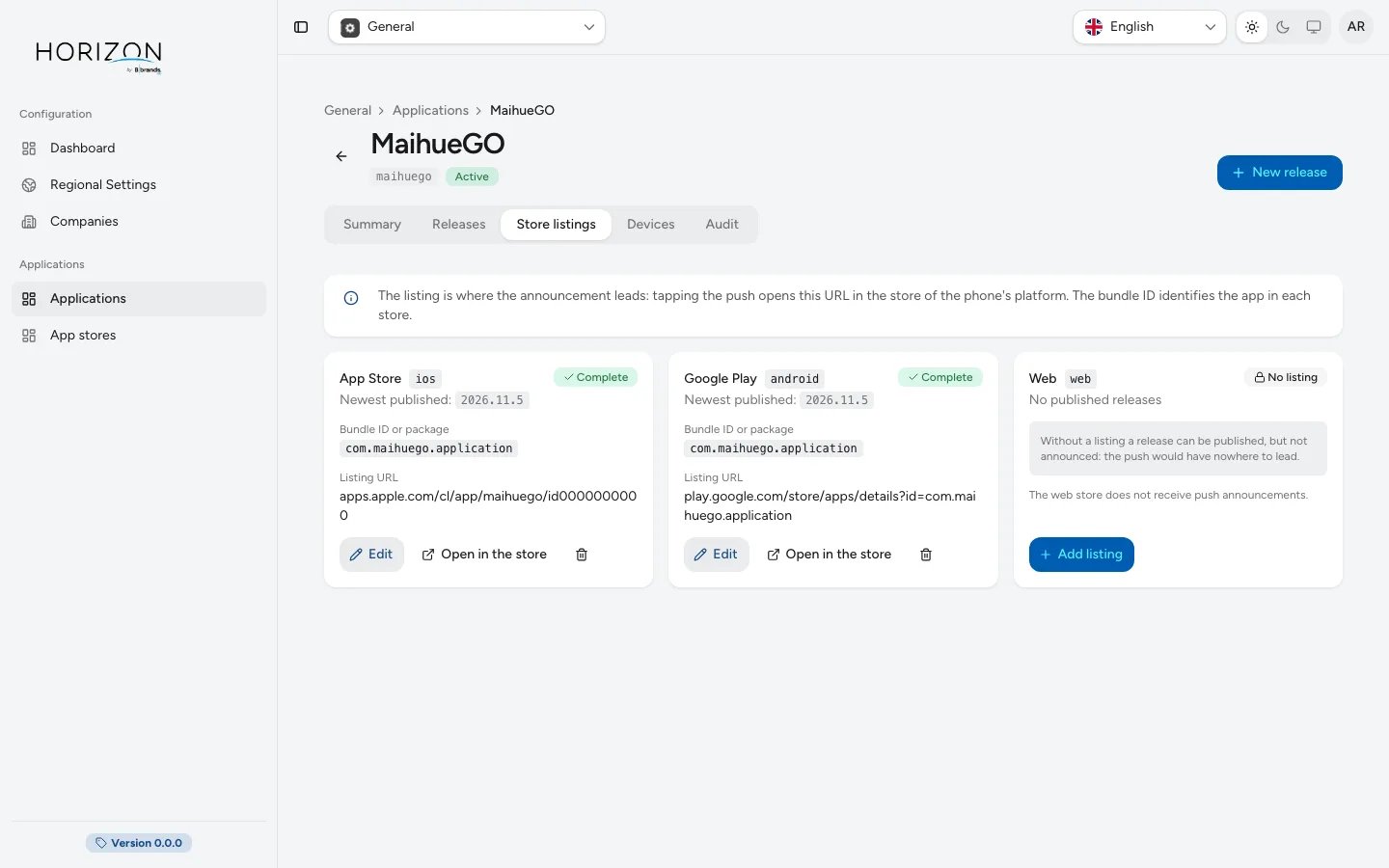
Store listings tab: bundle ID and listing URL per store.
Step by step
1
Open the store card
Click Add listing (or edit an existing one). The form ” listing” opens.
2
Fill the bundle
Bundle ID or package: “Identifier of the app in the store for this tier, for example com.company.app.”
For MaihueGO use
com.maihuego.application.dev in development, com.maihuego.application.cert in
certification and com.maihuego.application in production.3
Fill the URL
Listing URL: “Public address of the app in the store. It must start with https://.” “This URL is where the
announcements of this store lead. Announcements already sent keep the previous URL.”
4
Save
“Listing saved” · “The listing is up to date.”
Business rules
States and messages
Errors
Why it works this way
The stores serve one public page per app, but each environment installs a different build. Keeping the bundle per environment in the listing means an announcement sent from development only reaches development builds, even though all environments share the same push provider app. The URL lives here, not in the code, so a change of store page does not need a release.Technical detail
FAQ and support cases
The audience is 0 although Summary shows outdated devices
The audience is 0 although Summary shows outdated devices
Check the bundle: in development it must end in
.dev, in certification in .cert.Where did the old MaihueGO store URLs go?
Where did the old MaihueGO store URLs go?
The retired MaihueGO store-release table kept a URL per platform; they were copied here where a listing was
missing.