

At a glance
What it is for
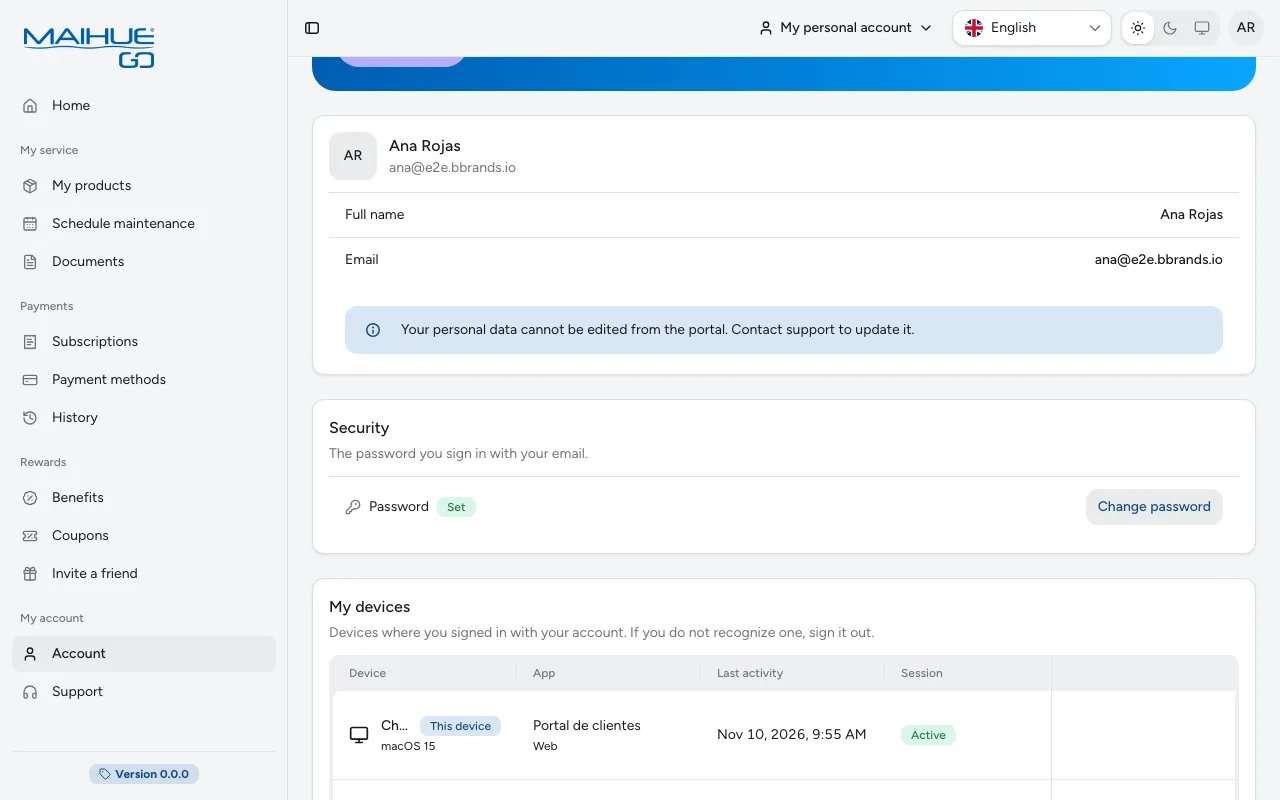
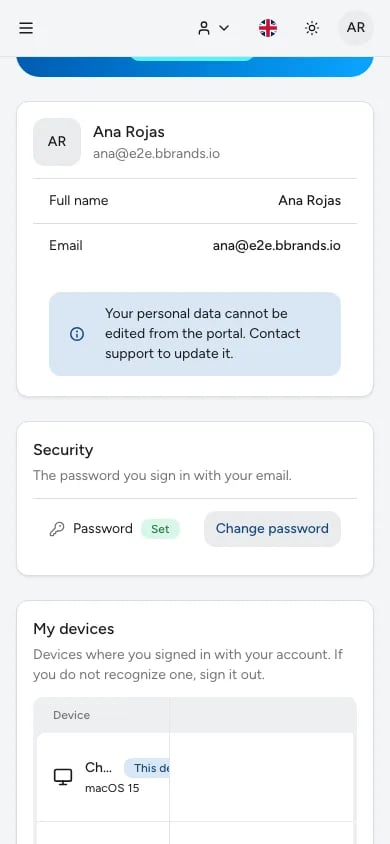
The password is optional: the customer can sign in with Google, Apple, Microsoft or an e-mail link. Here they can create a password to also sign in with e-mail and password, or change it, and close the session on their other devices at the same time.How to get there
- In Account, the Security block.
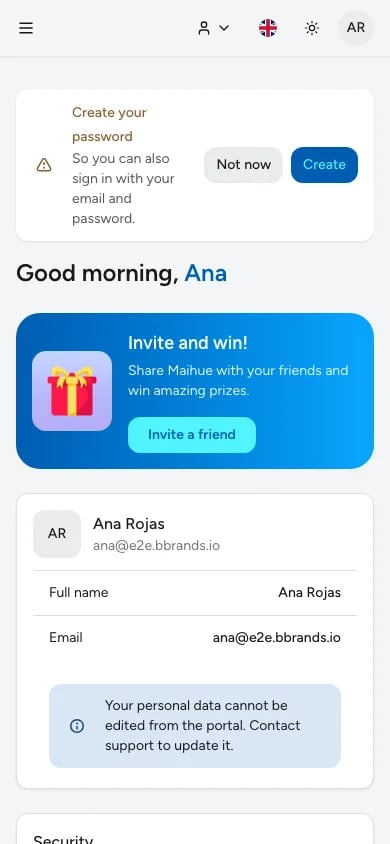
- Without a password, a yellow “Create your password” banner shows at the top of the portal.

Blocks of the Account section
What the customer sees
- Desktop
- Mobile
Step by step
1
Create a password
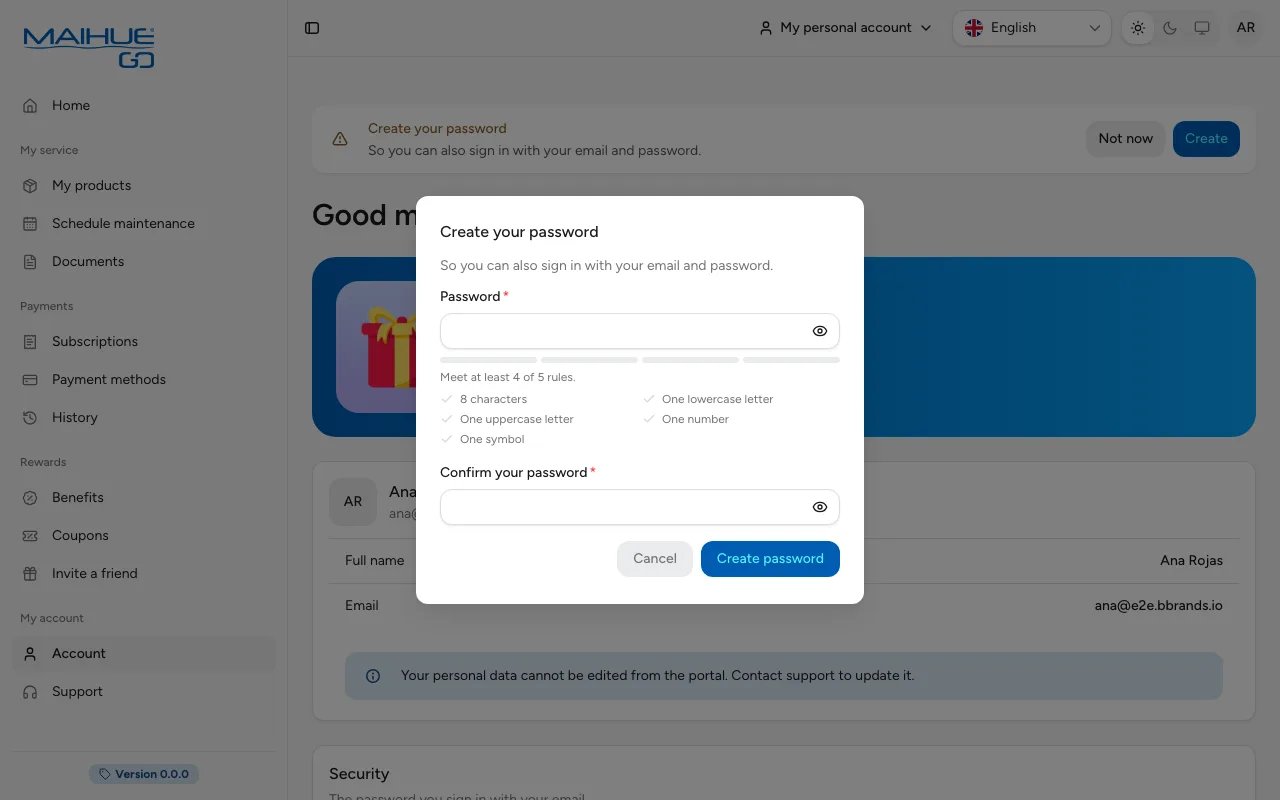
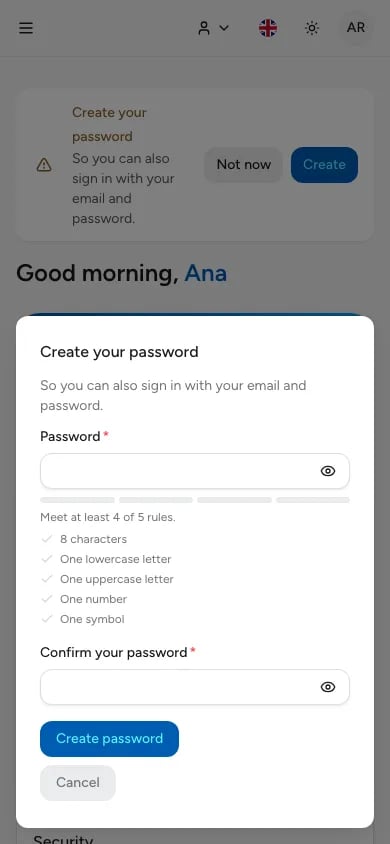
From the banner (Create) or from Security (Create password). Types the password and its confirmation and taps Create password.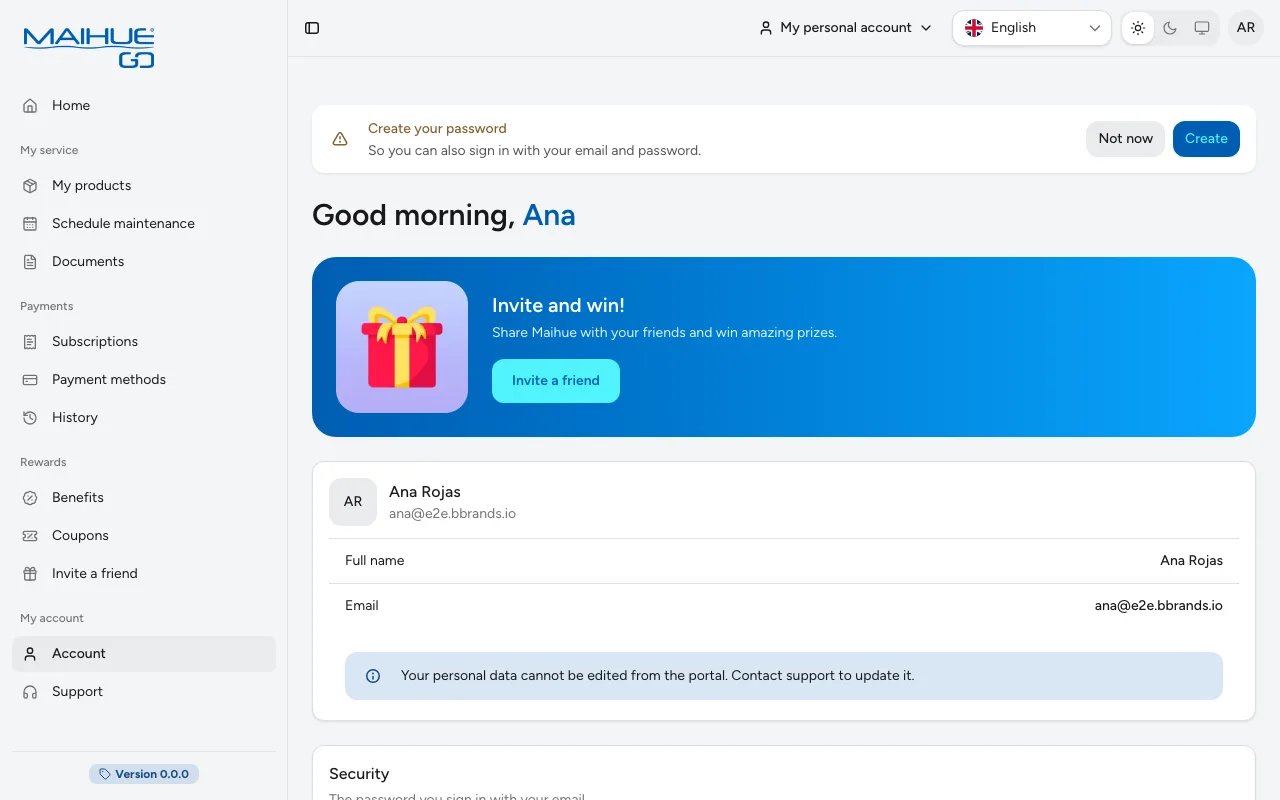
- Desktop
- Mobile
- Desktop
- Mobile
2
Change the password
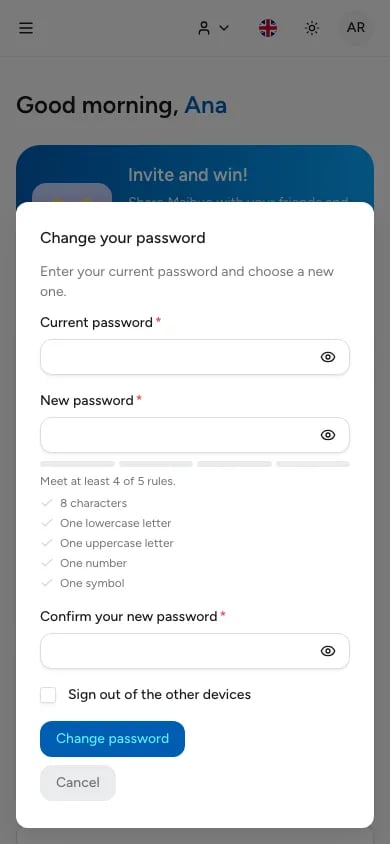
Taps Change password, types the Current password, the new one and its confirmation. Optionally ticks Sign out of the other devices and taps Change password.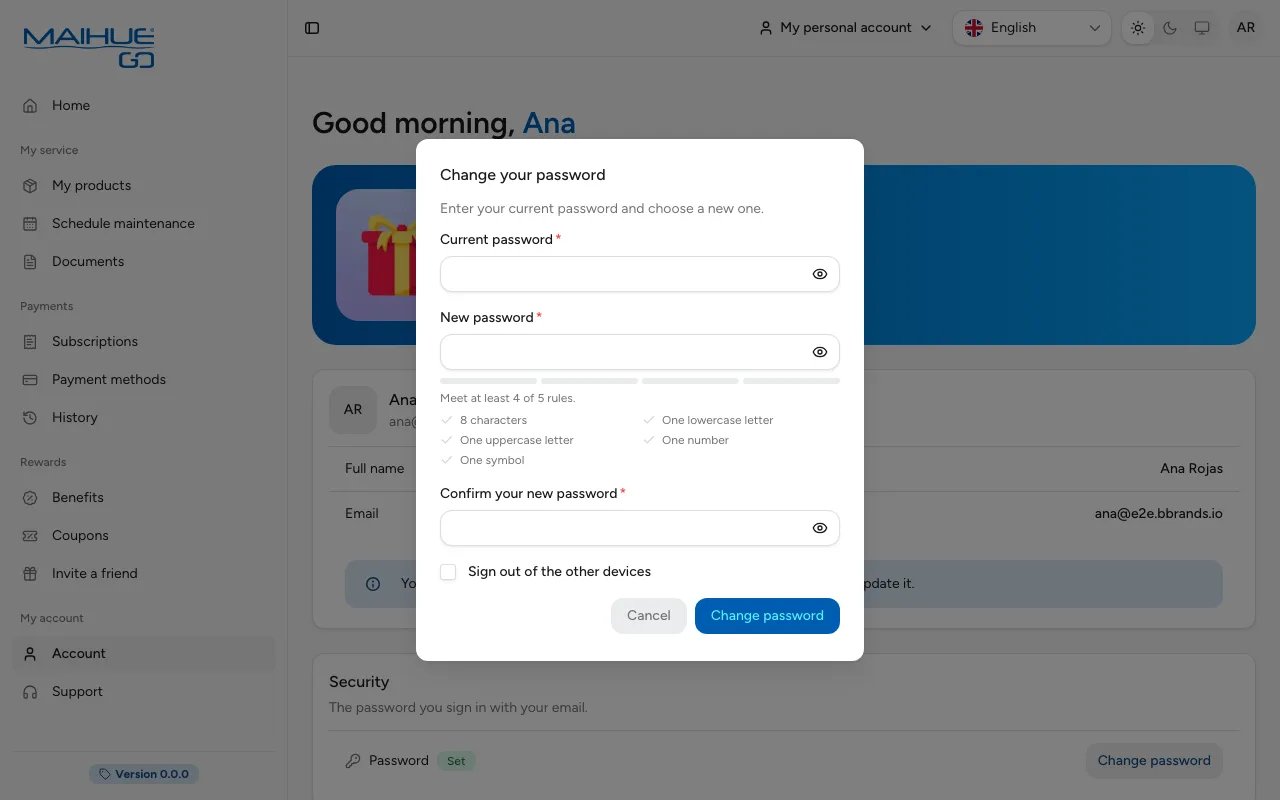
- Desktop
- Mobile
3
Postpone the banner
Not now hides the banner until the next sign-in.
Business rules
States and messages
Errors
Why it works this way

How the password is created or changed
Technical detail
FAQ and support cases
They forgot their password
They forgot their password
They can sign in with the e-mail link from the sign-in page and then change it here.
They lost a phone
They lost a phone
Change the password ticking sign out of other devices, or close that session in My devices.