

At a glance
What it is for
A campaign is a marketing email sent once to a list of recipients, for example the Club benefits of the month. Here you create it (name, template, subject and pace), check the recipients an integration loaded, pause it if something is not ready and launch it. A launch goes through the same rules as any marketing notification: customers who opted out, suppressed addresses and the frequency cap are skipped.How to get there
- Sidebar: Notifications › Audience › Campaigns.
- Open a campaign by pressing its name or the arrow at the end of its row.
What you see
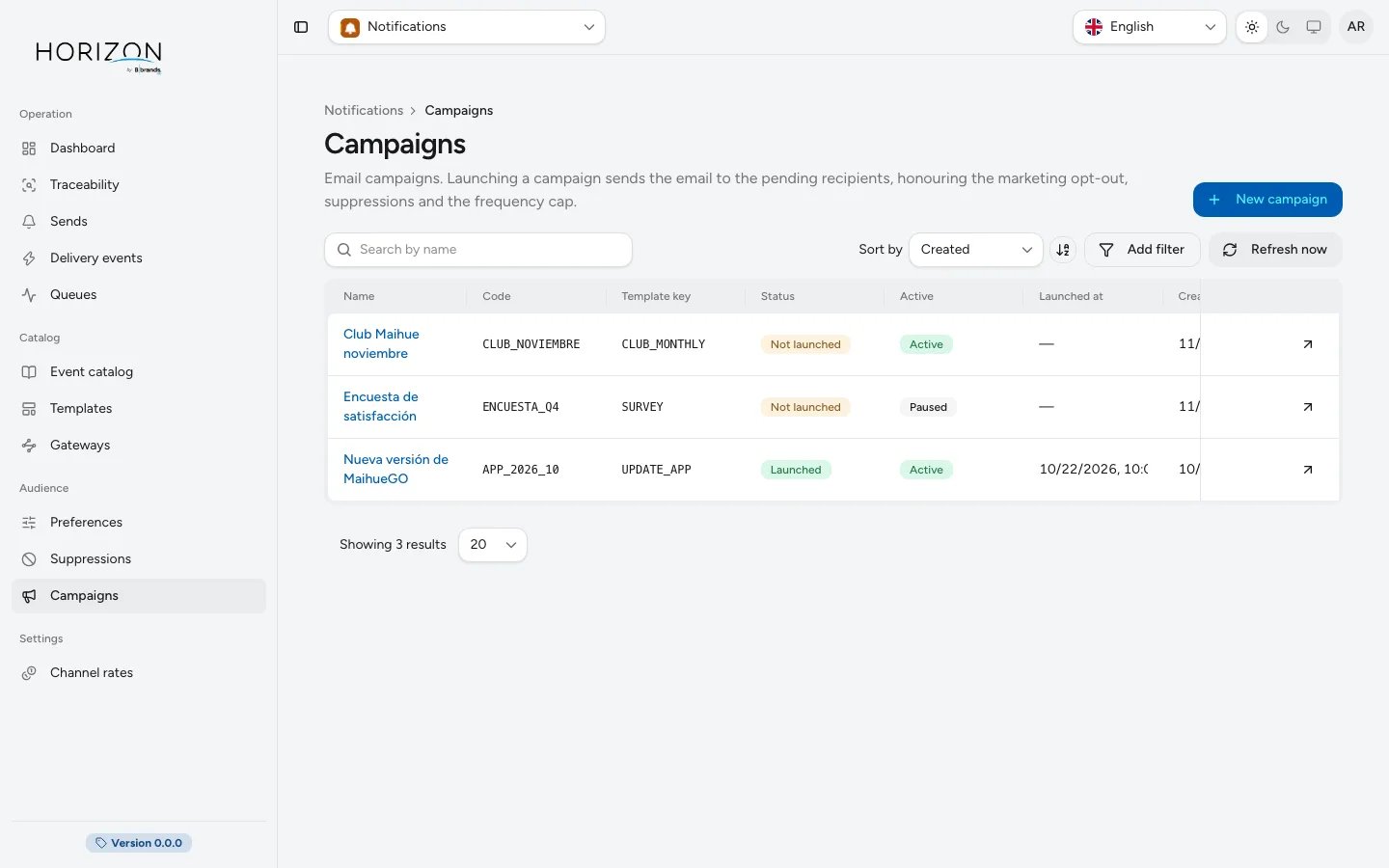
The campaign list: one row per campaign, with its status and whether it is active.
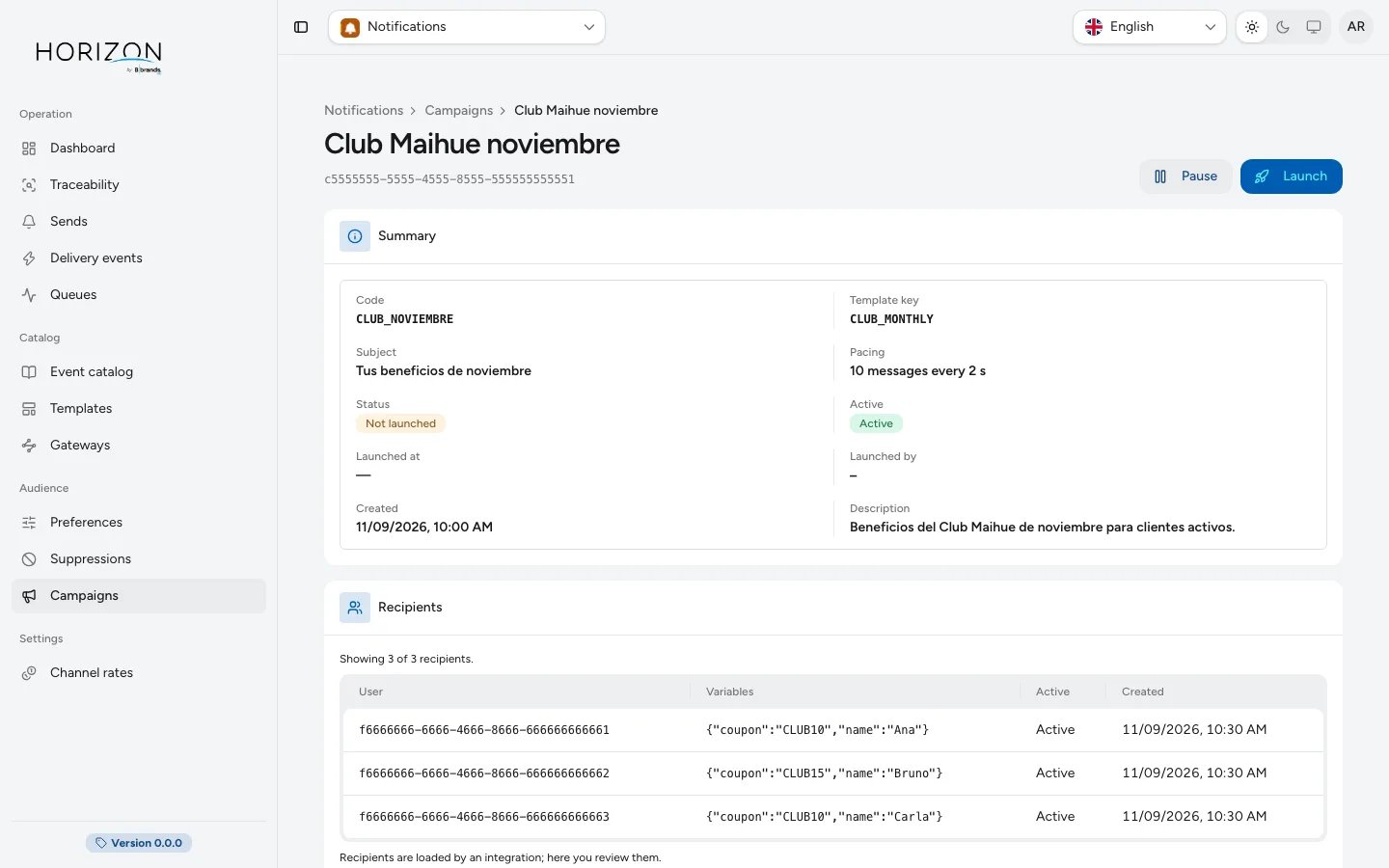
A campaign that was not launched: summary, recipients and the Pause and Launch buttons.
Step by step
Create a campaign
1
Open the form
Press New campaign. The “Create a campaign” dialog opens.
2
Name and code
Type the Name (up to 200 characters) and a Code (up to 100), for example
CLUB_DICIEMBRE.3
Pick the template
In Template pick one of the active campaign templates. If Subject is empty, it fills with the
template’s subject; change it if you want.
4
Set the pace
Batch size (1 to 500, default 10) is how many emails go out together and Interval (seconds) (0 to 3600,
default 2) the wait between batches. Add a Description if you want (up to 2000 characters).
5
Create
Press New campaign. You see Campaign created: “Add its recipients, then launch it.” and the campaign
opens.
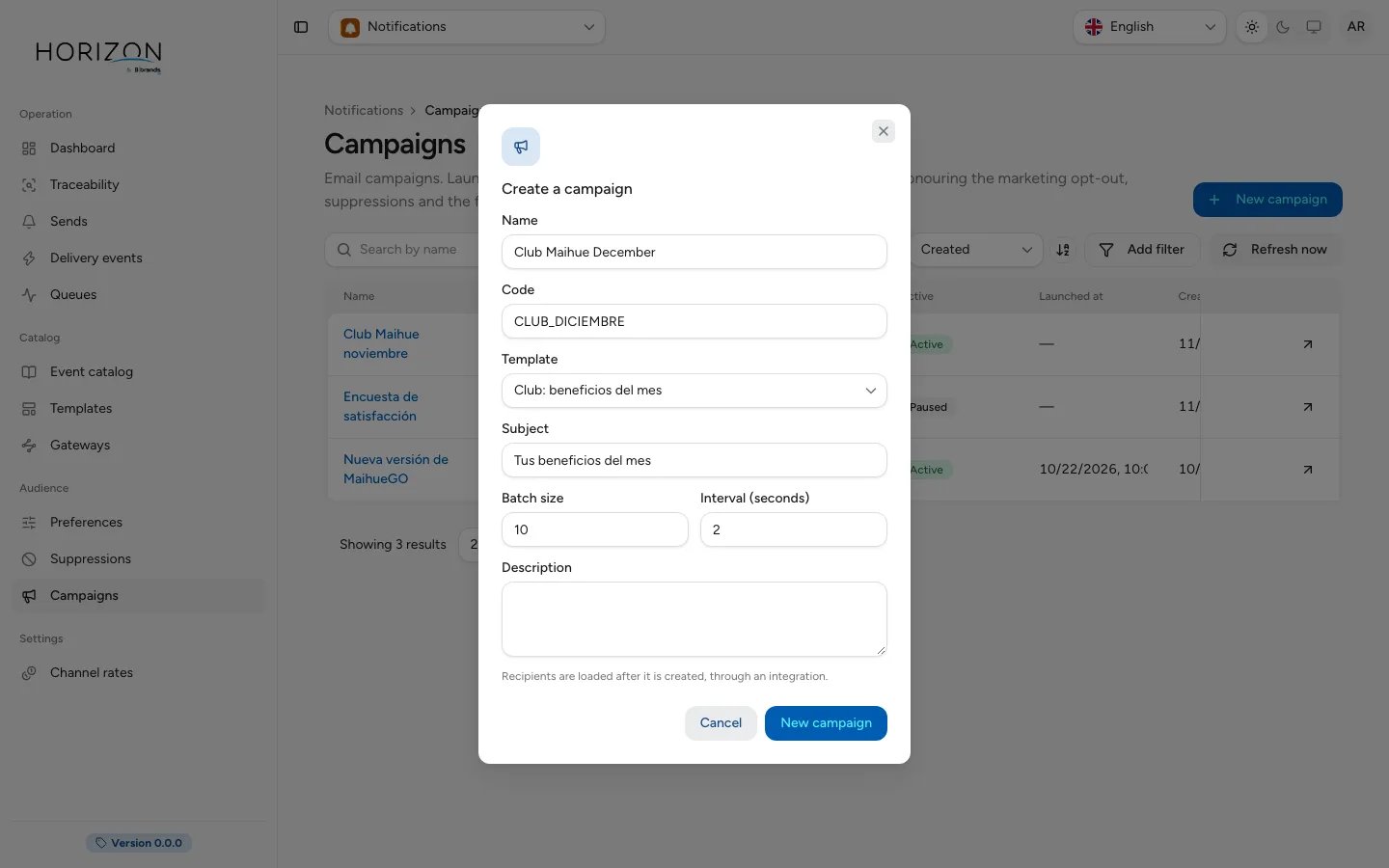
New campaign: the template comes from a list and fills the subject.
Load and check the recipients
Recipients are not added from this screen: an integration loads them, each with the variables of its email (for example, the name and the coupon). The detail shows the first 50 in Recipients (“Showing 50 of 1200 recipients.”). Check that the count and the variables are right before launching.Pause or activate
1
Pause
On the detail of a campaign that was not launched, press Pause. The dialog “Pause this campaign?” says it
cannot be launched while it is paused. Press Pause.
2
Check
You see Campaign updated: “The campaign is paused and cannot be launched.” A notice says “The campaign is
paused. Activate it before launching.” and Launch is disabled.
3
Activate again
Press Activate and confirm in “Activate this campaign?”. You see “The campaign can be launched.”
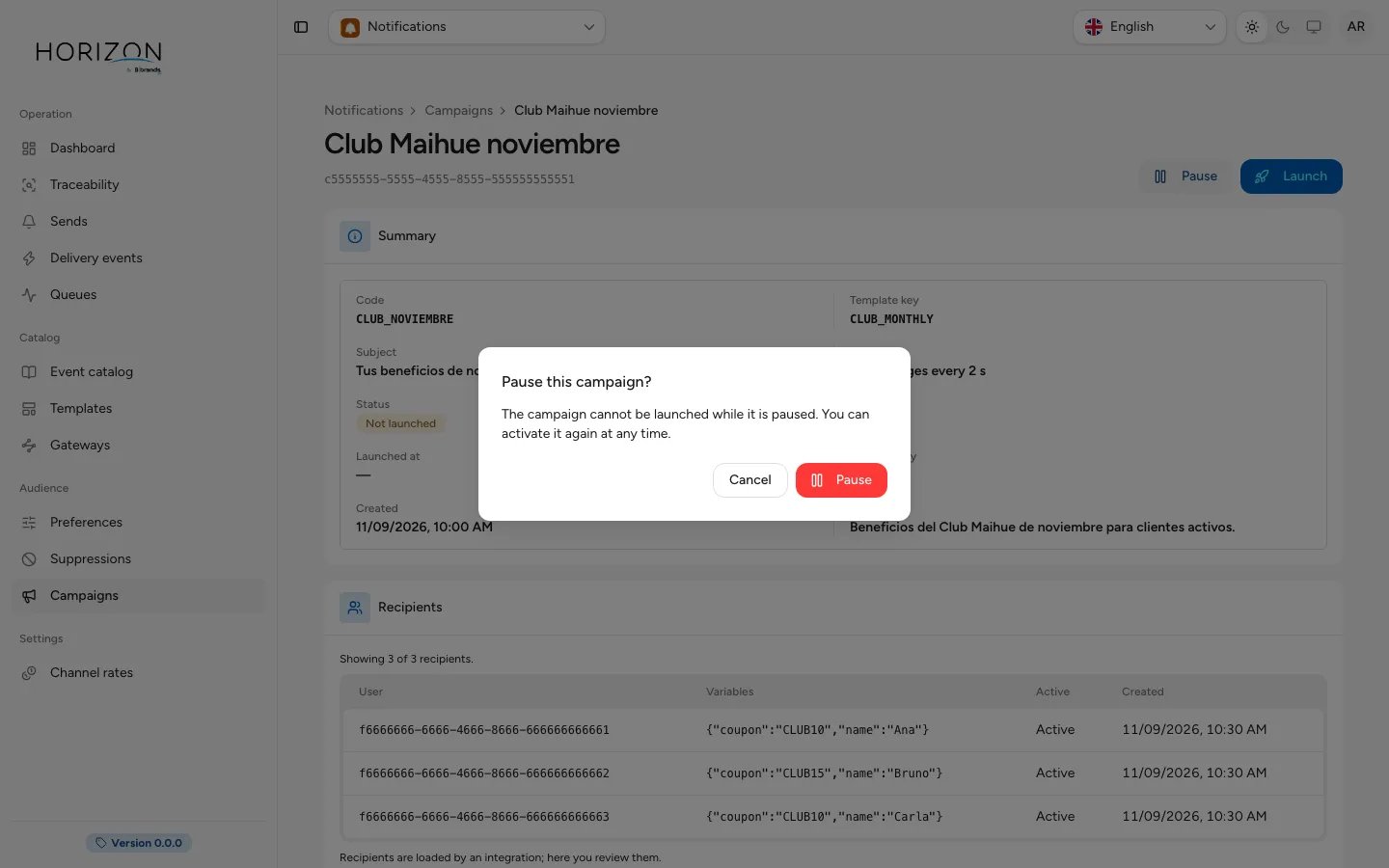
Pausing asks for a confirmation.
Launch
1
Check before launching
The campaign is Active, the recipients are loaded and the template and subject are the right ones. A
campaign launches only once.
2
Launch
Press Launch. The dialog “Launch this campaign?” reminds you of the pace (“Every pending recipient gets the
email, 10 messages every 2 seconds…”). Press Launch.
3
Read the result
You see Campaign launched with the count, for example “1150 of 1200 recipients queued in 115 batches; 50
skipped for invalid variables or no email.”
4
Follow it
The detail now says “This campaign was launched. A campaign launches only once.” with See it in
Traceability, where each recipient’s decision shows (queued, skipped for opt-out, suppressed).
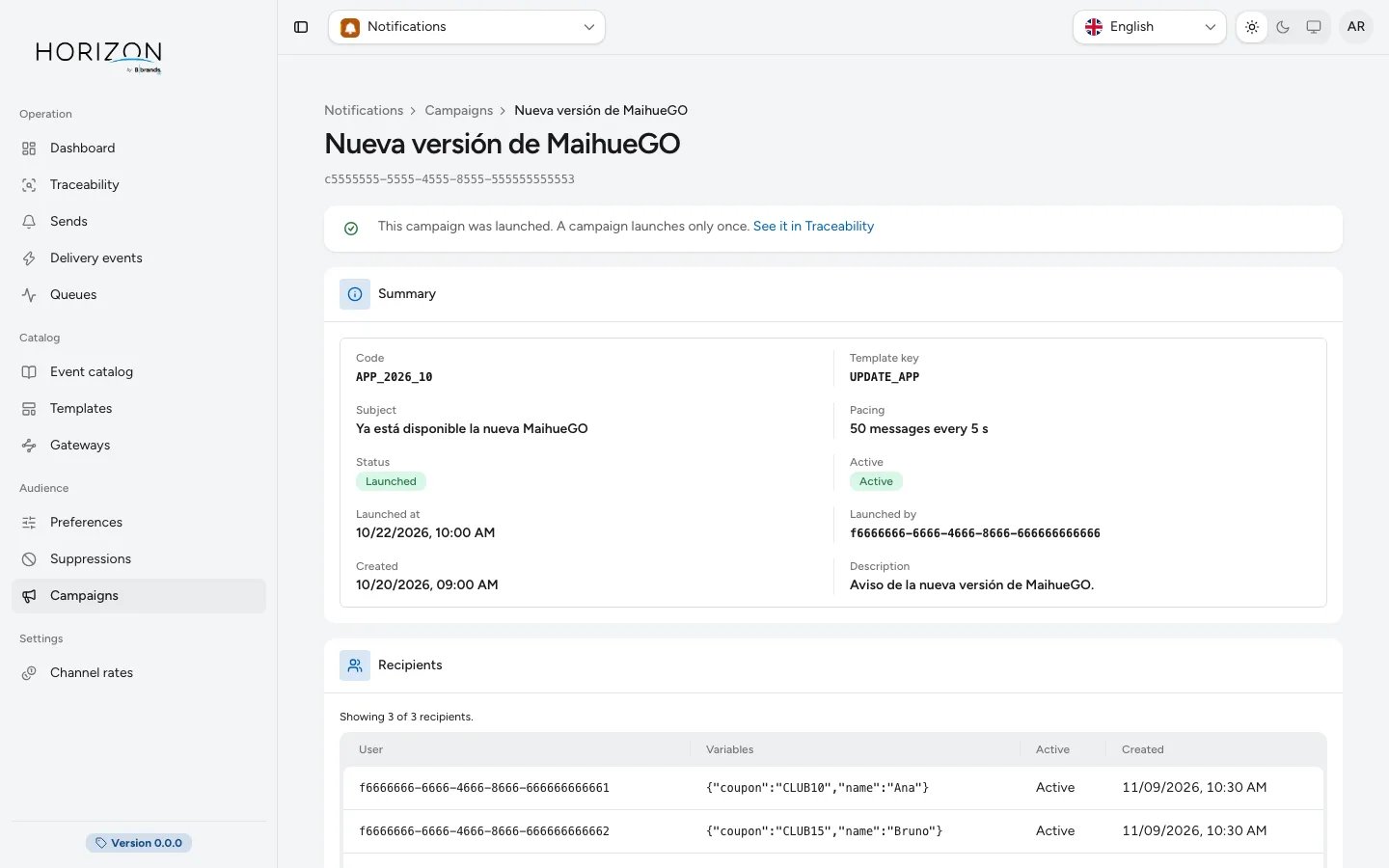
A launched campaign: the notice links to Traceability and the buttons are gone.
Business rules
States and messages
Errors
Why it works this way
A campaign reaches thousands of customers at once, so it goes out once and at a controlled pace: the pace protects the email provider’s reputation and lets you pause before launching if something is wrong. Launching it as a marketing notification means a campaign never skips what a customer chose: whoever opted out, or whose address bounced, does not get it.Technical detail
FAQ and support cases
Which role runs campaigns?
Which role runs campaigns?
Notification Marketing and Notification Admin create, pause and launch them; Notification Operator sees them
and their recipients; Notification Editor does not open the screen.
The result says 50 were skipped
The result says 50 were skipped
Those recipients have variables that do not fit the template or no email. Check them in Recipients; they
are not sent later.
Fewer customers got it than were queued
Fewer customers got it than were queued
Queued is not sent: in Traceability, some show Skipped (Opted out, Frequency cap) or Suppressed.
Can I launch it again for the ones who did not get it?
Can I launch it again for the ones who did not get it?
No. A campaign launches only once; create a new one for that audience.