At a glance

What it is for

Rules decide when and how often an event goes out on a channel, and which channel replaces it if that one does not arrive. They are set per event and channel: for example, a coupon push waits until 09:00 instead of 08:00, or the email is the fallback of the push. Each change asks for a reason and stays in the history.

How to get there

  • Open the event from the catalog list, pick the Channels tab and press Edit rules on the channel card.

What you see
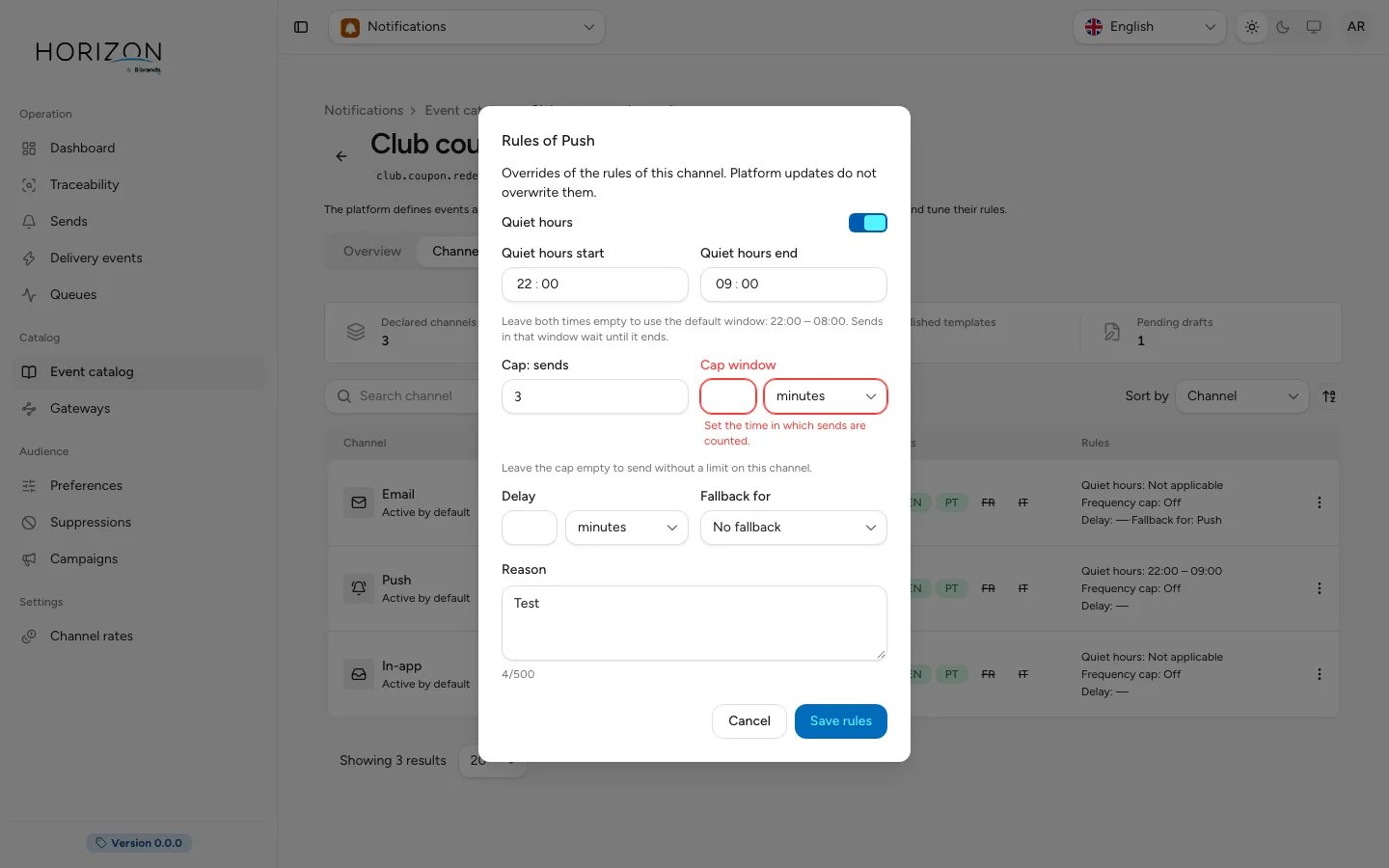
Rules of Push dialog over the Channels tab of the Cupón canjeado event: Quiet hours switch on, Quiet hours start 22:00, Quiet hours end 09:00, the text Leave both times empty to use the default window: 22:00 – 08:00, Cap: sends empty, Cap window with a number and the minutes unit, the text Leave the cap empty to send without a limit on this channel, Delay with a number and the minutes unit, Fallback for No fallback, Reason field and Cancel and Save rules buttons.

The rules dialog of the Push channel, with quiet hours from 22:00 to 09:00.

Step by step

Change the quiet hours

1

Open the channel rules

On the Channels tab, press Edit rules on the channel card (for example, Push).
2

Set the window

Leave Quiet hours on and type the time in Quiet hours start and Quiet hours end (hours and minutes, 24-hour format). Leave both empty to use the default window. For a channel without a window, turn the switch off.
3

Write the reason and save

For example “Merchants open at 09:00”. Press Save rules. You see Rules saved: “The change and its reason are in the history.”
4

Check

The card shows the new window and, next to Active by default, “rules edited ”. The change also shows on the History tab.

Add a delay

1

Open the channel rules

Press Edit rules on the card.
2

Type the delay

In Delay type a whole number from 1 to 9999 and pick the unit, for example 30 minutes. To remove it, leave the number empty.
3

Reason and save

Write the reason and press Save rules.

Set a frequency cap

1

Open the channel rules

Press Edit rules on the card.
2

Type the cap and its window

In Cap: sends type the maximum (1 to 1000) and in Cap window the time in which sends are counted, for example 1 send every 24 hours. If you leave Cap: sends empty, the channel goes back to its default cap (marketing: email 2 per 24 hours, push 1 per 24 hours, SMS 1 per 7 days) or has no cap; the text under the window says which.
3

Reason and save

Write the reason and press Save rules. The card shows the cap, for example “1 per 24 h (per event)”. If the event skips the cap (every category but marketing, R-09), the dialog does not show these fields.

Pick a fallback channel

1

Open the rules of the plan B channel

For example, the Email card if the email must go out when the push does not arrive.
2

Pick the primary channel

In Fallback for pick Push. To remove the fallback, pick No fallback. If you pick a channel that is already a fallback of another, or this channel already backs another one up, the field is marked right away (R-13).
3

Reason and save

Write the reason and press Save rules. The card shows Fallback for: Push.

If a field is marked

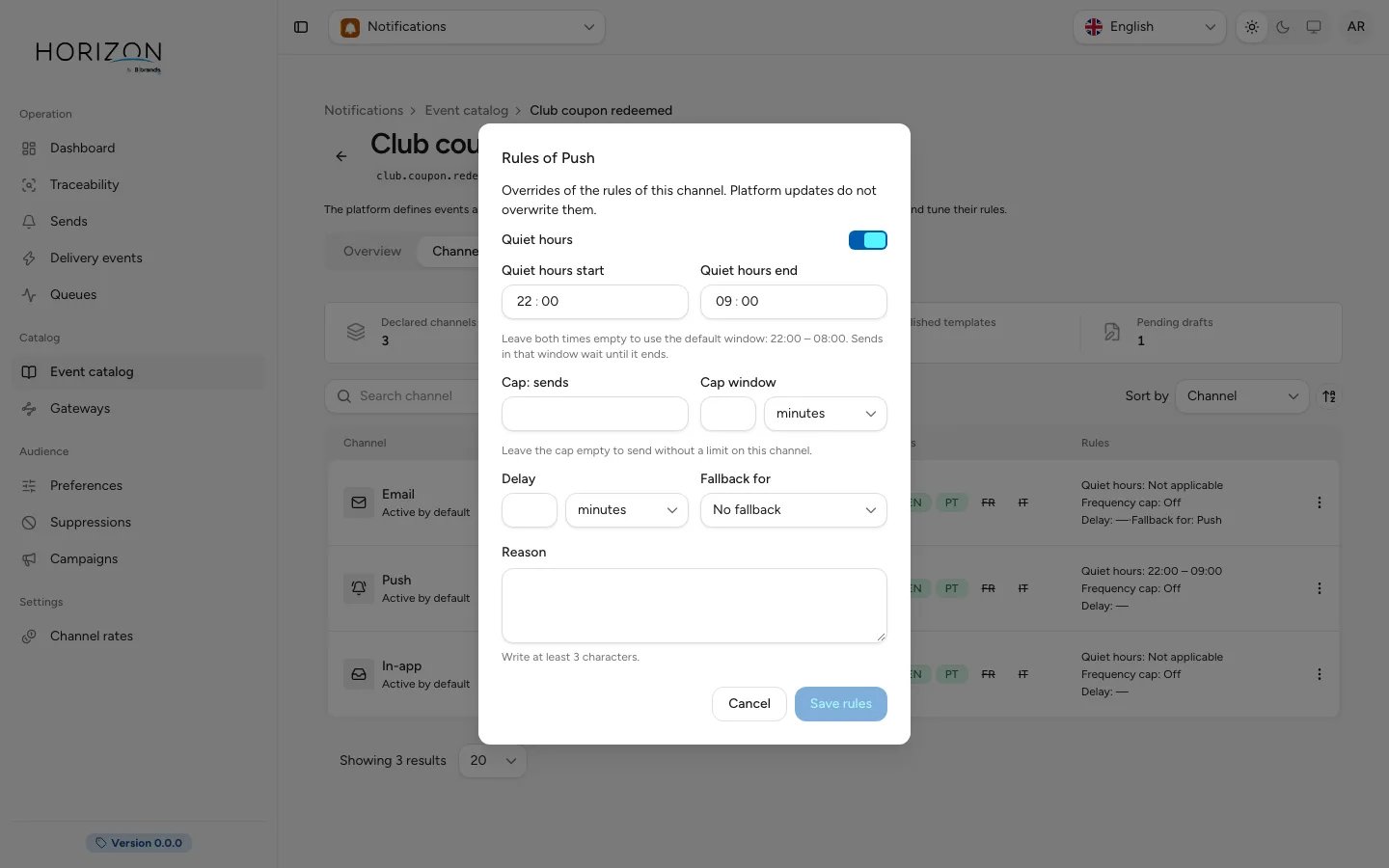
Rules of Push dialog with Cap: sends 3 and the Cap window empty, marked in red with the message Set the time in which sends are counted; the reason says Test and the dialog stays open.

A cap without a window: the dialog marks the window and does not save.

Each field with a value that does not work is marked in red with its own message and the dialog stays open. If the server refuses a combination (a fallback, for example), it marks the field too and shows The change could not be saved · “Check the marked fields.” Fix the field and press Save rules again; the messages are under Errors.

Business rules

States and messages

Errors

Why it works this way

Diagram: when an event fires, an inactive event skips the send with Event inactive; an inactive channel with Channel inactive; no published template with No published template; otherwise the channel rules apply and the send is queued or deferred.

For each channel, the catalog checks the event, the channel and the template before the rules.

Rules protect the customer without turning the notification off: quiet hours avoid waking someone up with a push, the cap avoids flooding them with marketing and the fallback makes sure an important notification arrives through another channel. That is why they are set per channel (an email at night does not disturb like a push) and every change needs a reason that stays in the history.

Technical detail

FAQ and support cases

Marketing events have a default cap (email 2 per 24 hours): the card shows it as “2 per 24 h (per category) (default)”. In Traceability the decision shows Skipped with Frequency cap.
Edit rules can only change it: emptying the count goes back to the default cap. For an event without a cap, the event is marked Skips frequency cap; ask the platform team.
The channel has the window on without its own times, so it uses the default window: 22:00 to 08:00, recipient time, unless the event declares another.
Quiet hours do not apply to email or in-app: only to push, SMS, WhatsApp and Live Activities. That is why the dialog shows a note instead and the card says Not applicable.
That push was already deferred before the change and keeps its time. New sends use the new window.
If the email is Fallback for Push, it went out because the push was skipped (for example, the customer does not have the app or has it turned off) or failed at delivery. Check the push decision in Traceability.