

At a glance
What it is for
The editor is where you change what a notification says. You never edit the version that is going out: you work on a draft, test it and, when it is ready, publish it. Until you publish, sends keep using the current version.How to get there
- Open the event in the catalog and go to the Channels tab. Press the channel name, or open its card menu and choose Edit template (Event channels).
- Every template belongs to a channel of an event: there is no separate template list any more. An old
/notification/templates/{id}link opens the new editor and/notification/templates, the catalog. - The arrow next to the title goes back to the event’s Channels tab.
What you see
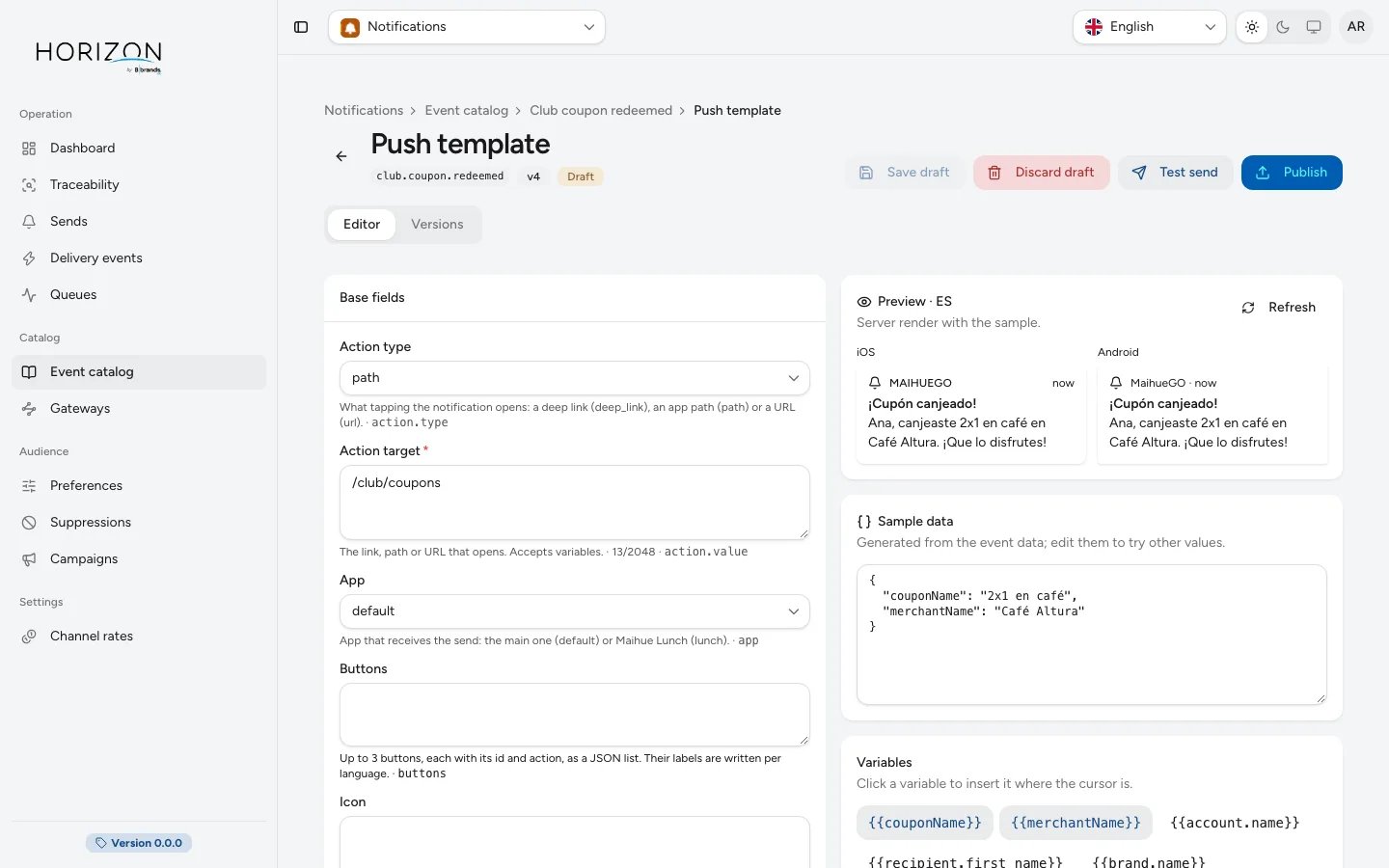
The editor on a push draft: base fields, variables and the iOS and Android preview.
Without a draft, the Published version (read only) chip shows next to the title. On hover it says “Create a draft
to edit the texts and the base fields.” or, if your role does not edit, “You can read the published version; your
role cannot edit it.”
While it loads, the whole screen shows at once: the trail, the title, the tabs and the field labels are already there,
and each value still on its way has its own skeleton of the same size, the event name in the trail included. Nothing
jumps when the data arrives.
Step by step
Change a text
1
Create a draft
Press Create draft. You see Draft created: “It starts from the current version.” If a draft already
exists, you work on it.
2
Edit
Change the texts under Texts, starting with ES. Unsaved changes shows at the top.
3
Save
Press Save draft. If everything is fine you see Draft saved: “Every language passed validation.” If
something fails, Draft saved with errors: “Fix the fields marked in: ES, EN”, and each field in error is
marked.
4
Review, test and publish
Check the preview, send yourself a Test send and, when it is ready, Publish.
Discard a draft
1
Press Discard draft
Discard this draft? opens: “The draft and its unsaved changes are deleted. The published version stays.”
2
Confirm
You see Draft discarded: “The published version is the current one.”
Business rules
States and messages
Errors
Why it works this way
Separating the draft from the published version lets you work calmly: nobody gets a half-written text. Each publication is also kept as a version, with its change note, so it can be compared and rolled back.Technical detail
FAQ and support cases
I saved and the customer still gets the old text
I saved and the customer still gets the old text
Saving only updates the draft. You must Publish for sends to use it.
Where did the template list go?
Where did the template list go?
It was retired: every template belongs to a channel of an event. Find the event in the
catalog and open the template from its Channels tab. Old links still
work: they open the new editor.
What are action.type or from_email under a field?
What are action.type or from_email under a field?
They are the technical keys of the fields, the names the channel contract and support use. The field name and its
help above say what to fill in; see each channel’s detail in Channels.