

At a glance
What it is for
Publishing turns the draft into the version every send uses from then on. The previous version is archived, in case you need to go back to it.How to get there
- In the editor of a template with a draft, the Publish button is at the top right.
What you see
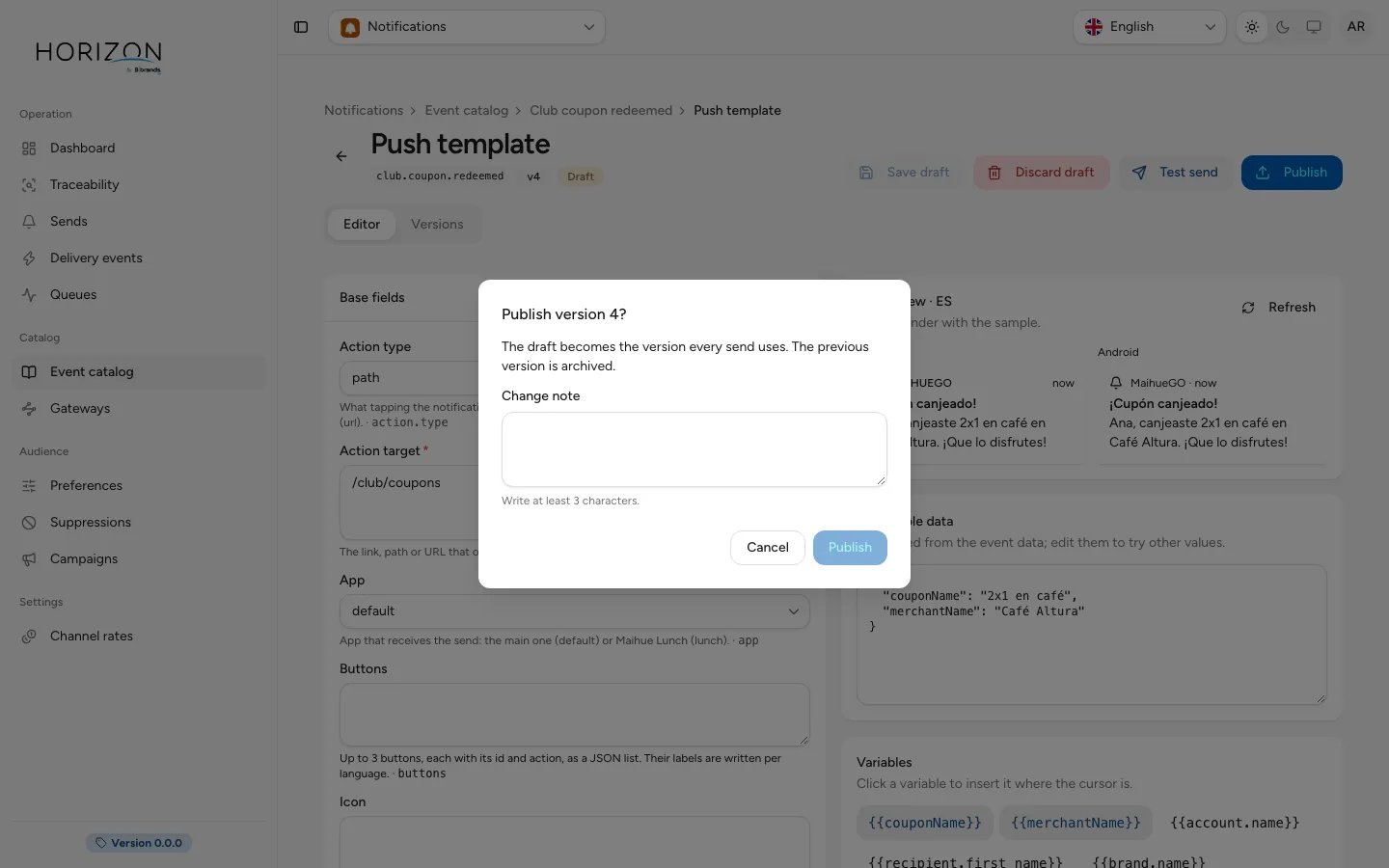
The publish dialog asks for a change note.
Step by step
Publish a draft
1
Review first
Check the preview in every language you changed and send yourself a Test send.
2
Press Publish
The editor first checks there is a Spanish text and no unknown variables. If something is missing, it warns you
and does not open the dialog.
3
Write the change note
Explain what changed and why, for example “The customer’s name is added to the greeting”.
4
Confirm
Press Publish. Unsaved changes are saved first. You see Version 4 published: “New sends use it from now
on.”
Business rules
States and messages
Errors
Why it works this way

A version goes from draft to published and, with the next publication, to archived.
Technical detail
FAQ and support cases
I published and want to go back to the previous version
I published and want to go back to the previous version
Use Roll back on the Versions tab. See Versions.