

At a glance
What it is for
A variable puts event data in the text: the coupon name, the merchant, the amount. It is written between double braces, for exampleYou redeemed {{couponName}} at {{merchantName}}, and on sending it is replaced by each
customer’s real value.
How to get there
- Open the template from its event’s Channels tab (Template editor); the Variables card is at the end of the right column, under the preview and the sample data.
What you see
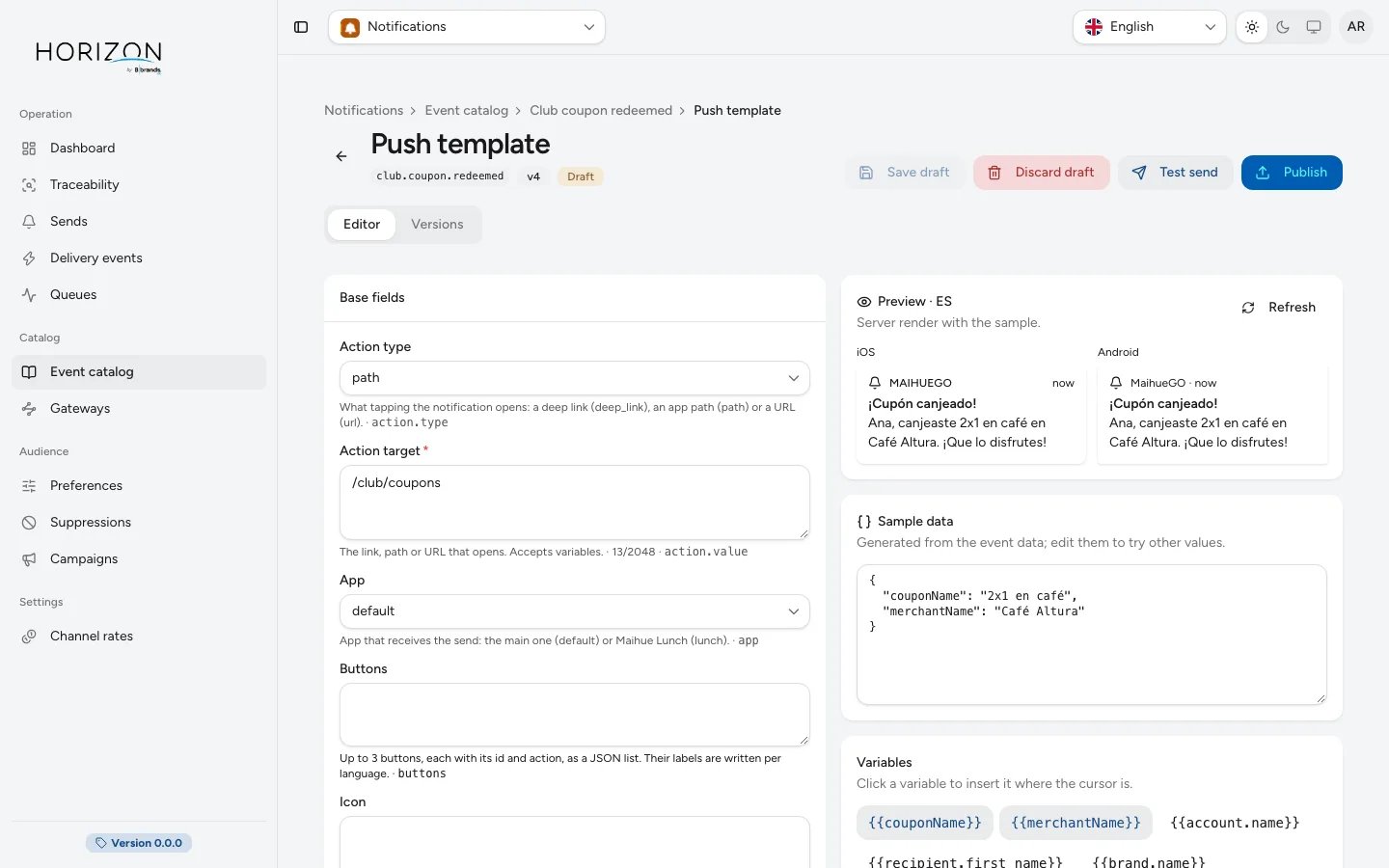
The Variables card: the event's at the top, the common ones below.
Step by step
Insert a variable
1
Place the cursor
Click the text field, where the data goes.
2
Click the variable
In the Variables card, click
{{merchantName}}. It is written where the cursor was.3
Look at the preview
The preview replaces the variable with the sample data, for example “Café Altura”.
Format a date or an amount
Write the variable with a format in front:Business rules
States and messages
Errors
Why it works this way
Variables come from the event data because that is all the business flow sends. If a template asked for data that does not arrive, the customer would get a gap in the text. That is why the editor and the server block publishing with unknown variables.Technical detail
FAQ and support cases
I need data the event does not carry
I need data the event does not carry
It has to be added to the event in the code. Ask the technology team with the event and the data.
The preview shows the variable unreplaced
The preview shows the variable unreplaced
Check it is spelled right (capitals included) and that it exists in the sample data.