

At a glance
What it is for
Each customer gets the notification in their language: Spanish, English, Portuguese, French or Italian. The editor’s Texts card has one tab per language. Only texts are translated (subject, title, body, buttons); the rest of the template is shared by all languages.How to get there
- Open the template from its event’s Channels tab (Template editor) and look for the Texts card.
What you see
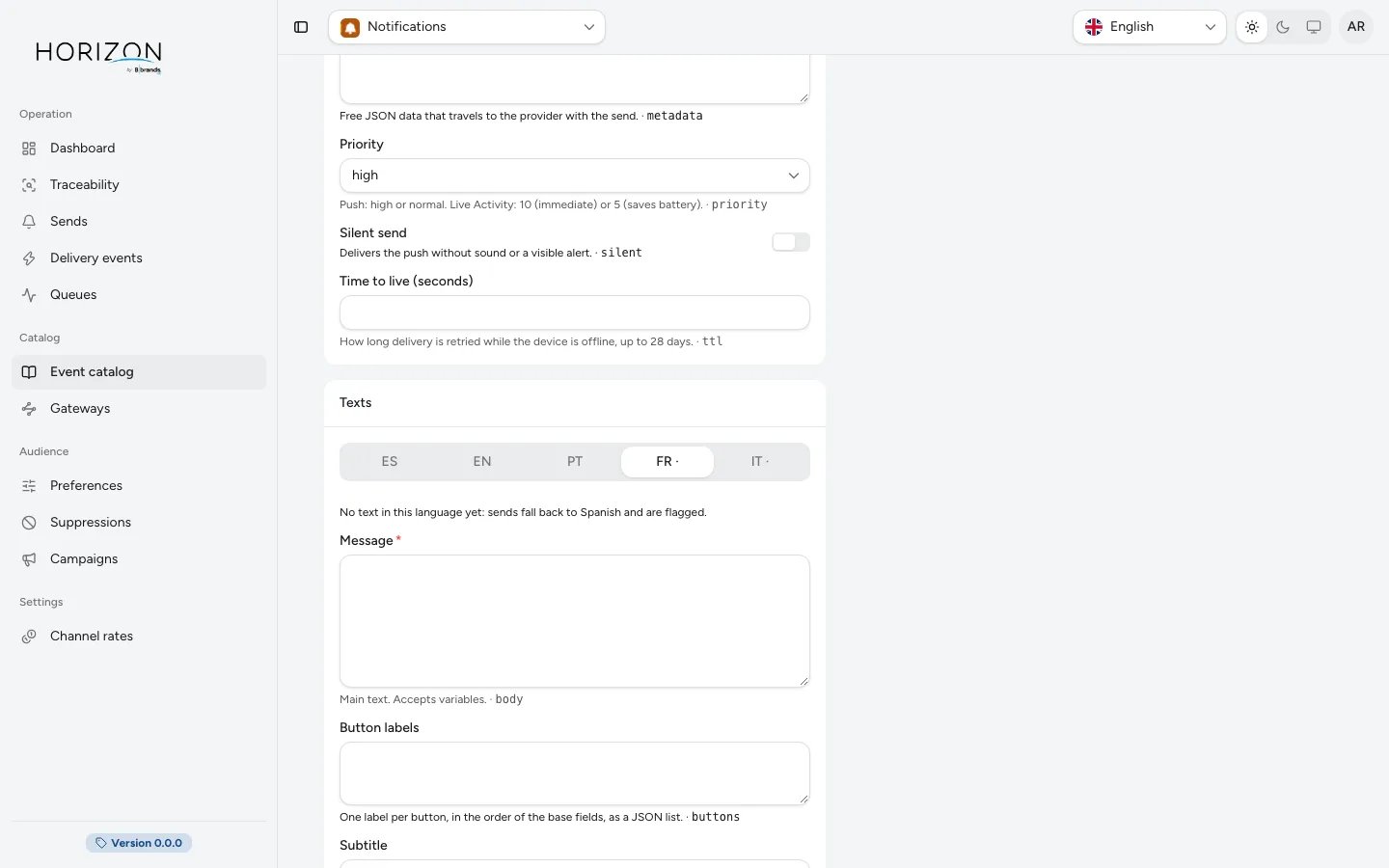
The FR tab without text: French sends use Spanish.
Step by step
Add a translation
1
Finish Spanish first
Leave the final text in ES. It is the one used when another language is missing.
2
Open the language tab
For example EN. If it is empty you see the notice that Spanish is used today.
3
Write the texts
Fill the same fields as in Spanish, with the same variables (
{{couponName}}). The preview switches to the tab’s
language.4
Save and review
Save draft validates each language on its own. If one fails you see “Fix the fields marked in: EN”.
Business rules
States and messages
Errors
Why it works this way
Spanish is the fallback language because every customer understands it and it always exists. That way no notification is left without a text, even when a translation is missing, and Traceability shows how many sends went out with the fallback so you can decide what to translate.Technical detail
FAQ and support cases
A Brazilian customer got the email in Spanish
A Brazilian customer got the email in Spanish
The template has no Portuguese text or the customer’s account has no language. Check the template and the
account’s language.