

At a glance
What it is for
Before publishing it is worth seeing the notification as the customer will. The Preview draws it with Sample data, in the language of the chosen tab, and Test send really sends it to your email or your phone.How to get there
- Open the template from its event’s Channels tab (Template editor). The preview is at the top of the right column, followed by Sample data; the Test send button, at the top.
What you see
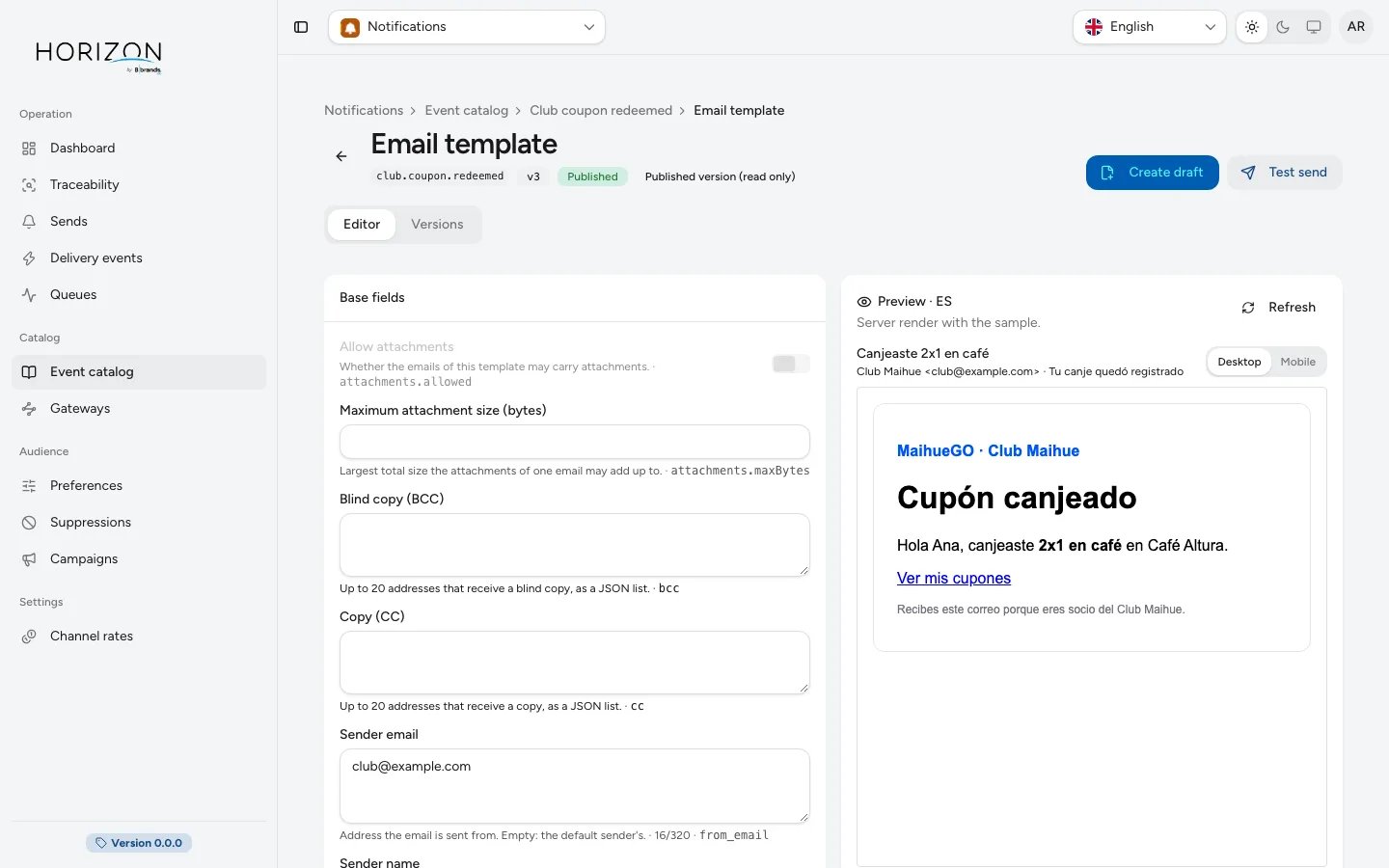
Preview of an email with the sample data, in Desktop mode (sample design).
Step by step
Check how it looks
1
Pick the language
Under Texts, open the language tab. The preview switches to that language.
2
Wait or refresh
The view updates by itself a moment after you stop typing. Press Refresh to force it.
3
Try other values
In Sample data change a value, for example a long merchant name, to see whether the text fits.
Send yourself a test
1
Press Test send
If there are unsaved changes, the draft is saved first.
2
Check your email or your phone
You see Test sent: “It goes to your own address or devices and is traced with origin user.” It arrives in the
chosen tab’s language, with the sample data.
Business rules
States and messages
Errors
Why it works this way
The preview uses sample data because a template knows no customer until it is sent. The test only goes to you so a half-finished text never reaches a customer, and it is traced like any send so you can check its delivery.Technical detail
FAQ and support cases
The test push did not arrive
The test push did not arrive
Check you have the app installed, signed in with your user and notifications accepted. Then find your test in
Traceability.
Why does the preview email look different from the real one?
Why does the preview email look different from the real one?
The server view uses the real brand design. If you see the instant view, press Refresh.