At a glance

What it is for

Traceability answers “why did (or didn’t) this customer get the notification?”. Each time an event fires, Horizon records an occurrence: the event data, one decision per channel and recipient with its reason, and the sends that went out with everything the provider reported. You find the case with any identifier the customer or another team gives you, and read the whole story on one screen.

How to get there

  • In the sidebar, open Operation › Traceability.
  • From a send in Sends, press the event name next to Occurrence.
  • From an event of the catalog, press an id under Latest occurrences of the Usage tab.

What you see

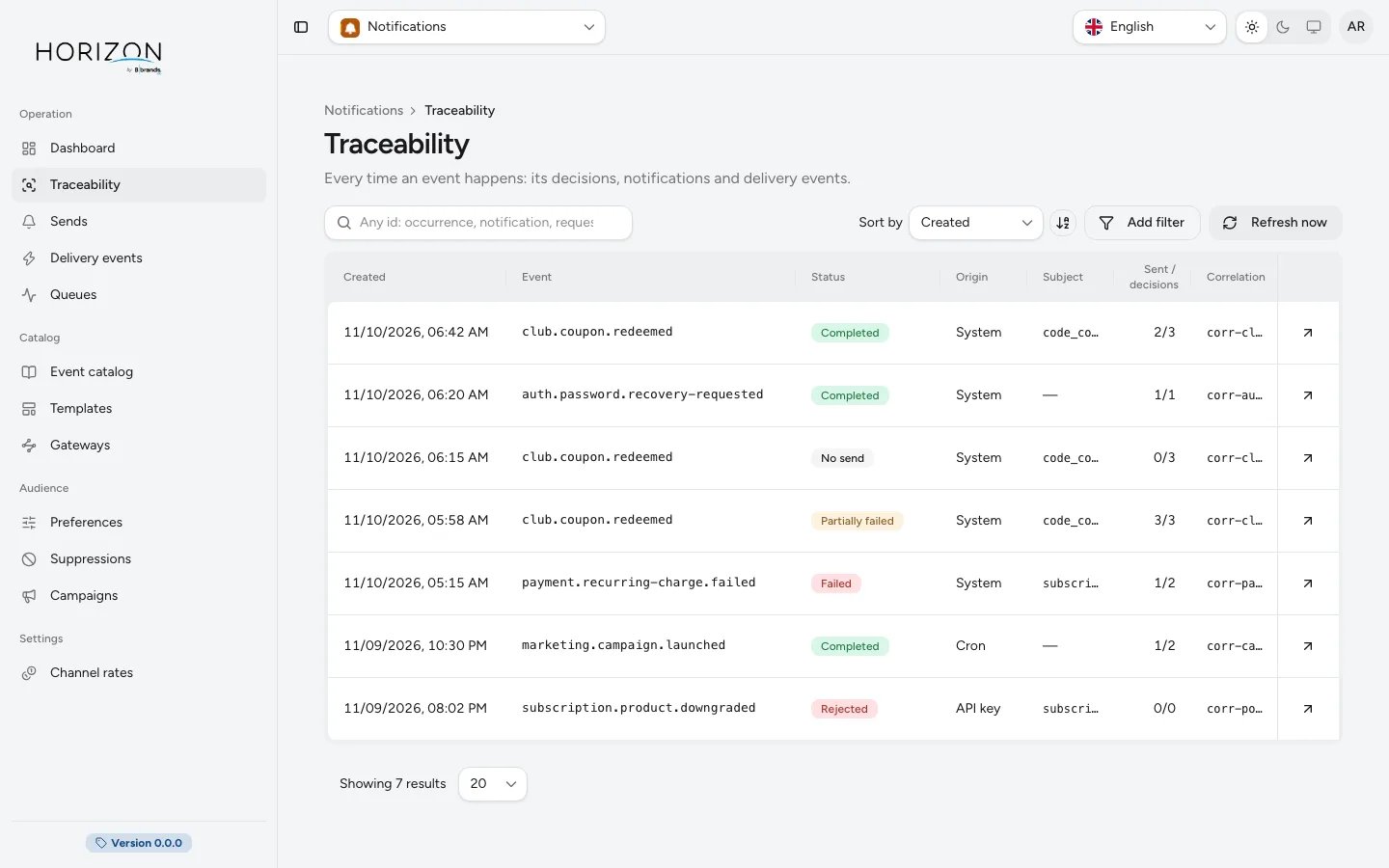
Traceability screen: search box Any id: occurrence, notification, request, provider message, correlation, idempotency key, email or phone; Sort by Created, Add filter and Refresh now buttons; a table with Created, Event, Status, Origin, Subject, Sent / decisions and Correlation columns, with the date and the event key in full, and rows with the statuses Completed, No send, Partially failed, Failed and Rejected, each with an open arrow.

The traceability search, newest first: event, status, origin, subject and how many decisions sent something.

Filters:

The occurrence

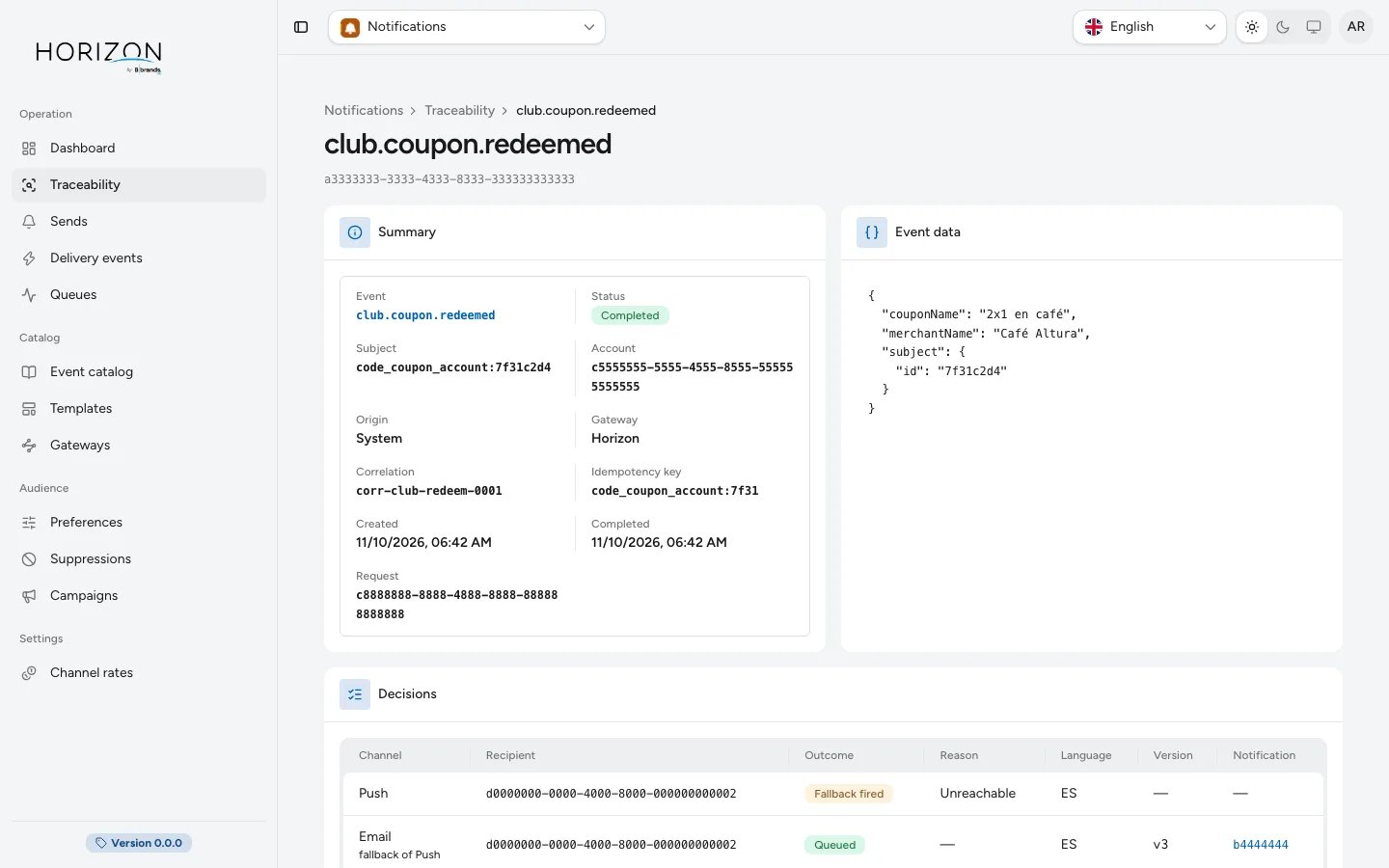
Occurrence club.coupon.redeemed: Summary with Event club.coupon.redeemed, Status Completed, Subject code_coupon_account:7f31c2d4, Account, Origin System, Gateway Horizon, Correlation, Idempotency key, Created, Completed and Request; Event data with couponName 2x1 en café and merchantName Café Altura; and the Decisions table starting with Push, Fallback fired, Unreachable.

An occurrence of Cupón canjeado: summary, event data and the first decisions.
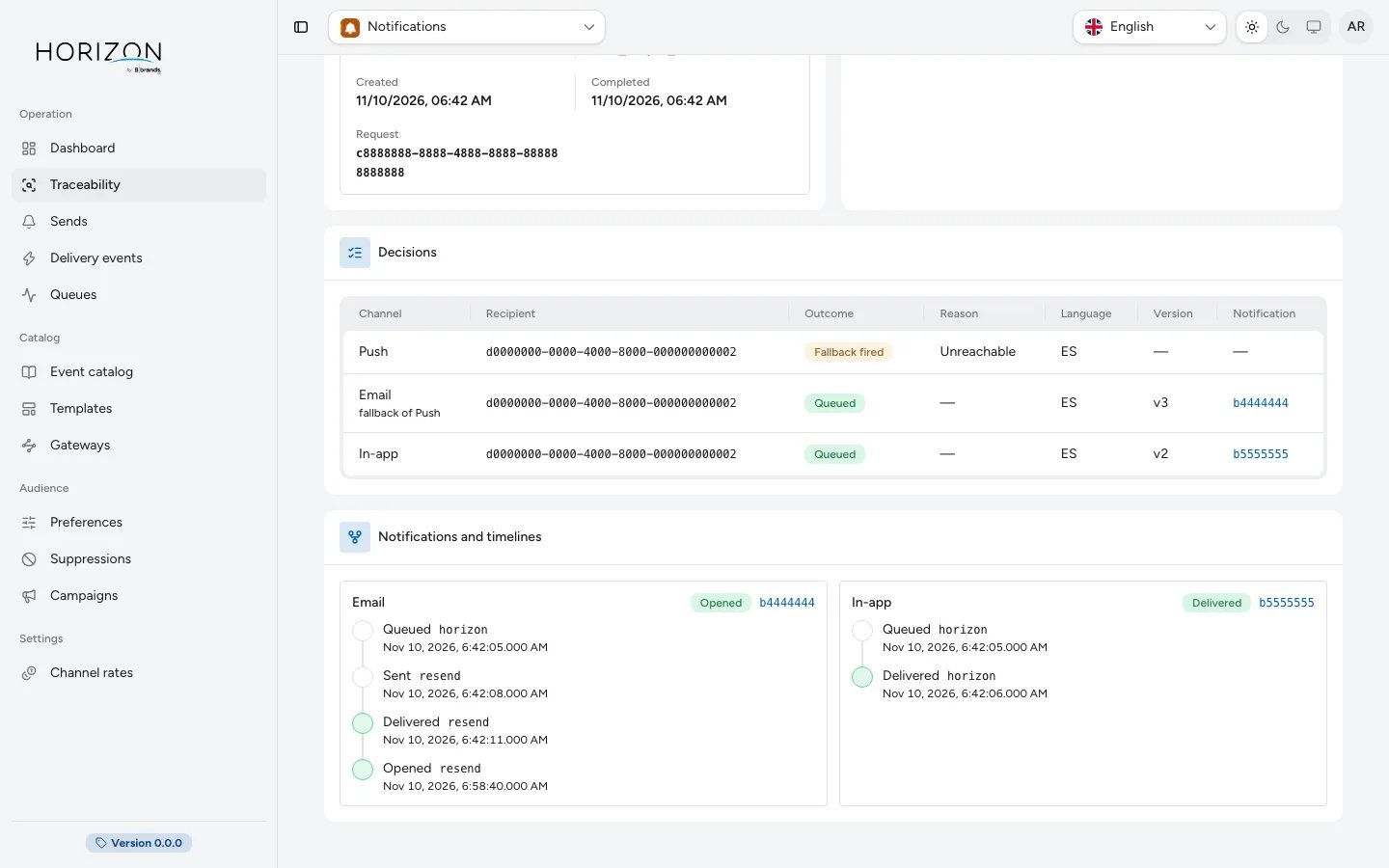
Decisions table: Push with Fallback fired and reason Unreachable; Email marked fallback of Push, Queued, language ES, version v3 and a link to the send; In-app Queued, ES, v2 with its link. Below, Notifications and timelines: the Email card Opened with Queued, Sent, Delivered and Opened events with their times and provider, and the In-app card Delivered with Queued and Delivered.

The decisions and the timelines: the push was unreachable, so its fallback, the email, went out and was opened.

Step by step

Find out why a customer did not get a notification

1

Search for the customer

Type their full email or phone in the search box and press Enter. If you only have the account, use Add filter › Account id with its id.
2

Narrow down

Add Event (key or id), for example club.coupon.redeemed, and Created with the day of the case.
3

Open the occurrence

Press the arrow of the row. If there is no row, the event never fired for that customer: the problem is in the business flow, not in notifications.
4

Read the decision of the channel

In Decisions, find the channel and read Outcome and Reason. The table of reasons says what each one means and what to do.
5

If it went out, read the timeline

In Notifications and timelines, the last event says how far it got: Delivered, Opened, Bounced or Failed. Press the short id to open the send and act on it.

Follow an id another team gave you

1

Paste the id

Paste it in the search box: an occurrence, a send, an API request, a Resend or OneSignal message, a correlation or an idempotency key.
2

Open the row

The search answers the occurrence that holds that id. A send the API made without an event shows as Notification without occurrence; its arrow opens the send.

Check a fallback channel

1

Open the occurrence

For example, a coupon redeemed whose push did not arrive.
2

Read both decisions

The primary channel shows Fallback fired with its reason (for example, Unreachable: the customer has no device with push on). The fallback row says “fallback of Push” and shows its own outcome.
The same occurrence with the Event data section showing the Hidden data notice: Your role cannot see sensitive data; it is hidden, and couponName, merchantName and subject as [redacted].

A role without notification:view-content sees the event data hidden.

Business rules

Occurrence statuses

Decision outcomes

Decision reasons

States and messages

Errors

Why it works this way

Diagram: a business flow calls notify with an event; an invalid payload leaves the occurrence rejected; a valid one records an occurrence, resolves the recipients and takes one decision per channel with the template and the rules; what is not sent keeps its reason in Traceability; each send goes through the queue and the lane of its channel to the provider, which reports delivery events that feed the timeline, the suppressions and the metrics.

From the firing to the timeline: what Traceability shows at each step.

Notifications go through many hands: the business flow, the rules, the customer’s preferences, the queue and the provider. Keeping one occurrence per firing, with every decision and its reason, means that “it did not arrive” always has an answer you can read, even when nothing was sent. Searching by whole values and comparing emails by a fingerprint keeps the search useful without storing customer addresses in it.

Technical detail

FAQ and support cases

The provider handed it to the customer’s mail server. Ask them to check spam and promotions. If it says Opened, they opened it.
The customer has no device with push on for that app: they never accepted notifications, uninstalled the app or signed out. If the event has a fallback channel, look at its row.
The search needs the full address, exactly as it is on the account. If the event went to the account’s login, filter by Account id instead.
One channel arrived and another did not. Look at the timelines: the card whose last event is Failed or Bounced is the one to act on from Sends.
The flow sent incomplete data, so nothing was evaluated. Send the occurrence id to the technology team: the event data shows what came in.