

At a glance
What it is for
Sends lists every message Horizon sent: one row per channel and recipient, from events, campaigns and integrations. Use it to answer “what did we send to this customer?”, to find every failed push of the morning or to export the sends of a period. Each row opens the send detail, where you resend, retry or cancel.How to get there
- In the sidebar, open Operation › Sends.
- From an occurrence in Traceability, the short id of a decision or timeline opens the send directly.
- From the dashboard, the arrow of Recent failures opens the failed send.
What you see
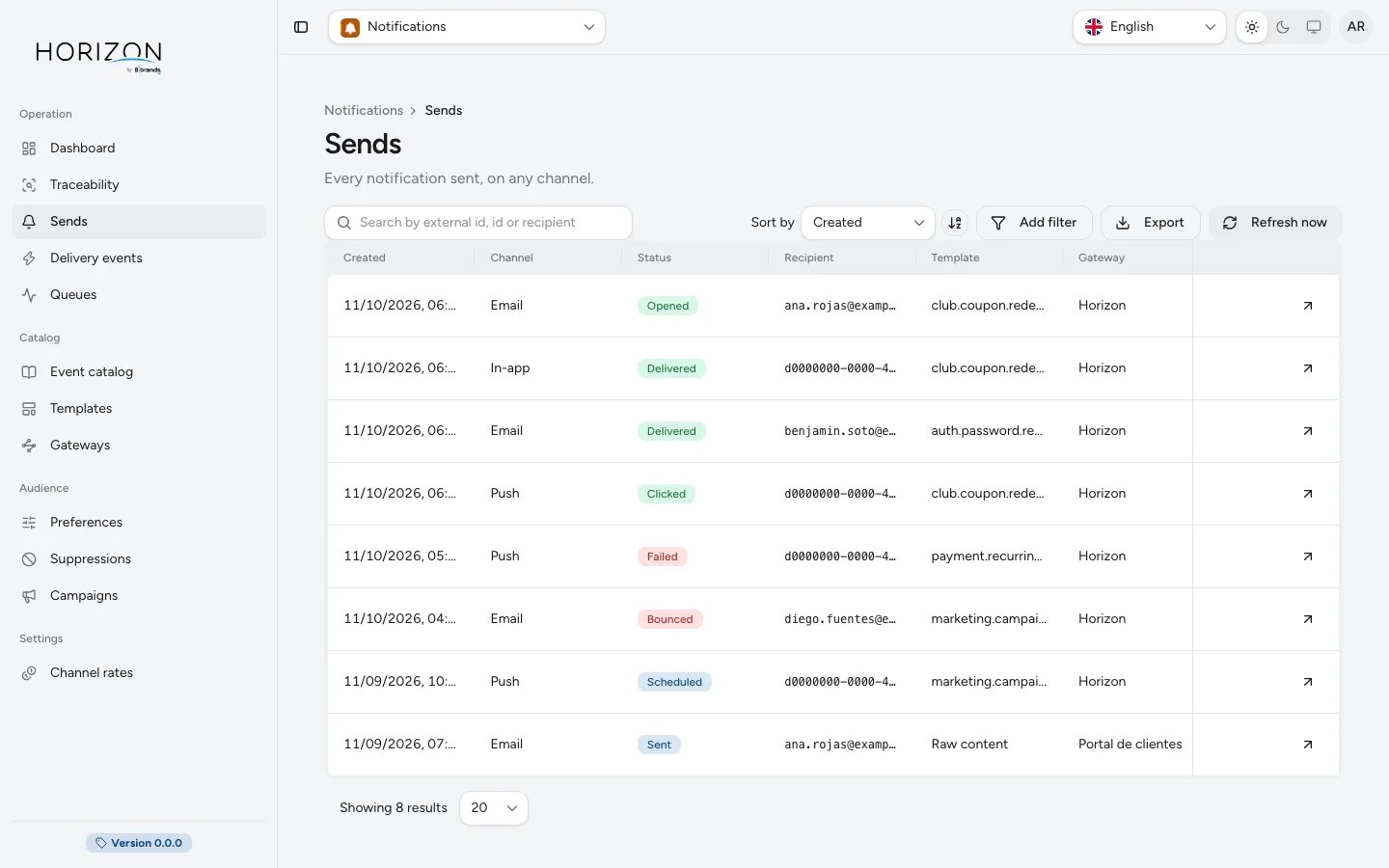
The sends, newest first, with their channel, status, recipient, template and gateway.
Send statuses
Step by step
See everything sent to a customer
1
Search by recipient
Type the customer’s email or phone in the search box and press Enter. You need
notification:view-content; without it, search by the external id or the send id.2
Sort by date
The newest sends come first. Change Sort by to Last event to see what moved last.
3
Open a send
Press the arrow of the row to see its events, its content and its actions.
Find the failed sends of a day
1
Filter by status
Add filter › Status and pick Failed (and Bounced for emails).
2
Filter by date
Add filter › Created with the day.
3
Narrow down
Add Channel or Template to see whether the failures belong to one channel or one event.
Export sends
1
Set the filters
For example, Channel Email and Created for the month.
2
Clear the search
The export ignores the search box: while it has text, Export is disabled with “The export does not apply
the search; clear it to export.”
3
Export
Press Export and pick the format. See Lists for the export options.
Business rules
States and messages
Errors
Why it works this way
A customer receives notifications from many flows and channels. Listing every send in one place, with the same statuses for every channel, lets support answer “what did we send and did it arrive?” without knowing which flow sent it. The recipient is masked by default because most cases are solved with the status and the dates; the full address is only for the roles that handle customer cases.Technical detail
FAQ and support cases
Why do I see two sends for one notification?
Why do I see two sends for one notification?
The event went out on two channels (for example, email and in-app) or to two logins of the same account. Each
one is a send of its own.
A send is Delivered but the customer says it did not arrive
A send is Delivered but the customer says it did not arrive
Delivered means the provider handed it over. For an email, ask the customer to check spam; for a push,
whether notifications of the app are allowed on the phone.
The customer is not in Sends at all
The customer is not in Sends at all
Nothing was sent: look for the event in Traceability to read
why each channel was skipped.