

At a glance
What it is for
A send is the message Horizon hands to a provider. What happens next (the email reached the mailbox, the customer opened it, clicked a link, the address bounced, the customer marked it as spam) is reported by the provider, one event at a time. This screen lists those reports for every channel, together with the steps Horizon records on its own (queued, sent, failed). Use it to answer “did it arrive?” without asking the technology team.How to get there
- In the sidebar, open Operation › Delivery events.
- From a send, its timeline shows the same events; the arrow of each row here takes you back to that send in Operation › Sends.
What you see
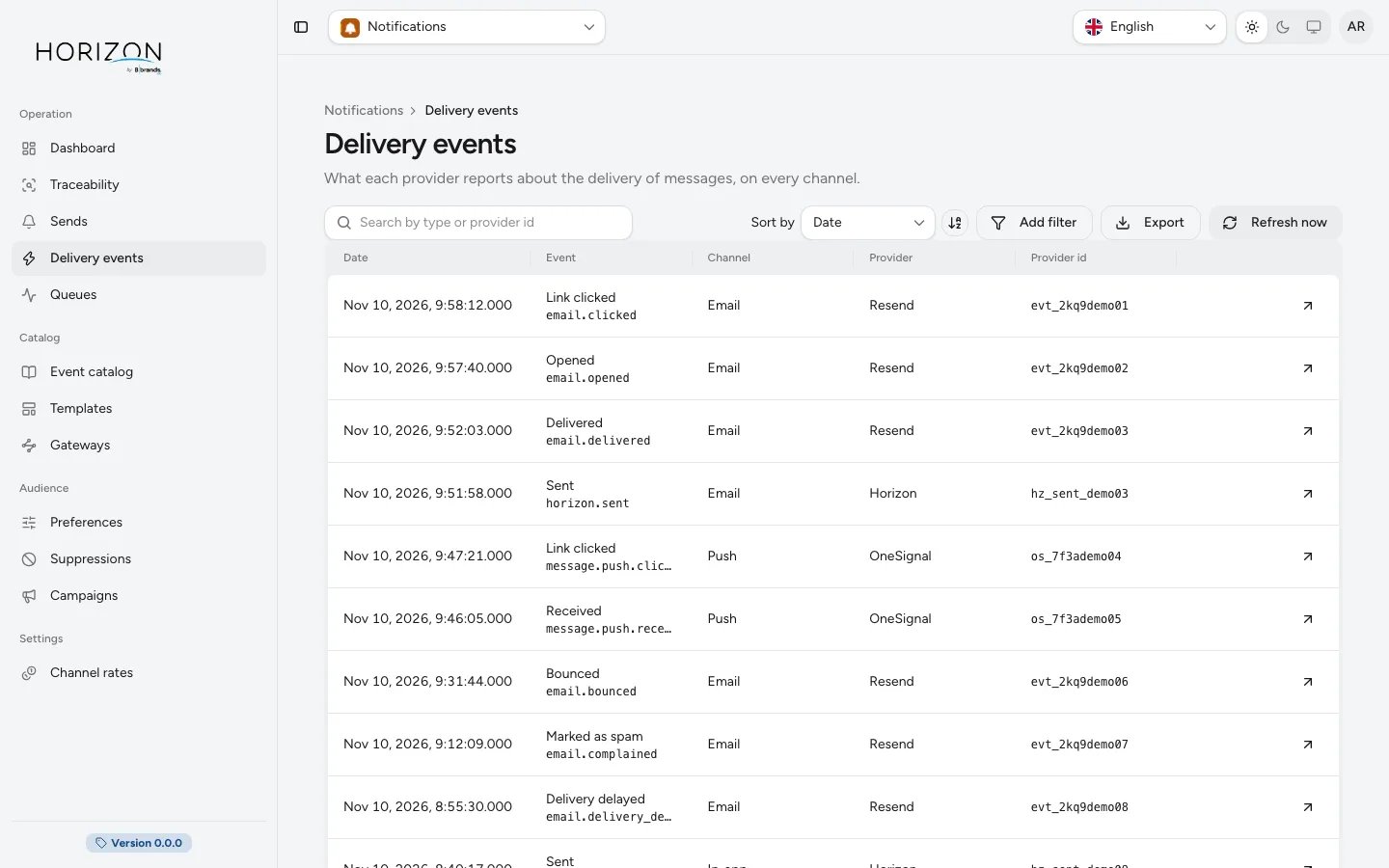
The delivery events of the morning: email events from Resend, push events from OneSignal and Horizon's own steps.
The events
The same labels show in the send detail, the occurrence detail and the Maihue onboarding notifications. An event
type without a label is shown as is.
Step by step
Check whether an email arrived
1
Filter the channel
Press Add filter, pick Channel and choose Email.
2
Find the send
Type the provider id in the search, or open the send from Operation › Sends and press the arrow of any of
its events. Events of one send share the arrow destination.
3
Read the events in order
Sort by Date. Sent → Delivered means it reached the mailbox. Opened and Link clicked come
later if the customer read it. Bounced or Marked as spam close the story: see the rules below.
Find the bounces of a day
1
Filter the event and the date
Press Add filter, pick Event and type
bounced; add Date with the day.2
Open each send
Press the arrow to see the address and the bounce reason in the send detail.
3
Export if you need the list
Clear the search and press Export: the file keeps the filters.
Business rules
States and messages
Errors
Why it works this way
Horizon only knows that it handed the message over; the provider knows whether it arrived. Storing every report as an event (instead of only overwriting a status) keeps the whole story of a send: when it was delivered, opened and clicked, and in which order. The same events feed the dashboard rates, the suppressions and the fallback channels, so reading them here explains why a customer stopped getting emails or got an email instead of a push.Technical detail
FAQ and support cases
The send says Sent but there is no Delivered
The send says Sent but there is no Delivered
The provider has not reported it yet, or the mail server is retrying (Delivery delayed). If after a few hours
there is still nothing, escalate with the Provider id.
A customer says they did not get the email and I see Delivered
A customer says they did not get the email and I see Delivered
The mailbox accepted it: ask them to check spam and promotions. Delivered does not mean they saw it.
Why does a customer no longer receive emails?
Why does a customer no longer receive emails?
Look for a Bounced or Marked as spam of their address: it adds the address to the suppressions. Check it
in Audience › Suppressions.
Why did the customer get an email instead of a push?
Why did the customer get an email instead of a push?
The push reported a failure and the email is its fallback channel. Look for Failed (
message.push.failed) or
Undelivered (message.push.undelivered) on the push send.