How to read the notification lanes, pause and resume one in an emergency with a reason that stays in its history, and requeue the messages that got stuck, with the permissions each action needs.
At a glance
Field
Value
Status
Available
Route
/{locale}/notification/operations
Menu
Notifications › Operation › Queues
Role
Notification Admin and Notification Operator operate the lanes; Editor and Marketing do not see this screen
Permission
notification-lane:operate (see, pause, resume and requeue); queue-lane:find-all alone only lets you see it
Feature flag
None
Last verified
2026-11-12 against develop (679a4e0c5) plus PR for issue #2201
What it is for
Every notification leaves through a lane (“carril”; what the business sometimes calls a “subcola”): one per
channel, each with its own pace. This screen shows how each lane is doing (running or paused, how fast it sends,
how many messages wait) and lets you stop a channel in an emergency, for example when a wrong email is going out,
without touching the other channels. The same screen holds the
failed messages and the
scheduled sends.
How to get there
In the sidebar, open Operation › Queues. The Lanes table is at the top.
What you see
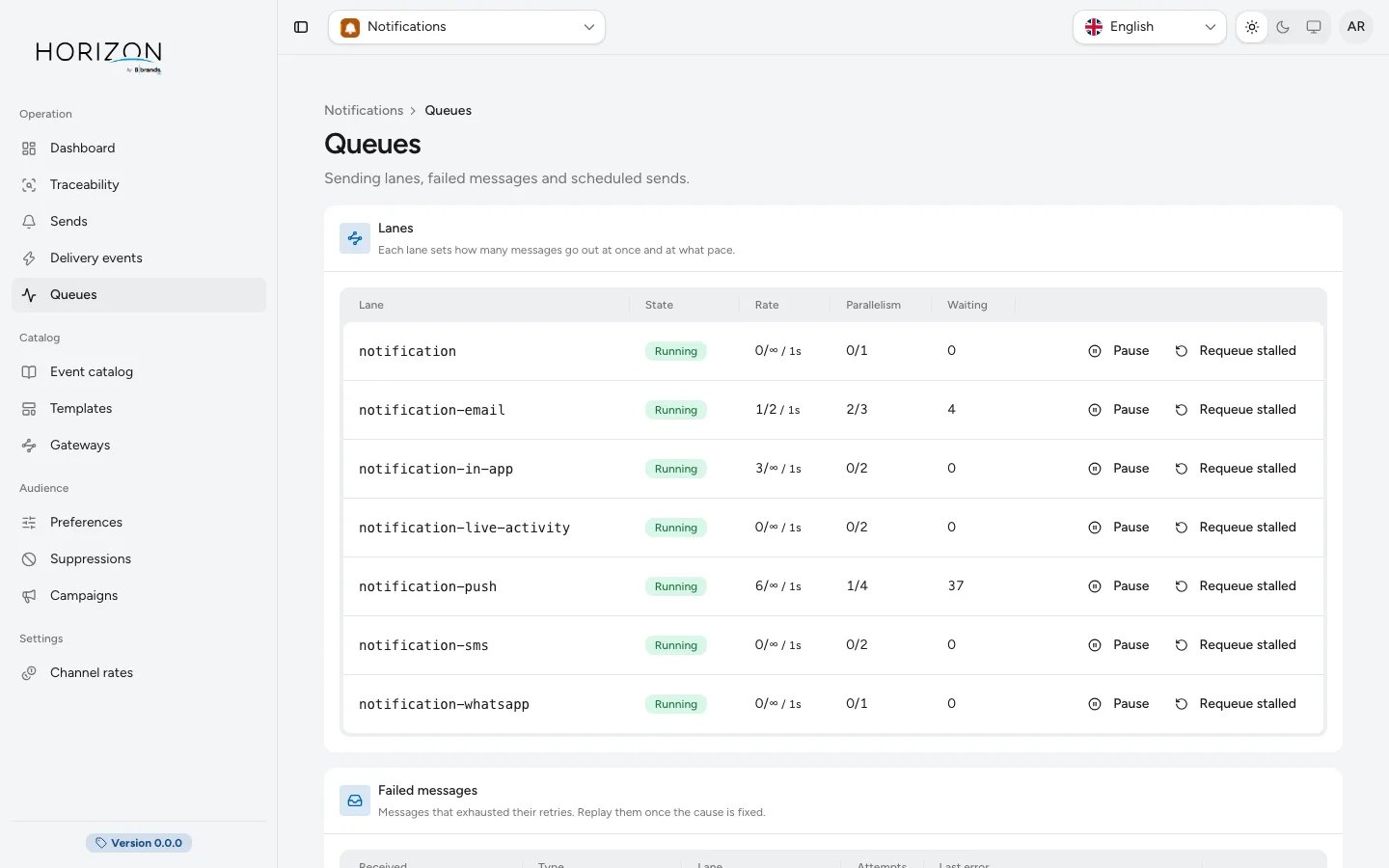
The seven notification lanes, all running; the push lane has 37 messages waiting.
#
Element
What it does
1
Lane
The lane name. notification-email is email, notification-push push, and so on; see Lanes
2
State
Running or Paused. Under Paused, who paused the lane, when and why
3
Rate
Messages sent in the current period against the limit, and the period: 1/2 / 1s is 1 of 2 per second. ∞ means the lane has no rate limit of its own
4
Parallelism
Messages being delivered right now against the most the lane allows at once
5
Waiting
Messages queued in the lane that have not left yet
6
Pause / Resume
Stops or restarts the lane, after a confirmation with a reason
7
Requeue stalled
Sends again the messages of the lane that have been stuck for more than 15 minutes
The figures refresh every minute and when you come back to the screen.
Step by step
Pause a lane in an emergency
1
Find the lane
In Lanes, find the channel to stop, for example notification-push.
2
Press Pause
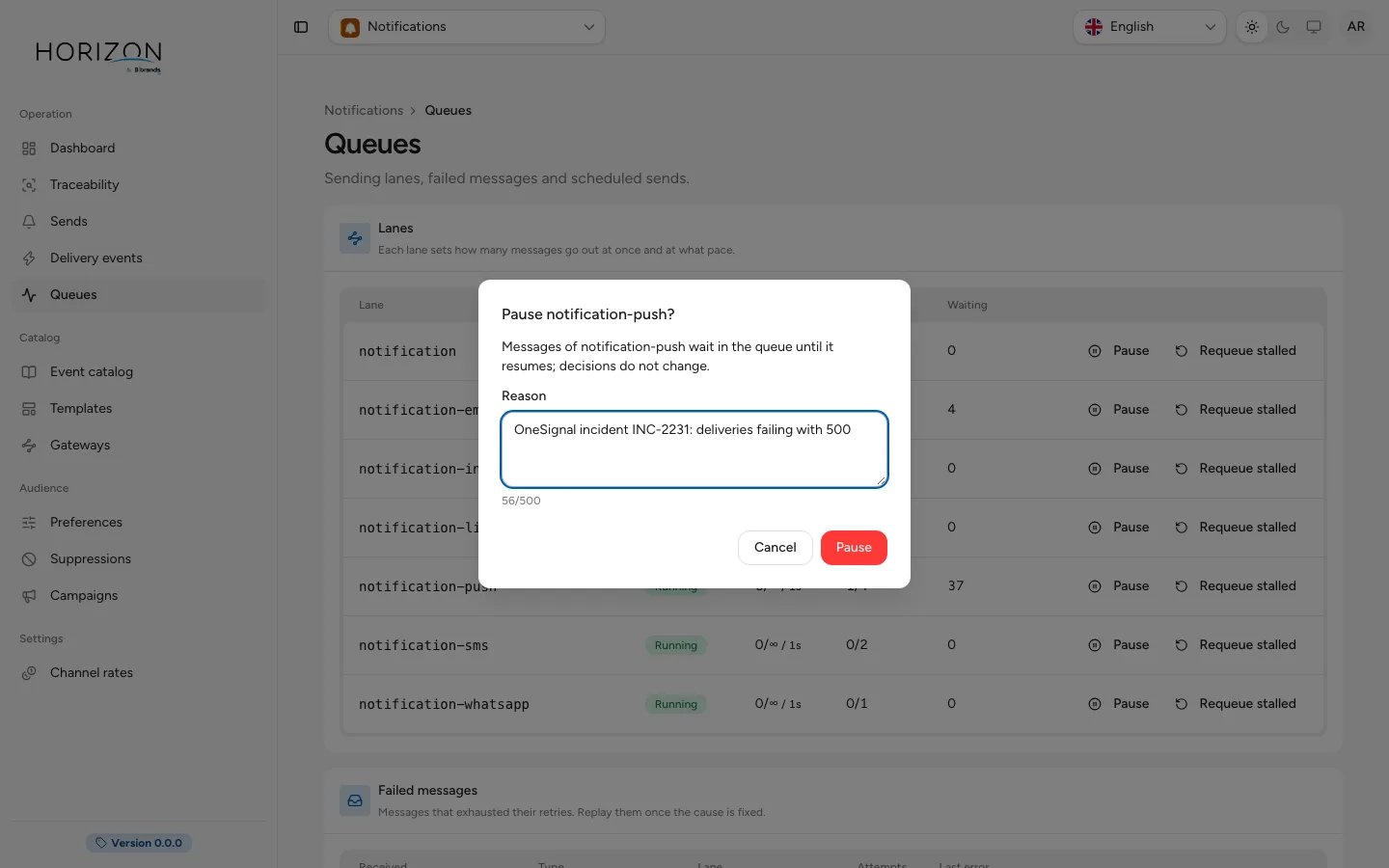
The dialog Pause notification-push? explains that “Messages of notification-push wait in the queue until it
resumes; decisions do not change.”
3
Write the reason
In Reason, write why you pause it, for example the incident number. Pause stays greyed out until the
reason has 3 characters (“Write at least 3 characters; the reason stays in the lane history.”); it takes up to
500.
Confirmation before pausing the push lane, with its reason.
4
Confirm
Press Pause. You see notification-push paused · “The change applies within seconds.” and the state
changes to Paused. Under it the lane shows “Paused by · ” and “Reason: ”, so everyone
knows who paused it and why.
Resume a lane
1
Press Resume
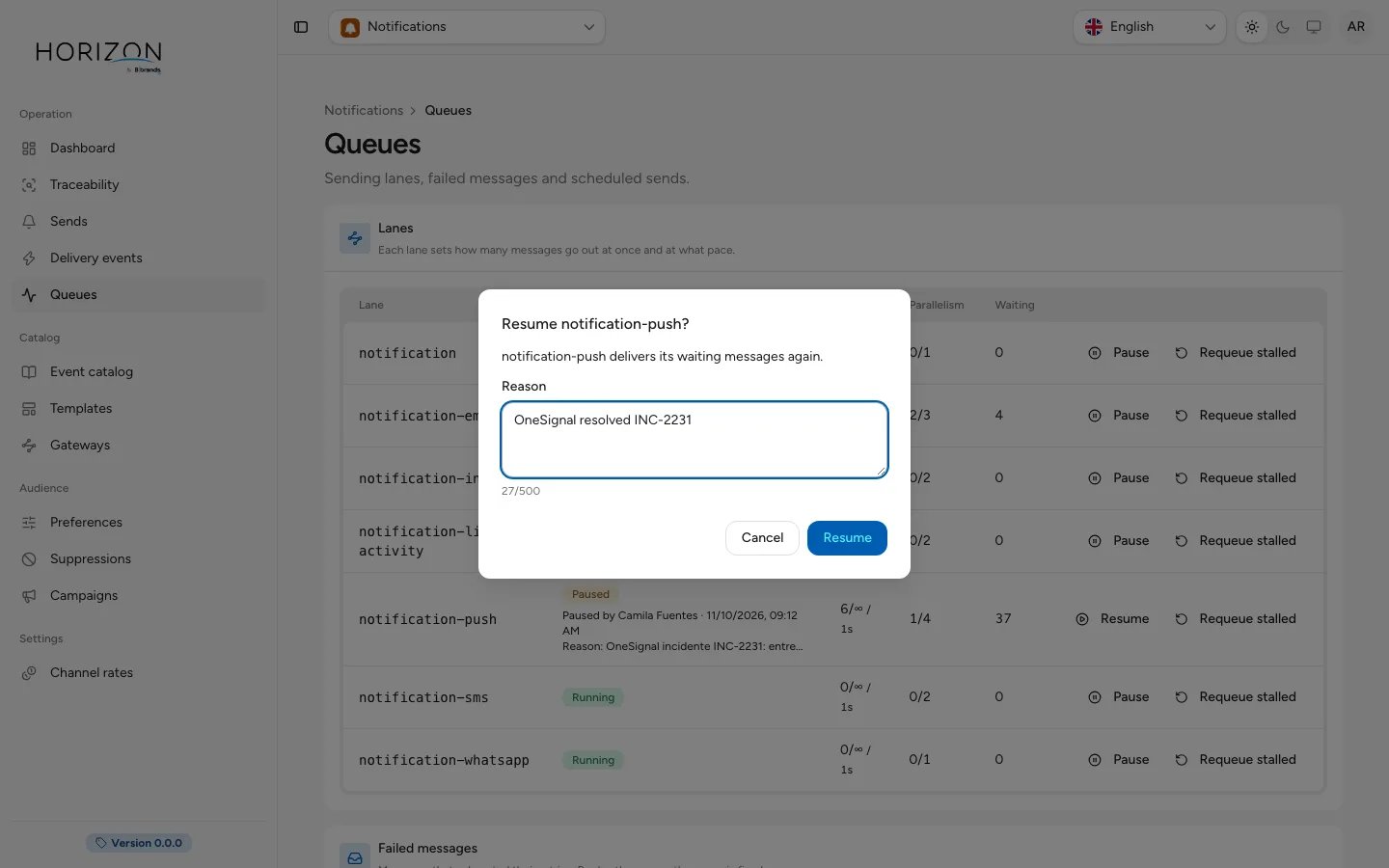
On the paused lane, read who paused it and why, then press Resume. The dialog says “notification-push
delivers its waiting messages again.”
2
Write the reason
In Reason, write why you resume it (at least 3 characters), for example that the provider recovered.
A paused lane shows who paused it and why, and the Resume dialog asks for its own reason.
3
Confirm and watch
Press Resume. You see notification-push resumed. Waiting goes down as the messages leave at the lane’s
pace.
Requeue the stalled messages of a lane
1
Press Requeue stalled
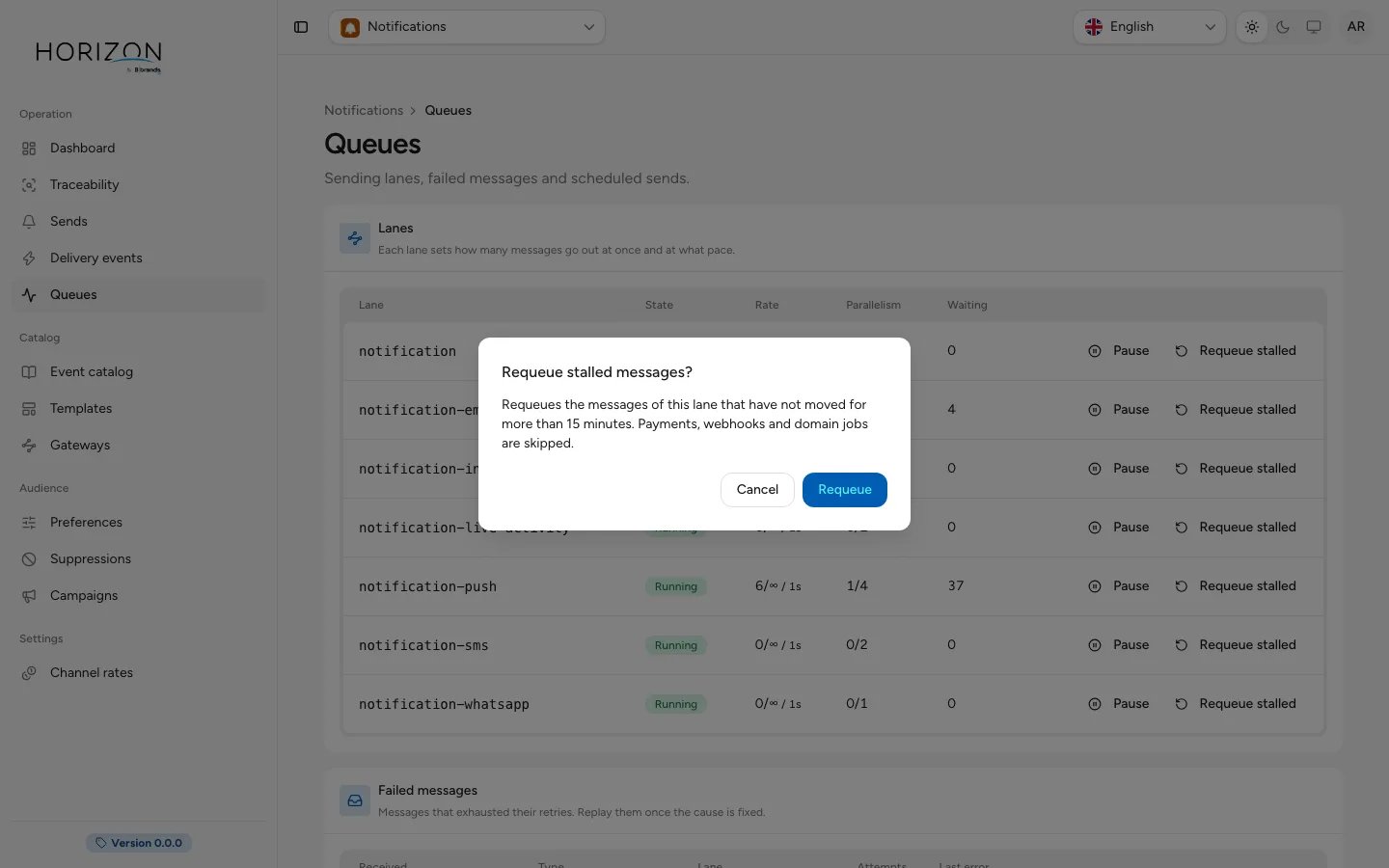
On the lane’s row, press Requeue stalled. The dialog Requeue stalled messages? says: “Requeues the
messages of this lane that have not moved for more than 15 minutes. Payments, webhooks and domain jobs are
skipped.”
The stalled requeue acts on one lane only.
2
Confirm
Press Requeue. You see Requeue started · “The stalled messages of the lane were submitted for requeue.”
Business rules
ID
Rule
R-01
Each channel has its own lane: pausing notification-push does not stop email or in-app. In-app has its own lane, notification-in-app, so a paused or saturated push lane never holds the inbox
R-02
Pausing stops new deliveries of the lane; the ones already being delivered finish. Nothing is lost: the messages wait and leave when it resumes
R-03
Pausing does not change any decision: the rules, the preferences and the suppressions were applied before the message entered the lane
R-04
A pause has no end time: the lane stays paused until someone resumes it
R-05
A notification operator can only operate notification lanes (notification and notification-<channel>); any other lane of the platform answers “no permission”
R-06
A message is stalled when it was recorded but has not finished after 15 minutes. Every 10 minutes the platform requeues up to 50 stalled messages on its own; the button does it now for one lane
R-07
The requeue never sends payments, webhooks or domain jobs again, and it never sends a message twice: a message that was already delivered is skipped
R-08
The rate and parallelism limits are not edited here. They are set in Queue › Control panel (/queue/dashboard), which needs the queue-lane:find-all and queue-lane:update permissions of the Administrator role
R-09
Pausing and resuming need a reason of 3 to 500 characters. Each change stays in the lane history with who made it, when, the reason and the state before and after; the configuration edits of the lane land in the same history
States and messages
State
What you see
Why
What to do
Running
Running (green)
The lane is delivering
Nothing
Paused
Paused (yellow), “Paused by · ” (or “Paused on ” when the actor is unknown), “Reason: ” and Resume
Someone paused it
Resume it when the cause is fixed
No reason yet
Pause or Resume greyed out in the dialog
The reason has fewer than 3 characters
Write the reason
Paused
notification-push paused · “The change applies within seconds.”
You paused the lane
Watch the lane; resume it when the cause is fixed
Resumed
notification-push resumed · “The change applies within seconds.”
You resumed the lane
Watch Waiting go down
Requeue sent
Requeue started · “The stalled messages of the lane were submitted for requeue.”
The stalled messages were sent again
Check Waiting and the sends
Queue full
Waiting keeps growing
The provider is slow, or the lane is paused
Check the state; if it is running, see the provider’s status
No buttons
The rows have no Pause or Requeue stalled
Your role can see the queues but lacks notification-lane:operate
Ask a Notification Operator
No lanes
”No notification lane is configured.”
The lanes could not be read
Reload; if it persists, escalate
Errors
Message
Cause
Backend code
Support action
The lane could not be updated · “You do not have permission for this action…”
The lane is not a notification lane, or the permission is missing
403
Ask for the Notification Operator role
The lane could not be updated · “Something failed on our side…”
Server error
5xx
Try again; escalate if it persists
Could not requeue · “Request failed: 403”
Missing notification-lane:operate, or the lane is not a notification lane
403
Ask for the role
Could not requeue · “Request failed: 500”
Server error
5xx
Try again later
Why it works this way
Each send enters the notification queue and leaves on its channel's lane towards its provider.
Each provider accepts only so many messages per second, and when it fails it fails for its channel. One lane per
channel lets each channel go at its provider’s pace and makes it possible to stop one without stopping the others.
The decision of what to send happens before the lane, so pausing only delays: when the lane resumes, the messages
leave as they were decided.
Technical detail
Aspect
Detail
Screen
frontend/horizon-enterprise/app/components/screens/notification/operations/notification-operations-screen.tsx (LanesSection); requeue dialog in components/screens/queue/monitor/queue-event-requeue-dialog.tsx
Read
GET /api/v3/queue/lane/metrics (live state) and GET /api/v3/queue/lane (ids), limited to the notification lanes for operators (authorizeQueueLaneRead, D-32)
Pause and resume
POST /api/v3/queue/lane/{id}/pause and /resume with body { reason } (3 to 500 characters): queue-lane:pause or, for a notification lane, notification-lane:operate (authorizeQueueLaneOperation); dialog ReasonDialog (components/shared/reason-dialog.tsx)
Lane history
Trigger queue_lane_audit (migration 0439, D-80) writes each change to audit_log with actor, time, reason and is_paused before and after; GET /api/v3/queue/lane/{id}/history (queue-lane:find-one, or notification-lane:operate for a notification lane) feeds the pause note. In Queue › Configuration pausing also asks for a reason, and the lane form no longer has the Paused switch (PATCH /api/v3/queue/lane/{id} does not accept is_paused)
Requeue
POST /api/v3/queue/event/requeue-stalled with the lane; automatic cron GET /api/v3/cron/queue/event/reconcile every 10 minutes (QUEUE_EVENT_REQUEUE_STALL: 15 minutes, 50 per run)
Lanes
backend/horizon-api/lib/queue/lane/queue-lane.defaults.ts and queue-lane-map.ts
Texts
messages/{es,en}.json › modules.notification.operations (with stalledDialog) and modules.queue.requeue
FAQ and support cases
A wrong push is going out. What do I do first?
Pause notification-push. Then fix the cause (for example, turn the event’s push off in the
catalog or fix the template) and resume the lane. The messages that
were waiting leave when you resume, so cancel the ones that must not go out from Operation › Sends first.
I paused the push lane and customers still get emails
That is expected: each channel has its own lane. Pause notification-email too if you need to stop email.
A lane is paused and I do not know why
Read the note under Paused: it says who paused the lane, when and the reason they wrote. Ask that person
before resuming it.
Waiting is above zero but the lane is running
The lane sends at its pace; a burst (a campaign, a reminder for every customer) takes a while to drain. If the
number does not go down for several minutes, check the provider status and the failed messages.
Can I change how many emails go out per second?
Not from this screen. The lane limits are in Queue › Control panel and need the Administrator role; ask the
technology team.
Links to the Sends and Traceability pages and to the incident guides
2026-11-12
Pausing and resuming ask for a reason, and a paused lane shows who paused it, when and why (issue #2201 fixed); new copy of the stalled requeue dialog
Was this page helpful?
{"docsConfig":{"theme":"mint","$schema":"https://mintlify.com/docs.json","name":"B Brands Docs","colors":{"primary":"#0D5993","light":"#0789C9","dark":"#0D5993"},"logo":{"light":"https://mintcdn.com/bbrands/1xnT5Vb9hIIJ3k79/logo/bbrands-lab-light.svg?fit=max\u0026auto=format\u0026n=1xnT5Vb9hIIJ3k79\u0026q=85\u0026s=88608895ccbfda54985581ee6e49b55f","dark":"https://mintcdn.com/bbrands/1xnT5Vb9hIIJ3k79/logo/bbrands-lab-dark.svg?fit=max\u0026auto=format\u0026n=1xnT5Vb9hIIJ3k79\u0026q=85\u0026s=2ec709f45e98d62d6cc6a8e23a735c5d"},"favicon":"https://mintcdn.com/bbrands/SChHqGy4T8DLbxhI/favicon.svg?fit=max\u0026auto=format\u0026n=SChHqGy4T8DLbxhI\u0026q=85\u0026s=3364f2bbd048ffc2d9ba3f4ec3de1d4f","api":{"openapi":["api-reference/maihue/lead/openapi.yaml","api-reference/auth/auth/register-migration-openapi.yaml","api-reference/auth/auth/verify-email-openapi.yaml","api-reference/webhook/openapi.yaml","api-reference/permission/api-key/openapi.yaml","api-reference/notification/notification/openapi.yaml","api-reference/notification/notification/read-openapi.yaml","api-reference/notification/inbox/openapi.yaml","api-reference/notification/onesignal-webhook/openapi.yaml","api-reference/maihue/onboarding/openapi.yaml","api-reference/maihue/onboarding/portal-openapi.yaml","api-reference/maihue/form/openapi.yaml","api-reference/maihue/form-answer/openapi.yaml","api-reference/maihue/form-question/openapi.yaml","api-reference/maihue/form-workflow/openapi.yaml","api-reference/maihue/form-workflow-step/openapi.yaml","api-reference/maihue/lead-answer/openapi.yaml","api-reference/permission/api-key-permission/openapi.yaml","api-reference/notification/preference/openapi.yaml","api-reference/notification/platform/openapi.yaml","api-reference/notification/platform/metric-openapi.yaml","api-reference/notification/template-version/openapi.yaml"]},"navbar":{"links":[{"href":"mailto:developers@bbrands.io","label":"Support"}],"primary":{"type":"button","label":"B Brands Lab","href":"https://www.bbrands.io"}},"footer":{"socials":{"github":"https://github.com/bbrandslab","website":"https://www.bbrands.io"}},"styling":{"latex":false},"navigation":{"languages":[{"language":"en","default":true,"href":"introduction"},{"language":"es","href":"es/introduction"}]}},"deployment":{"deploymentMetadataValue":{"subdomain":"bbrands","hasAudioNarration":false,"actualSubdomain":"bbrands","customDomains":["docs.bbrands.io"],"gitSource":{"type":"github","owner":"bbrandslab","repo":"bbrands-monorepo","deployBranch":"develop","contentDirectory":"backend/horizon-docs","isPrivate":true,"mountPath":"","label":""},"feedback":{"issues":false,"thumbs":true},"entitlements":{},"buildId":"6b08c32dc560574c778c9718","clientVersion":"0.0.4340","searchFilterCounts":[{"language":"default","tag":"Schemas","count":482},{"language":"default","tag":"API Reference","count":274},{"language":"en","tag":"Horizon Enterprise","count":185},{"language":"es","tag":"Horizon Enterprise","count":185},{"language":"en","tag":"Notifications","count":156},{"language":"es","tag":"Notificaciones","count":156},{"language":"default","tag":"General","count":101},{"language":"default","tag":"Maihue","count":97},{"language":"en","tag":"Events","count":95},{"language":"es","tag":"Eventos","count":95},{"language":"en","tag":"Notification","count":73},{"language":"default","tag":"Account","count":63},{"language":"en","tag":"API Reference","count":61},{"language":"en","tag":"Documentation","count":55},{"language":"es","tag":"Documentación","count":55},{"language":"default","tag":"Product","count":54},{"language":"default","tag":"Webhook","count":49},{"language":"default","tag":"MaihueStreet","count":48},{"language":"en","tag":"Customer portal","count":47},{"language":"es","tag":"Portal de clientes","count":47},{"language":"default","tag":"Code","count":43},{"language":"default","tag":"Permission","count":32},{"language":"es","tag":"Acceso","count":26},{"language":"es","tag":"Primeros pasos","count":21},{"language":"en","tag":"Catalog and templates","count":20},{"language":"es","tag":"Catálogo y plantillas","count":20},{"language":"en","tag":"BBrands Lab","count":19},{"language":"en","tag":"MaihueGo","count":19},{"language":"es","tag":"BBrands Lab","count":19},{"language":"es","tag":"MaihueGo","count":19}]},"assistantConfig":{},"basePath":"","hasChatPermissions":false,"hasWebMcpPermissions":false,"toggles":[{"name":"kill-isr","enabled":true,"variant":{"name":"disabled","enabled":false,"feature_enabled":true},"impressionData":false},{"name":"custom-rbac-roles","enabled":true,"variant":{"name":"disabled","enabled":false,"feature_enabled":true},"impressionData":false},{"name":"agent-mintlify-slack","enabled":true,"variant":{"name":"disabled","enabled":false,"feature_enabled":true},"impressionData":false},{"name":"agent-integrations-settings","enabled":true,"variant":{"name":"disabled","enabled":false,"feature_enabled":true},"impressionData":false},{"name":"rbac-expansion","enabled":true,"variant":{"name":"disabled","enabled":false,"feature_enabled":true},"impressionData":false},{"name":"automations-pr-grouping","enabled":true,"variant":{"name":"disabled","enabled":false,"feature_enabled":true},"impressionData":false},{"name":"custom-prefix","enabled":true,"variant":{"name":"disabled","enabled":false,"feature_enabled":true},"impressionData":false},{"name":"analytics-v7","enabled":true,"variant":{"name":"disabled","enabled":false,"feature_enabled":true},"impressionData":false},{"name":"user-flows-analytics","enabled":true,"variant":{"name":"disabled","enabled":false,"feature_enabled":true},"impressionData":false},{"name":"no-publish-flow","enabled":true,"variant":{"name":"disabled","enabled":false,"feature_enabled":true},"impressionData":false},{"name":"snapshot-serving-live","enabled":true,"variant":{"name":"disabled","enabled":false,"feature_enabled":true},"impressionData":false},{"name":"stripTemperatureMiddleware","enabled":true,"variant":{"name":"disabled","enabled":false,"feature_enabled":true},"impressionData":false},{"name":"support-platform-pylon-zendesk","enabled":true,"variant":{"name":"disabled","enabled":false,"feature_enabled":true},"impressionData":false},{"name":"snapshot-serving","enabled":true,"variant":{"name":"disabled","enabled":false,"feature_enabled":true},"impressionData":false},{"name":"instant-rollback","enabled":true,"variant":{"name":"disabled","enabled":false,"feature_enabled":true},"impressionData":false},{"name":"granular-notifications-server","enabled":true,"variant":{"name":"disabled","enabled":false,"feature_enabled":true},"impressionData":false},{"name":"granular-notifications","enabled":true,"variant":{"name":"disabled","enabled":false,"feature_enabled":true},"impressionData":false},{"name":"automations-fable","enabled":true,"variant":{"name":"disabled","enabled":false,"feature_enabled":true},"impressionData":false},{"name":"fixed-ai-action-pricing","enabled":true,"variant":{"name":"disabled","enabled":false,"feature_enabled":true},"impressionData":false},{"name":"site-roles","enabled":true,"variant":{"name":"disabled","enabled":false,"feature_enabled":true},"impressionData":false},{"name":"automation-resolve-merge-conflict","enabled":true,"variant":{"name":"disabled","enabled":false,"feature_enabled":true},"impressionData":false},{"name":"scoped-publishing","enabled":true,"variant":{"name":"disabled","enabled":false,"feature_enabled":true},"impressionData":false},{"name":"mintql","enabled":true,"variant":{"name":"disabled","enabled":false,"feature_enabled":true},"impressionData":false},{"name":"page-level-analytics","enabled":true,"variant":{"name":"disabled","enabled":false,"feature_enabled":true},"impressionData":false},{"name":"editor-version-history-v2","enabled":true,"variant":{"name":"disabled","enabled":false,"feature_enabled":true},"impressionData":false},{"name":"billing-page-v2","enabled":true,"variant":{"name":"disabled","enabled":false,"feature_enabled":true},"impressionData":false},{"name":"full-page-search","enabled":true,"variant":{"name":"disabled","enabled":false,"feature_enabled":true},"impressionData":false},{"name":"workspace-projects","enabled":true,"variant":{"name":"disabled","enabled":false,"feature_enabled":true},"impressionData":false},{"name":"fork-pr-previews","enabled":true,"variant":{"name":"disabled","enabled":false,"feature_enabled":true},"impressionData":false},{"name":"revalidation-jwt","enabled":true,"variant":{"name":"disabled","enabled":false,"feature_enabled":true},"impressionData":false},{"name":"hobby-abuse-scan","enabled":true,"variant":{"name":"disabled","enabled":false,"feature_enabled":true},"impressionData":false},{"name":"dashboard-inbox","enabled":true,"variant":{"name":"disabled","enabled":false,"feature_enabled":true},"impressionData":false},{"name":"turbopuffer-dual-write","enabled":true,"variant":{"name":"disabled","enabled":false,"feature_enabled":true},"impressionData":false},{"name":"approve-review-flow","enabled":true,"variant":{"name":"disabled","enabled":false,"feature_enabled":true},"impressionData":false},{"name":"editor-metadata","enabled":true,"variant":{"name":"disabled","enabled":false,"feature_enabled":true},"impressionData":false},{"name":"turbopuffer-serve","enabled":true,"variant":{"name":"disabled","enabled":false,"feature_enabled":true},"impressionData":false},{"name":"live-agents","enabled":true,"variant":{"name":"disabled","enabled":false,"feature_enabled":true},"impressionData":false},{"name":"starter-pricing","enabled":true,"variant":{"name":"treatment","enabled":true,"payload":{"type":"string","value":"treatment"},"feature_enabled":true},"impressionData":false},{"name":"llms-txt-v2","enabled":true,"variant":{"name":"disabled","enabled":false,"feature_enabled":true},"impressionData":false},{"name":"wildcard-email-auth","enabled":true,"variant":{"name":"disabled","enabled":false,"feature_enabled":true},"impressionData":false}],"starterQuestions":[],"googleFontsInlined":false},"customCss":[{"filePath":"style.css","content":"#navbar a img{height:3rem!important}.wave-status{align-items:baseline;border:1px solid;border-radius:0.75rem;display:flex;flex-wrap:wrap;font-size:0.875rem;gap:0.25rem 0.5rem;line-height:1.5;margin:0.75rem 0;padding:0.5rem 0.75rem}.wave-status a{border-bottom:0;color:inherit;font-weight:600;text-decoration:none}.wave-status a:hover{text-decoration:underline}.wave-status--active{background:#ecfdf5;border-color:rgb(16 185 129 / 0.35);color:#064e3b}.wave-status--planned{background:#fffbeb;border-color:rgb(245 158 11 / 0.35);color:#78350f}.dark .wave-status--active{background:rgb(16 185 129 / 0.1);color:#a7f3d0}.dark .wave-status--planned{background:rgb(245 158 11 / 0.1);color:#fde68a}"}]}
{"page":{"pagePath":"enterprise/notifications/operation/queues","slug":"/enterprise/notifications/operation/queues","pageMetadata":{"title":"Queues and lanes","sidebarTitle":"Queues","description":"How to read the notification lanes, pause and resume one in an emergency with a reason that stays in its history, and requeue the messages that got stuck, with the permissions each action needs.","status":"available","route":"/{locale}/notification/operations","permissions":["notification-lane:operate","queue-lane:find-all"],"flags":[],"lastVerified":"2026-11-12","auditedCommit":"679a4e0c5","href":"/enterprise/notifications/operation/queues"},"description":{"compiledSource":"\"use strict\";\nconst {jsx: _jsx} = arguments[0];\nconst {useMDXComponents: _provideComponents} = arguments[0];\nfunction _createMdxContent(props) {\n const _components = {\n p: \"p\",\n ..._provideComponents(),\n ...props.components\n };\n return _jsx(_components.p, {\n children: \"How to read the notification lanes, pause and resume one in an emergency with a reason that stays in its history, and requeue the messages that got stuck, with the permissions each action needs.\"\n });\n}\nfunction MDXContent(props = {}) {\n const {wrapper: MDXLayout} = {\n ..._provideComponents(),\n ...props.components\n };\n return MDXLayout ? _jsx(MDXLayout, {\n ...props,\n children: _jsx(_createMdxContent, {\n ...props\n })\n }) : _createMdxContent(props);\n}\nreturn {\n default: MDXContent\n};\n","frontmatter":{},"scope":{}},"pageType":"default","mdx":{"mdxSource":{"compiledSource":"\"use strict\";const{Fragment:_Fragment,jsx:_jsx,jsxs:_jsxs}=arguments[0];const{useMDXComponents:_provideComponents}=arguments[0];function _createMdxContent(props){const _components={a:`a`,code:`code`,li:`li`,p:`p`,strong:`strong`,tbody:`tbody`,td:`td`,th:`th`,thead:`thead`,tr:`tr`,ul:`ul`,..._provideComponents(),...props.components},{Accordion,AccordionGroup,Frame,Heading,OptimizedImage,Step,Steps,Table}=_components;if(!Accordion)_missingMdxReference(`Accordion`,true);if(!AccordionGroup)_missingMdxReference(`AccordionGroup`,true);if(!Frame)_missingMdxReference(`Frame`,true);if(!Heading)_missingMdxReference(`Heading`,true);if(!OptimizedImage)_missingMdxReference(`OptimizedImage`,true);if(!Step)_missingMdxReference(`Step`,true);if(!Steps)_missingMdxReference(`Steps`,true);if(!Table)_missingMdxReference(`Table`,true);return _jsxs(_Fragment,{children:[_jsx(Heading,{level:`2`,id:`at-a-glance`,children:`At a glance`}),`\n`,_jsxs(Table,{children:[_jsx(_components.thead,{children:_jsxs(_components.tr,{children:[_jsx(_components.th,{children:`Field`}),_jsx(_components.th,{children:`Value`})]})}),_jsxs(_components.tbody,{children:[_jsxs(_components.tr,{children:[_jsx(_components.td,{children:`Status`}),_jsx(_components.td,{children:_jsx(_components.strong,{children:`Available`})})]}),_jsxs(_components.tr,{children:[_jsx(_components.td,{children:`Route`}),_jsx(_components.td,{children:_jsx(_components.code,{children:`/{locale}/notification/operations`})})]}),_jsxs(_components.tr,{children:[_jsx(_components.td,{children:`Menu`}),_jsxs(_components.td,{children:[`Notifications › Operation › `,_jsx(_components.strong,{children:`Queues`})]})]}),_jsxs(_components.tr,{children:[_jsx(_components.td,{children:`Role`}),_jsx(_components.td,{children:`Notification Admin and Notification Operator operate the lanes; Editor and Marketing do not see this screen`})]}),_jsxs(_components.tr,{children:[_jsx(_components.td,{children:`Permission`}),_jsxs(_components.td,{children:[_jsx(_components.code,{children:`notification-lane:operate`}),` (see, pause, resume and requeue); `,_jsx(_components.code,{children:`queue-lane:find-all`}),` alone only lets you see it`]})]}),_jsxs(_components.tr,{children:[_jsx(_components.td,{children:`Feature flag`}),_jsx(_components.td,{children:`None`})]}),_jsxs(_components.tr,{children:[_jsx(_components.td,{children:`Last verified`}),_jsxs(_components.td,{children:[`2026-11-12 against `,_jsx(_components.code,{children:`develop`}),` (`,_jsx(_components.code,{children:`679a4e0c5`}),`) plus PR for issue #2201`]})]})]})]}),`\n`,_jsx(Heading,{level:`2`,id:`what-it-is-for`,children:`What it is for`}),`\n`,_jsxs(_components.p,{children:[`Every notification leaves through a `,_jsx(_components.strong,{children:`lane`}),` (“carril”; what the business sometimes calls a “subcola”): one per\nchannel, each with its own pace. This screen shows how each lane is doing (running or paused, how fast it sends,\nhow many messages wait) and lets you stop a channel in an emergency, for example when a wrong email is going out,\nwithout touching the other channels. The same screen holds the\n`,_jsx(_components.a,{href:`/enterprise/notifications/operation/failed-messages`,children:`failed messages`}),` and the\n`,_jsx(_components.a,{href:`/enterprise/notifications/operation/scheduled-sends`,children:`scheduled sends`}),`.`]}),`\n`,_jsx(Heading,{level:`2`,id:`how-to-get-there`,children:`How to get there`}),`\n`,_jsxs(_components.ul,{children:[`\n`,_jsxs(_components.li,{children:[`In the sidebar, open `,_jsx(_components.strong,{children:`Operation › Queues`}),`. The `,_jsx(_components.strong,{children:`Lanes`}),` table is at the top.`]}),`\n`]}),`\n`,_jsx(Heading,{level:`2`,id:`what-you-see`,children:`What you see`}),`\n`,_jsx(Frame,{caption:`The seven notification lanes, all running; the push lane has 37 messages waiting.`,children:_jsx(OptimizedImage,{src:`https://mintcdn.com/bbrands/60Dos-kygsMSvNkG/images/enterprise-notifications-screens/queues/lanes.en.desktop.webp?fit=max\u0026auto=format\u0026n=60Dos-kygsMSvNkG\u0026q=85\u0026s=3171e930bf6bc8dd844cb84dc4fa375f`,alt:`Queues screen, Lanes card: a table with Lane, State, Rate, Parallelism and Waiting for notification, notification-email (1/2 per 1s, 2/3, 4 waiting), notification-in-app, notification-live-activity, notification-push (6/∞, 1/4, 37 waiting), notification-sms and notification-whatsapp, all Running, each with Pause and Requeue stalled; the Failed messages card starts below.`,\"data-og-width\":`1440`,width:`1440`,\"data-og-height\":`900`,height:`900`,\"data-path\":`images/enterprise-notifications-screens/queues/lanes.en.desktop.webp`,\"data-optimize\":`true`,\"data-opv\":`3`,srcset:`https://mintcdn.com/bbrands/60Dos-kygsMSvNkG/images/enterprise-notifications-screens/queues/lanes.en.desktop.webp?w=280\u0026fit=max\u0026auto=format\u0026n=60Dos-kygsMSvNkG\u0026q=85\u0026s=1d291e29bb177a6b558c038aacceb730 280w, https://mintcdn.com/bbrands/60Dos-kygsMSvNkG/images/enterprise-notifications-screens/queues/lanes.en.desktop.webp?w=560\u0026fit=max\u0026auto=format\u0026n=60Dos-kygsMSvNkG\u0026q=85\u0026s=3b296aff919439fdc97fc98990f16822 560w, https://mintcdn.com/bbrands/60Dos-kygsMSvNkG/images/enterprise-notifications-screens/queues/lanes.en.desktop.webp?w=840\u0026fit=max\u0026auto=format\u0026n=60Dos-kygsMSvNkG\u0026q=85\u0026s=d8d091e5720e6e5bcdd6eb28507428f2 840w, https://mintcdn.com/bbrands/60Dos-kygsMSvNkG/images/enterprise-notifications-screens/queues/lanes.en.desktop.webp?w=1100\u0026fit=max\u0026auto=format\u0026n=60Dos-kygsMSvNkG\u0026q=85\u0026s=838b8c6a4a9d556e18bbf6ca5fdf29e1 1100w, https://mintcdn.com/bbrands/60Dos-kygsMSvNkG/images/enterprise-notifications-screens/queues/lanes.en.desktop.webp?w=1650\u0026fit=max\u0026auto=format\u0026n=60Dos-kygsMSvNkG\u0026q=85\u0026s=d95933e9c6294363c10e2d0e920fc267 1650w, https://mintcdn.com/bbrands/60Dos-kygsMSvNkG/images/enterprise-notifications-screens/queues/lanes.en.desktop.webp?w=2500\u0026fit=max\u0026auto=format\u0026n=60Dos-kygsMSvNkG\u0026q=85\u0026s=0d54b667034e135be9e2246e7fbfd9e1 2500w`})}),`\n`,_jsxs(Table,{children:[_jsx(_components.thead,{children:_jsxs(_components.tr,{children:[_jsx(_components.th,{children:`#`}),_jsx(_components.th,{children:`Element`}),_jsx(_components.th,{children:`What it does`})]})}),_jsxs(_components.tbody,{children:[_jsxs(_components.tr,{children:[_jsx(_components.td,{\"data-numeric\":`true`,children:`1`}),_jsx(_components.td,{children:_jsx(_components.strong,{children:`Lane`})}),_jsxs(_components.td,{children:[`The lane name. `,_jsx(_components.code,{children:`notification-email`}),` is email, `,_jsx(_components.code,{children:`notification-push`}),` push, and so on; see `,_jsx(_components.a,{href:`/enterprise/notifications/operation/lanes`,children:`Lanes`})]})]}),_jsxs(_components.tr,{children:[_jsx(_components.td,{\"data-numeric\":`true`,children:`2`}),_jsx(_components.td,{children:_jsx(_components.strong,{children:`State`})}),_jsxs(_components.td,{children:[_jsx(_components.strong,{children:`Running`}),` or `,_jsx(_components.strong,{children:`Paused`}),`. Under `,_jsx(_components.strong,{children:`Paused`}),`, who paused the lane, when and why`]})]}),_jsxs(_components.tr,{children:[_jsx(_components.td,{\"data-numeric\":`true`,children:`3`}),_jsx(_components.td,{children:_jsx(_components.strong,{children:`Rate`})}),_jsxs(_components.td,{children:[`Messages sent in the current period against the limit, and the period: `,_jsx(_components.code,{children:`1/2 / 1s`}),` is 1 of 2 per second. `,_jsx(_components.code,{children:`∞`}),` means the lane has no rate limit of its own`]})]}),_jsxs(_components.tr,{children:[_jsx(_components.td,{\"data-numeric\":`true`,children:`4`}),_jsx(_components.td,{children:_jsx(_components.strong,{children:`Parallelism`})}),_jsx(_components.td,{children:`Messages being delivered right now against the most the lane allows at once`})]}),_jsxs(_components.tr,{children:[_jsx(_components.td,{\"data-numeric\":`true`,children:`5`}),_jsx(_components.td,{children:_jsx(_components.strong,{children:`Waiting`})}),_jsx(_components.td,{children:`Messages queued in the lane that have not left yet`})]}),_jsxs(_components.tr,{children:[_jsx(_components.td,{\"data-numeric\":`true`,children:`6`}),_jsxs(_components.td,{children:[_jsx(_components.strong,{children:`Pause`}),` / `,_jsx(_components.strong,{children:`Resume`})]}),_jsx(_components.td,{children:`Stops or restarts the lane, after a confirmation with a reason`})]}),_jsxs(_components.tr,{children:[_jsx(_components.td,{\"data-numeric\":`true`,children:`7`}),_jsx(_components.td,{children:_jsx(_components.strong,{children:`Requeue stalled`})}),_jsx(_components.td,{children:`Sends again the messages of the lane that have been stuck for more than 15 minutes`})]})]})]}),`\n`,_jsx(_components.p,{children:`The figures refresh every minute and when you come back to the screen.`}),`\n`,_jsx(Heading,{level:`2`,id:`step-by-step`,children:`Step by step`}),`\n`,_jsx(Heading,{level:`3`,id:`pause-a-lane-in-an-emergency`,children:`Pause a lane in an emergency`}),`\n`,_jsxs(Steps,{children:[_jsx(Step,{title:`Find the lane`,children:_jsxs(_components.p,{children:[`In `,_jsx(_components.strong,{children:`Lanes`}),`, find the channel to stop, for example `,_jsx(_components.code,{children:`notification-push`}),`.`]})}),_jsx(Step,{title:`Press Pause`,children:_jsxs(_components.p,{children:[`The dialog `,_jsx(_components.strong,{children:`Pause notification-push?`}),` explains that “Messages of notification-push wait in the queue until it\nresumes; decisions do not change.”`]})}),_jsxs(Step,{title:`Write the reason`,children:[_jsxs(_components.p,{children:[`In `,_jsx(_components.strong,{children:`Reason`}),`, write why you pause it, for example the incident number. `,_jsx(_components.strong,{children:`Pause`}),` stays greyed out until the\nreason has 3 characters (“Write at least 3 characters; the reason stays in the lane history.”); it takes up to\n500.`]}),_jsx(Frame,{caption:`Confirmation before pausing the push lane, with its reason.`,children:_jsx(OptimizedImage,{src:`https://mintcdn.com/bbrands/60Dos-kygsMSvNkG/images/enterprise-notifications-screens/queues/pause.en.desktop.webp?fit=max\u0026auto=format\u0026n=60Dos-kygsMSvNkG\u0026q=85\u0026s=a2bd9e416ebbaa37bacc38b5c73f3e96`,alt:`Dialog Pause notification-push? over the Lanes table, with the text Messages of notification-push wait in the queue until it resumes; decisions do not change, the Reason field filled with OneSignal incident INC-2231: deliveries failing with 500, the hint Write at least 3 characters; the reason stays in the lane history, and the buttons Cancel and Pause (red).`,\"data-og-width\":`1440`,width:`1440`,\"data-og-height\":`900`,height:`900`,\"data-path\":`images/enterprise-notifications-screens/queues/pause.en.desktop.webp`,\"data-optimize\":`true`,\"data-opv\":`3`,srcset:`https://mintcdn.com/bbrands/60Dos-kygsMSvNkG/images/enterprise-notifications-screens/queues/pause.en.desktop.webp?w=280\u0026fit=max\u0026auto=format\u0026n=60Dos-kygsMSvNkG\u0026q=85\u0026s=4198dfa9e19add790bbef7d83fd96330 280w, https://mintcdn.com/bbrands/60Dos-kygsMSvNkG/images/enterprise-notifications-screens/queues/pause.en.desktop.webp?w=560\u0026fit=max\u0026auto=format\u0026n=60Dos-kygsMSvNkG\u0026q=85\u0026s=1319eb6ab6a157e0daa65799da4ec5b0 560w, https://mintcdn.com/bbrands/60Dos-kygsMSvNkG/images/enterprise-notifications-screens/queues/pause.en.desktop.webp?w=840\u0026fit=max\u0026auto=format\u0026n=60Dos-kygsMSvNkG\u0026q=85\u0026s=458bd86c2592de7b135e534da5e7ea30 840w, https://mintcdn.com/bbrands/60Dos-kygsMSvNkG/images/enterprise-notifications-screens/queues/pause.en.desktop.webp?w=1100\u0026fit=max\u0026auto=format\u0026n=60Dos-kygsMSvNkG\u0026q=85\u0026s=aa6134ce96d9ada0cf4668eef3bb94a4 1100w, https://mintcdn.com/bbrands/60Dos-kygsMSvNkG/images/enterprise-notifications-screens/queues/pause.en.desktop.webp?w=1650\u0026fit=max\u0026auto=format\u0026n=60Dos-kygsMSvNkG\u0026q=85\u0026s=e3243c52f3b8551d8bab341cfa1b84a3 1650w, https://mintcdn.com/bbrands/60Dos-kygsMSvNkG/images/enterprise-notifications-screens/queues/pause.en.desktop.webp?w=2500\u0026fit=max\u0026auto=format\u0026n=60Dos-kygsMSvNkG\u0026q=85\u0026s=d60224fbfd46d428a1264f37ca5c1481 2500w`})})]}),_jsx(Step,{title:`Confirm`,children:_jsxs(_components.p,{children:[`Press `,_jsx(_components.strong,{children:`Pause`}),`. You see `,_jsx(_components.strong,{children:`notification-push paused`}),` · “The change applies within seconds.” and the state\nchanges to `,_jsx(_components.strong,{children:`Paused`}),`. Under it the lane shows “Paused by `,` · `,`” and “Reason: `,`”, so everyone\nknows who paused it and why.`]})})]}),`\n`,_jsx(Heading,{level:`3`,id:`resume-a-lane`,children:`Resume a lane`}),`\n`,_jsxs(Steps,{children:[_jsx(Step,{title:`Press Resume`,children:_jsxs(_components.p,{children:[`On the paused lane, read who paused it and why, then press `,_jsx(_components.strong,{children:`Resume`}),`. The dialog says “notification-push\ndelivers its waiting messages again.”`]})}),_jsxs(Step,{title:`Write the reason`,children:[_jsxs(_components.p,{children:[`In `,_jsx(_components.strong,{children:`Reason`}),`, write why you resume it (at least 3 characters), for example that the provider recovered.`]}),_jsx(Frame,{caption:`A paused lane shows who paused it and why, and the Resume dialog asks for its own reason.`,children:_jsx(OptimizedImage,{src:`https://mintcdn.com/bbrands/60Dos-kygsMSvNkG/images/enterprise-notifications-screens/queues/resume.en.desktop.webp?fit=max\u0026auto=format\u0026n=60Dos-kygsMSvNkG\u0026q=85\u0026s=7f050734b484aa5dfef4237c638f73e0`,alt:`Dialog Resume notification-push? with the Reason field filled with OneSignal resolved INC-2231 and the buttons Cancel and Resume (blue); behind it, in the Lanes table, notification-push shows the Paused state with Paused by Camila Fuentes · 10 Nov 2026 and Reason: OneSignal incidente INC-2231: entregas con error 500, and the Resume button.`,\"data-og-width\":`1440`,width:`1440`,\"data-og-height\":`900`,height:`900`,\"data-path\":`images/enterprise-notifications-screens/queues/resume.en.desktop.webp`,\"data-optimize\":`true`,\"data-opv\":`3`,srcset:`https://mintcdn.com/bbrands/60Dos-kygsMSvNkG/images/enterprise-notifications-screens/queues/resume.en.desktop.webp?w=280\u0026fit=max\u0026auto=format\u0026n=60Dos-kygsMSvNkG\u0026q=85\u0026s=ac0d7ba6bc84917cf71abbe513010424 280w, https://mintcdn.com/bbrands/60Dos-kygsMSvNkG/images/enterprise-notifications-screens/queues/resume.en.desktop.webp?w=560\u0026fit=max\u0026auto=format\u0026n=60Dos-kygsMSvNkG\u0026q=85\u0026s=a2809a5d9db9e3bd5b3bd093653a0c7f 560w, https://mintcdn.com/bbrands/60Dos-kygsMSvNkG/images/enterprise-notifications-screens/queues/resume.en.desktop.webp?w=840\u0026fit=max\u0026auto=format\u0026n=60Dos-kygsMSvNkG\u0026q=85\u0026s=0a43e170ed8020b876797bd9289a1444 840w, https://mintcdn.com/bbrands/60Dos-kygsMSvNkG/images/enterprise-notifications-screens/queues/resume.en.desktop.webp?w=1100\u0026fit=max\u0026auto=format\u0026n=60Dos-kygsMSvNkG\u0026q=85\u0026s=a8dfe85b96aa68effec0e9e3bf8df7f5 1100w, https://mintcdn.com/bbrands/60Dos-kygsMSvNkG/images/enterprise-notifications-screens/queues/resume.en.desktop.webp?w=1650\u0026fit=max\u0026auto=format\u0026n=60Dos-kygsMSvNkG\u0026q=85\u0026s=dc34c5be9378813a2da3d0f59c9c789d 1650w, https://mintcdn.com/bbrands/60Dos-kygsMSvNkG/images/enterprise-notifications-screens/queues/resume.en.desktop.webp?w=2500\u0026fit=max\u0026auto=format\u0026n=60Dos-kygsMSvNkG\u0026q=85\u0026s=b9ad5708334716443853d20b6355b98b 2500w`})})]}),_jsx(Step,{title:`Confirm and watch`,children:_jsxs(_components.p,{children:[`Press `,_jsx(_components.strong,{children:`Resume`}),`. You see `,_jsx(_components.strong,{children:`notification-push resumed`}),`. `,_jsx(_components.strong,{children:`Waiting`}),` goes down as the messages leave at the lane’s\npace.`]})})]}),`\n`,_jsx(Heading,{level:`3`,id:`requeue-the-stalled-messages-of-a-lane`,children:`Requeue the stalled messages of a lane`}),`\n`,_jsxs(Steps,{children:[_jsxs(Step,{title:`Press Requeue stalled`,children:[_jsxs(_components.p,{children:[`On the lane’s row, press `,_jsx(_components.strong,{children:`Requeue stalled`}),`. The dialog `,_jsx(_components.strong,{children:`Requeue stalled messages?`}),` says: “Requeues the\nmessages of this lane that have not moved for more than 15 minutes. Payments, webhooks and domain jobs are\nskipped.”`]}),_jsx(Frame,{caption:`The stalled requeue acts on one lane only.`,children:_jsx(OptimizedImage,{src:`https://mintcdn.com/bbrands/60Dos-kygsMSvNkG/images/enterprise-notifications-screens/queues/requeue-stalled.en.desktop.webp?fit=max\u0026auto=format\u0026n=60Dos-kygsMSvNkG\u0026q=85\u0026s=1396d09f8dc728c579c7e4cb76035b70`,alt:`Dialog Requeue stalled messages?: Requeues the messages of this lane that have not moved for more than 15 minutes. Payments, webhooks and domain jobs are skipped; buttons Cancel and Requeue.`,\"data-og-width\":`1440`,width:`1440`,\"data-og-height\":`900`,height:`900`,\"data-path\":`images/enterprise-notifications-screens/queues/requeue-stalled.en.desktop.webp`,\"data-optimize\":`true`,\"data-opv\":`3`,srcset:`https://mintcdn.com/bbrands/60Dos-kygsMSvNkG/images/enterprise-notifications-screens/queues/requeue-stalled.en.desktop.webp?w=280\u0026fit=max\u0026auto=format\u0026n=60Dos-kygsMSvNkG\u0026q=85\u0026s=1c10f1e734776cf384134c34c4e62b11 280w, https://mintcdn.com/bbrands/60Dos-kygsMSvNkG/images/enterprise-notifications-screens/queues/requeue-stalled.en.desktop.webp?w=560\u0026fit=max\u0026auto=format\u0026n=60Dos-kygsMSvNkG\u0026q=85\u0026s=dc5204d986b7129e41ffab57ea6ba23d 560w, https://mintcdn.com/bbrands/60Dos-kygsMSvNkG/images/enterprise-notifications-screens/queues/requeue-stalled.en.desktop.webp?w=840\u0026fit=max\u0026auto=format\u0026n=60Dos-kygsMSvNkG\u0026q=85\u0026s=73b51e86abca8fa9b0a70b83dab007b6 840w, https://mintcdn.com/bbrands/60Dos-kygsMSvNkG/images/enterprise-notifications-screens/queues/requeue-stalled.en.desktop.webp?w=1100\u0026fit=max\u0026auto=format\u0026n=60Dos-kygsMSvNkG\u0026q=85\u0026s=45e253224757a2bc34298d659f7d579b 1100w, https://mintcdn.com/bbrands/60Dos-kygsMSvNkG/images/enterprise-notifications-screens/queues/requeue-stalled.en.desktop.webp?w=1650\u0026fit=max\u0026auto=format\u0026n=60Dos-kygsMSvNkG\u0026q=85\u0026s=65f63b9fef56a2ebda24bd7d0891b7c5 1650w, https://mintcdn.com/bbrands/60Dos-kygsMSvNkG/images/enterprise-notifications-screens/queues/requeue-stalled.en.desktop.webp?w=2500\u0026fit=max\u0026auto=format\u0026n=60Dos-kygsMSvNkG\u0026q=85\u0026s=45c1060573e4183fd3731a7e9389e1b9 2500w`})})]}),_jsx(Step,{title:`Confirm`,children:_jsxs(_components.p,{children:[`Press `,_jsx(_components.strong,{children:`Requeue`}),`. You see `,_jsx(_components.strong,{children:`Requeue started`}),` · “The stalled messages of the lane were submitted for requeue.”`]})})]}),`\n`,_jsx(Heading,{level:`2`,id:`business-rules`,children:`Business rules`}),`\n`,_jsxs(Table,{children:[_jsx(_components.thead,{children:_jsxs(_components.tr,{children:[_jsx(_components.th,{children:`ID`}),_jsx(_components.th,{children:`Rule`})]})}),_jsxs(_components.tbody,{children:[_jsxs(_components.tr,{children:[_jsx(_components.td,{children:`R-01`}),_jsxs(_components.td,{children:[`Each channel has its own lane: pausing `,_jsx(_components.code,{children:`notification-push`}),` does not stop email or in-app. In-app has its own lane, `,_jsx(_components.code,{children:`notification-in-app`}),`, so a paused or saturated push lane never holds the inbox`]})]}),_jsxs(_components.tr,{children:[_jsx(_components.td,{children:`R-02`}),_jsx(_components.td,{children:`Pausing stops new deliveries of the lane; the ones already being delivered finish. Nothing is lost: the messages wait and leave when it resumes`})]}),_jsxs(_components.tr,{children:[_jsx(_components.td,{children:`R-03`}),_jsx(_components.td,{children:`Pausing does not change any decision: the rules, the preferences and the suppressions were applied before the message entered the lane`})]}),_jsxs(_components.tr,{children:[_jsx(_components.td,{children:`R-04`}),_jsx(_components.td,{children:`A pause has no end time: the lane stays paused until someone resumes it`})]}),_jsxs(_components.tr,{children:[_jsx(_components.td,{children:`R-05`}),_jsxs(_components.td,{children:[`A notification operator can only operate notification lanes (`,_jsx(_components.code,{children:`notification`}),` and `,_jsx(_components.code,{children:`notification-\u003cchannel>`}),`); any other lane of the platform answers “no permission”`]})]}),_jsxs(_components.tr,{children:[_jsx(_components.td,{children:`R-06`}),_jsx(_components.td,{children:`A message is stalled when it was recorded but has not finished after 15 minutes. Every 10 minutes the platform requeues up to 50 stalled messages on its own; the button does it now for one lane`})]}),_jsxs(_components.tr,{children:[_jsx(_components.td,{children:`R-07`}),_jsx(_components.td,{children:`The requeue never sends payments, webhooks or domain jobs again, and it never sends a message twice: a message that was already delivered is skipped`})]}),_jsxs(_components.tr,{children:[_jsx(_components.td,{children:`R-08`}),_jsxs(_components.td,{children:[`The rate and parallelism limits are not edited here. They are set in `,_jsx(_components.strong,{children:`Queue › Control panel`}),` (`,_jsx(_components.code,{children:`/queue/dashboard`}),`), which needs the `,_jsx(_components.code,{children:`queue-lane:find-all`}),` and `,_jsx(_components.code,{children:`queue-lane:update`}),` permissions of the Administrator role`]})]}),_jsxs(_components.tr,{children:[_jsx(_components.td,{children:`R-09`}),_jsx(_components.td,{children:`Pausing and resuming need a reason of 3 to 500 characters. Each change stays in the lane history with who made it, when, the reason and the state before and after; the configuration edits of the lane land in the same history`})]})]})]}),`\n`,_jsx(Heading,{level:`2`,id:`states-and-messages`,children:`States and messages`}),`\n`,_jsxs(Table,{children:[_jsx(_components.thead,{children:_jsxs(_components.tr,{children:[_jsx(_components.th,{children:`State`}),_jsx(_components.th,{children:`What you see`}),_jsx(_components.th,{children:`Why`}),_jsx(_components.th,{children:`What to do`})]})}),_jsxs(_components.tbody,{children:[_jsxs(_components.tr,{children:[_jsx(_components.td,{children:`Running`}),_jsxs(_components.td,{children:[_jsx(_components.strong,{children:`Running`}),` (green)`]}),_jsx(_components.td,{children:`The lane is delivering`}),_jsx(_components.td,{children:`Nothing`})]}),_jsxs(_components.tr,{children:[_jsx(_components.td,{children:`Paused`}),_jsxs(_components.td,{children:[_jsx(_components.strong,{children:`Paused`}),` (yellow), “Paused by `,` · `,`” (or “Paused on `,`” when the actor is unknown), “Reason: `,`” and `,_jsx(_components.strong,{children:`Resume`})]}),_jsx(_components.td,{children:`Someone paused it`}),_jsx(_components.td,{children:`Resume it when the cause is fixed`})]}),_jsxs(_components.tr,{children:[_jsx(_components.td,{children:`No reason yet`}),_jsxs(_components.td,{children:[_jsx(_components.strong,{children:`Pause`}),` or `,_jsx(_components.strong,{children:`Resume`}),` greyed out in the dialog`]}),_jsx(_components.td,{children:`The reason has fewer than 3 characters`}),_jsx(_components.td,{children:`Write the reason`})]}),_jsxs(_components.tr,{children:[_jsx(_components.td,{children:`Paused`}),_jsxs(_components.td,{children:[_jsx(_components.strong,{children:`notification-push paused`}),` · “The change applies within seconds.”`]}),_jsx(_components.td,{children:`You paused the lane`}),_jsx(_components.td,{children:`Watch the lane; resume it when the cause is fixed`})]}),_jsxs(_components.tr,{children:[_jsx(_components.td,{children:`Resumed`}),_jsxs(_components.td,{children:[_jsx(_components.strong,{children:`notification-push resumed`}),` · “The change applies within seconds.”`]}),_jsx(_components.td,{children:`You resumed the lane`}),_jsxs(_components.td,{children:[`Watch `,_jsx(_components.strong,{children:`Waiting`}),` go down`]})]}),_jsxs(_components.tr,{children:[_jsx(_components.td,{children:`Requeue sent`}),_jsxs(_components.td,{children:[_jsx(_components.strong,{children:`Requeue started`}),` · “The stalled messages of the lane were submitted for requeue.”`]}),_jsx(_components.td,{children:`The stalled messages were sent again`}),_jsxs(_components.td,{children:[`Check `,_jsx(_components.strong,{children:`Waiting`}),` and the sends`]})]}),_jsxs(_components.tr,{children:[_jsx(_components.td,{children:`Queue full`}),_jsxs(_components.td,{children:[_jsx(_components.strong,{children:`Waiting`}),` keeps growing`]}),_jsx(_components.td,{children:`The provider is slow, or the lane is paused`}),_jsx(_components.td,{children:`Check the state; if it is running, see the provider’s status`})]}),_jsxs(_components.tr,{children:[_jsx(_components.td,{children:`No buttons`}),_jsxs(_components.td,{children:[`The rows have no `,_jsx(_components.strong,{children:`Pause`}),` or `,_jsx(_components.strong,{children:`Requeue stalled`})]}),_jsxs(_components.td,{children:[`Your role can see the queues but lacks `,_jsx(_components.code,{children:`notification-lane:operate`})]}),_jsx(_components.td,{children:`Ask a Notification Operator`})]}),_jsxs(_components.tr,{children:[_jsx(_components.td,{children:`No lanes`}),_jsx(_components.td,{children:`”No notification lane is configured.”`}),_jsx(_components.td,{children:`The lanes could not be read`}),_jsx(_components.td,{children:`Reload; if it persists, escalate`})]})]})]}),`\n`,_jsx(Heading,{level:`2`,id:`errors`,children:`Errors`}),`\n`,_jsxs(Table,{children:[_jsx(_components.thead,{children:_jsxs(_components.tr,{children:[_jsx(_components.th,{children:`Message`}),_jsx(_components.th,{children:`Cause`}),_jsx(_components.th,{children:`Backend code`}),_jsx(_components.th,{children:`Support action`})]})}),_jsxs(_components.tbody,{children:[_jsxs(_components.tr,{children:[_jsxs(_components.td,{children:[_jsx(_components.strong,{children:`The lane could not be updated`}),` · “You do not have permission for this action…”`]}),_jsx(_components.td,{children:`The lane is not a notification lane, or the permission is missing`}),_jsx(_components.td,{\"data-numeric\":`true`,children:`403`}),_jsx(_components.td,{children:`Ask for the Notification Operator role`})]}),_jsxs(_components.tr,{children:[_jsxs(_components.td,{children:[_jsx(_components.strong,{children:`The lane could not be updated`}),` · “Something failed on our side…”`]}),_jsx(_components.td,{children:`Server error`}),_jsx(_components.td,{children:`5xx`}),_jsx(_components.td,{children:`Try again; escalate if it persists`})]}),_jsxs(_components.tr,{children:[_jsxs(_components.td,{children:[_jsx(_components.strong,{children:`Could not requeue`}),` · “Request failed: 403”`]}),_jsxs(_components.td,{children:[`Missing `,_jsx(_components.code,{children:`notification-lane:operate`}),`, or the lane is not a notification lane`]}),_jsx(_components.td,{\"data-numeric\":`true`,children:`403`}),_jsx(_components.td,{children:`Ask for the role`})]}),_jsxs(_components.tr,{children:[_jsxs(_components.td,{children:[_jsx(_components.strong,{children:`Could not requeue`}),` · “Request failed: 500”`]}),_jsx(_components.td,{children:`Server error`}),_jsx(_components.td,{children:`5xx`}),_jsx(_components.td,{children:`Try again later`})]})]})]}),`\n`,_jsx(Heading,{level:`2`,id:`why-it-works-this-way`,children:`Why it works this way`}),`\n`,_jsx(Frame,{caption:`Each send enters the notification queue and leaves on its channel's lane towards its provider.`,children:_jsx(OptimizedImage,{src:`https://mintcdn.com/bbrands/_njGa-AUVffoWNDA/images/notification-user-manual/channel-lanes.svg?fit=max\u0026auto=format\u0026n=_njGa-AUVffoWNDA\u0026q=85\u0026s=bcca131ffe4af22db7641224c5a3ffae`,alt:`Diagram: the notification queue spreads the sends over six lanes; Email goes to Resend; In-app goes to the Horizon inbox; Push, SMS and Live Activity go to OneSignal; WhatsApp is reserved and has no provider.`,\"data-og-width\":`960`,width:`960`,\"data-og-height\":`672`,height:`672`,\"data-path\":`images/notification-user-manual/channel-lanes.svg`,\"data-optimize\":`true`,\"data-opv\":`3`,srcset:`https://mintcdn.com/bbrands/_njGa-AUVffoWNDA/images/notification-user-manual/channel-lanes.svg?w=280\u0026fit=max\u0026auto=format\u0026n=_njGa-AUVffoWNDA\u0026q=85\u0026s=3b70545415e592e53b81a3f71dd199c3 280w, https://mintcdn.com/bbrands/_njGa-AUVffoWNDA/images/notification-user-manual/channel-lanes.svg?w=560\u0026fit=max\u0026auto=format\u0026n=_njGa-AUVffoWNDA\u0026q=85\u0026s=3b266b1c49ca94494bbde787176028a7 560w, https://mintcdn.com/bbrands/_njGa-AUVffoWNDA/images/notification-user-manual/channel-lanes.svg?w=840\u0026fit=max\u0026auto=format\u0026n=_njGa-AUVffoWNDA\u0026q=85\u0026s=5f1711c63590ad9c0e8870254491d9ab 840w, https://mintcdn.com/bbrands/_njGa-AUVffoWNDA/images/notification-user-manual/channel-lanes.svg?w=1100\u0026fit=max\u0026auto=format\u0026n=_njGa-AUVffoWNDA\u0026q=85\u0026s=25f97ef10126f54a05b399bfbc77934f 1100w, https://mintcdn.com/bbrands/_njGa-AUVffoWNDA/images/notification-user-manual/channel-lanes.svg?w=1650\u0026fit=max\u0026auto=format\u0026n=_njGa-AUVffoWNDA\u0026q=85\u0026s=51a58427fd33ca6cdd900b0d3adee96c 1650w, https://mintcdn.com/bbrands/_njGa-AUVffoWNDA/images/notification-user-manual/channel-lanes.svg?w=2500\u0026fit=max\u0026auto=format\u0026n=_njGa-AUVffoWNDA\u0026q=85\u0026s=3b48d602e0744234b375d83ed498fbd5 2500w`})}),`\n`,_jsx(_components.p,{children:`Each provider accepts only so many messages per second, and when it fails it fails for its channel. One lane per\nchannel lets each channel go at its provider’s pace and makes it possible to stop one without stopping the others.\nThe decision of what to send happens before the lane, so pausing only delays: when the lane resumes, the messages\nleave as they were decided.`}),`\n`,_jsx(Heading,{level:`2`,id:`technical-detail`,children:`Technical detail`}),`\n`,_jsxs(Table,{children:[_jsx(_components.thead,{children:_jsxs(_components.tr,{children:[_jsx(_components.th,{children:`Aspect`}),_jsx(_components.th,{children:`Detail`})]})}),_jsxs(_components.tbody,{children:[_jsxs(_components.tr,{children:[_jsx(_components.td,{children:`Screen`}),_jsxs(_components.td,{children:[_jsx(_components.code,{children:`frontend/horizon-enterprise/app/components/screens/notification/operations/notification-operations-screen.tsx`}),` (`,_jsx(_components.code,{children:`LanesSection`}),`); requeue dialog in `,_jsx(_components.code,{children:`components/screens/queue/monitor/queue-event-requeue-dialog.tsx`})]})]}),_jsxs(_components.tr,{children:[_jsx(_components.td,{children:`Read`}),_jsxs(_components.td,{children:[_jsx(_components.code,{children:`GET /api/v3/queue/lane/metrics`}),` (live state) and `,_jsx(_components.code,{children:`GET /api/v3/queue/lane`}),` (ids), limited to the notification lanes for operators (`,_jsx(_components.code,{children:`authorizeQueueLaneRead`}),`, D-32)`]})]}),_jsxs(_components.tr,{children:[_jsx(_components.td,{children:`Pause and resume`}),_jsxs(_components.td,{children:[_jsx(_components.code,{children:`POST /api/v3/queue/lane/{id}/pause`}),` and `,_jsx(_components.code,{children:`/resume`}),` with body `,_jsx(_components.code,{children:`{ reason }`}),` (3 to 500 characters): `,_jsx(_components.code,{children:`queue-lane:pause`}),` or, for a notification lane, `,_jsx(_components.code,{children:`notification-lane:operate`}),` (`,_jsx(_components.code,{children:`authorizeQueueLaneOperation`}),`); dialog `,_jsx(_components.code,{children:`ReasonDialog`}),` (`,_jsx(_components.code,{children:`components/shared/reason-dialog.tsx`}),`)`]})]}),_jsxs(_components.tr,{children:[_jsx(_components.td,{children:`Lane history`}),_jsxs(_components.td,{children:[`Trigger `,_jsx(_components.code,{children:`queue_lane_audit`}),` (migration 0439, D-80) writes each change to `,_jsx(_components.code,{children:`audit_log`}),` with actor, time, reason and `,_jsx(_components.code,{children:`is_paused`}),` before and after; `,_jsx(_components.code,{children:`GET /api/v3/queue/lane/{id}/history`}),` (`,_jsx(_components.code,{children:`queue-lane:find-one`}),`, or `,_jsx(_components.code,{children:`notification-lane:operate`}),` for a notification lane) feeds the pause note. In `,_jsx(_components.strong,{children:`Queue › Configuration`}),` pausing also asks for a reason, and the lane form no longer has the `,_jsx(_components.strong,{children:`Paused`}),` switch (`,_jsx(_components.code,{children:`PATCH /api/v3/queue/lane/{id}`}),` does not accept `,_jsx(_components.code,{children:`is_paused`}),`)`]})]}),_jsxs(_components.tr,{children:[_jsx(_components.td,{children:`Requeue`}),_jsxs(_components.td,{children:[_jsx(_components.code,{children:`POST /api/v3/queue/event/requeue-stalled`}),` with the lane; automatic cron `,_jsx(_components.code,{children:`GET /api/v3/cron/queue/event/reconcile`}),` every 10 minutes (`,_jsx(_components.code,{children:`QUEUE_EVENT_REQUEUE_STALL`}),`: 15 minutes, 50 per run)`]})]}),_jsxs(_components.tr,{children:[_jsx(_components.td,{children:`Lanes`}),_jsxs(_components.td,{children:[_jsx(_components.code,{children:`backend/horizon-api/lib/queue/lane/queue-lane.defaults.ts`}),` and `,_jsx(_components.code,{children:`queue-lane-map.ts`})]})]}),_jsxs(_components.tr,{children:[_jsx(_components.td,{children:`Texts`}),_jsxs(_components.td,{children:[_jsx(_components.code,{children:`messages/{es,en}.json`}),` › `,_jsx(_components.code,{children:`modules.notification.operations`}),` (with `,_jsx(_components.code,{children:`stalledDialog`}),`) and `,_jsx(_components.code,{children:`modules.queue.requeue`})]})]})]})]}),`\n`,_jsx(Heading,{level:`2`,id:`faq-and-support-cases`,children:`FAQ and support cases`}),`\n`,_jsxs(AccordionGroup,{children:[_jsx(Accordion,{title:`A wrong push is going out. What do I do first?`,id:`a-wrong-push-is-going-out-what-do-i-do-first`,children:_jsxs(_components.p,{children:[`Pause `,_jsx(_components.code,{children:`notification-push`}),`. Then fix the cause (for example, turn the event’s push off in the\n`,_jsx(_components.a,{href:`/enterprise/notifications/catalog/channels`,children:`catalog`}),` or fix the template) and resume the lane. The messages that\nwere waiting leave when you resume, so cancel the ones that must not go out from `,_jsx(_components.a,{href:`/enterprise/notifications/operation/sends`,children:_jsx(_components.strong,{children:`Operation › Sends`})}),` first.`]})}),_jsx(Accordion,{title:`I paused the push lane and customers still get emails`,id:`i-paused-the-push-lane-and-customers-still-get-emails`,children:_jsxs(_components.p,{children:[`That is expected: each channel has its own lane. Pause `,_jsx(_components.code,{children:`notification-email`}),` too if you need to stop email.`]})}),_jsx(Accordion,{title:`A lane is paused and I do not know why`,id:`a-lane-is-paused-and-i-do-not-know-why`,children:_jsxs(_components.p,{children:[`Read the note under `,_jsx(_components.strong,{children:`Paused`}),`: it says who paused the lane, when and the reason they wrote. Ask that person\nbefore resuming it.`]})}),_jsx(Accordion,{title:`Waiting is above zero but the lane is running`,id:`waiting-is-above-zero-but-the-lane-is-running`,children:_jsx(_components.p,{children:`The lane sends at its pace; a burst (a campaign, a reminder for every customer) takes a while to drain. If the\nnumber does not go down for several minutes, check the provider status and the failed messages.`})}),_jsx(Accordion,{title:`Can I change how many emails go out per second?`,id:`can-i-change-how-many-emails-go-out-per-second`,children:_jsxs(_components.p,{children:[`Not from this screen. The lane limits are in `,_jsx(_components.strong,{children:`Queue › Control panel`}),` and need the Administrator role; ask the\ntechnology team.`]})})]}),`\n`,_jsx(Heading,{level:`2`,id:`related-and-history`,children:`Related and history`}),`\n`,_jsxs(_components.ul,{children:[`\n`,_jsx(_components.li,{children:_jsx(_components.a,{href:`/enterprise/notifications/operation/failed-messages`,children:`Failed messages`})}),`\n`,_jsx(_components.li,{children:_jsx(_components.a,{href:`/enterprise/notifications/guides/stuck-or-paused-lane`,children:`Guide: A lane is stuck or paused`})}),`\n`,_jsx(_components.li,{children:_jsx(_components.a,{href:`/enterprise/notifications/operation/scheduled-sends`,children:`Scheduled sends`})}),`\n`,_jsx(_components.li,{children:_jsx(_components.a,{href:`/enterprise/notifications/operation/lanes`,children:`Lanes`})}),`\n`,_jsx(_components.li,{children:_jsx(_components.a,{href:`/enterprise/notifications/getting-started/roles-and-permissions`,children:`Roles and permissions`})}),`\n`]}),`\n`,_jsxs(Table,{children:[_jsx(_components.thead,{children:_jsxs(_components.tr,{children:[_jsx(_components.th,{children:`Date`}),_jsx(_components.th,{children:`Change`})]})}),_jsxs(_components.tbody,{children:[_jsxs(_components.tr,{children:[_jsx(_components.td,{\"data-numeric\":`true`,children:`2026-11-11`}),_jsx(_components.td,{children:`First version`})]}),_jsxs(_components.tr,{children:[_jsx(_components.td,{\"data-numeric\":`true`,children:`2026-11-11`}),_jsx(_components.td,{children:`Links to the Sends and Traceability pages and to the incident guides`})]}),_jsxs(_components.tr,{children:[_jsx(_components.td,{\"data-numeric\":`true`,children:`2026-11-12`}),_jsx(_components.td,{children:`Pausing and resuming ask for a reason, and a paused lane shows who paused it, when and why (issue #2201 fixed); new copy of the stalled requeue dialog`})]})]})]})]})}function MDXContent(props={}){const{wrapper:MDXLayout}={..._provideComponents(),...props.components};return MDXLayout?_jsx(MDXLayout,{...props,children:_jsx(_createMdxContent,{...props})}):_createMdxContent(props)}return{default:MDXContent};function _missingMdxReference(id,component){throw new Error(`Expected `+(component?`component`:`object`)+\" `\"+id+\"` to be defined: you likely forgot to import, pass, or provide it.\")}","frontmatter":{},"scope":{"config":{},"pageMetadata":{"title":"Queues and lanes","sidebarTitle":"Queues","description":"How to read the notification lanes, pause and resume one in an emergency with a reason that stays in its history, and requeue the messages that got stuck, with the permissions each action needs.","status":"available","route":"/{locale}/notification/operations","permissions":["notification-lane:operate","queue-lane:find-all"],"flags":[],"lastVerified":"2026-11-12","auditedCommit":"679a4e0c5","href":"/enterprise/notifications/operation/queues"}}},"mdxSourceWithNoJs":null},"mdxExtracts":{"tableOfContents":[{"title":"At a glance","slug":"at-a-glance","depth":2,"children":[]},{"title":"What it is for","slug":"what-it-is-for","depth":2,"children":[]},{"title":"How to get there","slug":"how-to-get-there","depth":2,"children":[]},{"title":"What you see","slug":"what-you-see","depth":2,"children":[]},{"title":"Step by step","slug":"step-by-step","depth":2,"children":[{"title":"Pause a lane in an emergency","slug":"pause-a-lane-in-an-emergency","depth":3,"children":[]},{"title":"Resume a lane","slug":"resume-a-lane","depth":3,"children":[]},{"title":"Requeue the stalled messages of a lane","slug":"requeue-the-stalled-messages-of-a-lane","depth":3,"children":[]}]},{"title":"Business rules","slug":"business-rules","depth":2,"children":[]},{"title":"States and messages","slug":"states-and-messages","depth":2,"children":[]},{"title":"Errors","slug":"errors","depth":2,"children":[]},{"title":"Why it works this way","slug":"why-it-works-this-way","depth":2,"children":[]},{"title":"Technical detail","slug":"technical-detail","depth":2,"children":[]},{"title":"FAQ and support cases","slug":"faq-and-support-cases","depth":2,"children":[]},{"title":"Related and history","slug":"related-and-history","depth":2,"children":[]}],"codeExamples":{}},"jsLinks":[],"subdomain":"bbrands","siteName":"B Brands Docs","title":"Queues and lanes - B Brands Docs","contextualStarterQuestions":[],"navMaps":{"firstHrefInVersion":{},"firstHrefInLanguage":{"en":{"href":"/enterprise/notifications/operation/queues","matchLevel":0},"es":{"href":"/es/enterprise/notifications/operation/queues","matchLevel":1}}},"lastModified":"2026-11-13T12:42:01.304Z","originalFileLocation":"enterprise/notifications/operation/queues.mdx","locale":"en"},"headHtml":"\u003cscript data-mint-head>(function(){var d=document.documentElement,p=null;if(!p){try{p=localStorage.getItem(\"isDarkMode\")}catch(e){}if(p==='true')p='dark';else if(p==='false')p='light';if(p!=='light'\u0026\u0026p!=='dark'\u0026\u0026p!=='system')p=\"system\"}var r=p==='system'?(matchMedia(\"(prefers-color-scheme: dark)\").matches?'dark':'light'):p;d.classList.remove(r==='dark'?'light':'dark');d.classList.add(r);d.setAttribute(\"data-theme-preference\",p)})();\u003c/script>\u003cmeta data-mint-head name=\"description\" content=\"How to read the notification lanes, pause and resume one in an emergency with a reason that stays in its history, and requeue the messages that got stuck, with the permissions each action needs.\">\u003cmeta data-mint-head name=\"application-name\" content=\"B Brands Docs\">\u003cmeta data-mint-head name=\"generator\" content=\"Mintlify\">\u003clink data-mint-head rel=\"icon\" type=\"image/png\" sizes=\"192x192\" href=\"/mintlify-assets/_mintlify/favicons/bbrands/goeZ5nRzsRLDEX7Z/_generated/favicon/android-chrome-192x192.png\" media=\"(prefers-color-scheme: light)\">\u003clink data-mint-head rel=\"apple-touch-icon\" type=\"image/png\" sizes=\"180x180\" href=\"/mintlify-assets/_mintlify/favicons/bbrands/goeZ5nRzsRLDEX7Z/_generated/favicon/apple-touch-icon.png\">\u003clink data-mint-head rel=\"icon\" type=\"image/png\" sizes=\"16x16\" href=\"/mintlify-assets/_mintlify/favicons/bbrands/goeZ5nRzsRLDEX7Z/_generated/favicon/favicon-16x16.png\" media=\"(prefers-color-scheme: light)\">\u003clink data-mint-head rel=\"icon\" type=\"image/png\" sizes=\"32x32\" href=\"/mintlify-assets/_mintlify/favicons/bbrands/goeZ5nRzsRLDEX7Z/_generated/favicon/favicon-32x32.png\" media=\"(prefers-color-scheme: light)\">\u003clink data-mint-head rel=\"shortcut icon\" type=\"image/x-icon\" href=\"/mintlify-assets/_mintlify/favicons/bbrands/goeZ5nRzsRLDEX7Z/_generated/favicon/favicon.ico\" media=\"(prefers-color-scheme: light)\">\u003clink data-mint-head rel=\"icon\" type=\"image/png\" sizes=\"192x192\" href=\"/mintlify-assets/_mintlify/favicons/bbrands/goeZ5nRzsRLDEX7Z/_generated/favicon-dark/android-chrome-192x192.png\" media=\"(prefers-color-scheme: dark)\">\u003clink data-mint-head rel=\"icon\" type=\"image/png\" sizes=\"16x16\" href=\"/mintlify-assets/_mintlify/favicons/bbrands/goeZ5nRzsRLDEX7Z/_generated/favicon-dark/favicon-16x16.png\" media=\"(prefers-color-scheme: dark)\">\u003clink data-mint-head rel=\"icon\" type=\"image/png\" sizes=\"32x32\" href=\"/mintlify-assets/_mintlify/favicons/bbrands/goeZ5nRzsRLDEX7Z/_generated/favicon-dark/favicon-32x32.png\" media=\"(prefers-color-scheme: dark)\">\u003clink data-mint-head rel=\"shortcut icon\" type=\"image/x-icon\" href=\"/mintlify-assets/_mintlify/favicons/bbrands/goeZ5nRzsRLDEX7Z/_generated/favicon-dark/favicon.ico\" media=\"(prefers-color-scheme: dark)\">\u003cmeta data-mint-head property=\"og:title\" content=\"Queues and lanes - B Brands Docs\">\u003cmeta data-mint-head property=\"og:description\" content=\"How to read the notification lanes, pause and resume one in an emergency with a reason that stays in its history, and requeue the messages that got stuck, with the permissions each action needs.\">\u003cmeta data-mint-head property=\"og:site_name\" content=\"B Brands Docs\">\u003cmeta data-mint-head property=\"og:url\" content=\"https://docs.bbrands.io/enterprise/notifications/operation/queues\">\u003cmeta data-mint-head property=\"og:type\" content=\"website\">\u003cmeta data-mint-head property=\"og:image\" content=\"https://bbrands.mintlify.site/_mintlify/api/og/v2?division=Operation\u0026amp;title=Queues+and+lanes\u0026amp;description=How+to+read+the+notification+lanes%2C+pause+and+resume+one+in+an+emergency+with+a+reason+that+stays+in+its+history%2C+and+requeue+the+messages+that+got+stuck%2C+with+\u0026amp;theme=ca80d8eeacb4ae4ba51dbf1e\u0026amp;signature=fbc1d14630427671780157e837020b1d49553814205b818ebf2ae1250f674417\">\u003cmeta data-mint-head property=\"og:image:width\" content=\"1200\">\u003cmeta data-mint-head property=\"og:image:height\" content=\"630\">\u003cmeta data-mint-head name=\"twitter:card\" content=\"summary_large_image\">\u003cmeta data-mint-head name=\"twitter:title\" content=\"Queues and lanes - B Brands Docs\">\u003cmeta data-mint-head name=\"twitter:description\" content=\"How to read the notification lanes, pause and resume one in an emergency with a reason that stays in its history, and requeue the messages that got stuck, with the permissions each action needs.\">\u003cmeta data-mint-head name=\"twitter:image\" content=\"https://bbrands.mintlify.site/_mintlify/api/og/v2?division=Operation\u0026amp;title=Queues+and+lanes\u0026amp;description=How+to+read+the+notification+lanes%2C+pause+and+resume+one+in+an+emergency+with+a+reason+that+stays+in+its+history%2C+and+requeue+the+messages+that+got+stuck%2C+with+\u0026amp;theme=ca80d8eeacb4ae4ba51dbf1e\u0026amp;signature=fbc1d14630427671780157e837020b1d49553814205b818ebf2ae1250f674417\">\u003cmeta data-mint-head name=\"twitter:image:width\" content=\"1200\">\u003cmeta data-mint-head name=\"twitter:image:height\" content=\"630\">\u003cmeta data-mint-head name=\"msapplication-config\" content=\"/mintlify-assets/_mintlify/favicons/bbrands/goeZ5nRzsRLDEX7Z/_generated/favicon/browserconfig.xml\">\u003cmeta data-mint-head name=\"apple-mobile-web-app-title\" content=\"B Brands Docs\">\u003cmeta data-mint-head name=\"msapplication-TileColor\" content=\"#0D5993\">\u003clink data-mint-head rel=\"canonical\" href=\"https://docs.bbrands.io/enterprise/notifications/operation/queues\">\u003clink data-mint-head rel=\"alternate\" type=\"application/xml\" href=\"/sitemap.xml\">\u003clink data-mint-head rel=\"alternate\" type=\"text/markdown\" href=\"/enterprise/notifications/operation/queues.md\">\u003clink data-mint-head rel=\"alternate\" hreflang=\"en\" href=\"https://docs.bbrands.io/enterprise/notifications/operation/queues\">\u003clink data-mint-head rel=\"alternate\" hreflang=\"es\" href=\"https://docs.bbrands.io/es/enterprise/notifications/operation/queues\">\u003clink data-mint-head rel=\"alternate\" hreflang=\"x-default\" href=\"https://docs.bbrands.io/enterprise/notifications/operation/queues\">\u003cscript data-mint-head type=\"application/ld+json\">{\"@context\":\"https://schema.org\",\"@graph\":[{\"@type\":\"Organization\",\"@id\":\"https://docs.bbrands.io/#organization\",\"name\":\"B Brands Docs\",\"url\":\"https://docs.bbrands.io\",\"logo\":{\"@type\":\"ImageObject\",\"url\":\"https://mintcdn.com/bbrands/1xnT5Vb9hIIJ3k79/logo/bbrands-lab-light.svg?fit=max\u0026auto=format\u0026n=1xnT5Vb9hIIJ3k79\u0026q=85\u0026s=88608895ccbfda54985581ee6e49b55f\"}},{\"@type\":\"WebSite\",\"@id\":\"https://docs.bbrands.io#website\",\"name\":\"B Brands Docs\",\"url\":\"https://docs.bbrands.io\",\"publisher\":{\"@id\":\"https://docs.bbrands.io/#organization\"}},{\"@type\":\"WebPage\",\"@id\":\"https://docs.bbrands.io/enterprise/notifications/operation/queues#webpage\",\"url\":\"https://docs.bbrands.io/enterprise/notifications/operation/queues\",\"name\":\"Queues and lanes\",\"description\":\"How to read the notification lanes, pause and resume one in an emergency with a reason that stays in its history, and requeue the messages that got stuck, with the permissions each action needs.\",\"dateModified\":\"2026-11-13T12:42:01.304Z\",\"isPartOf\":{\"@id\":\"https://docs.bbrands.io#website\"},\"breadcrumb\":{\"@id\":\"https://docs.bbrands.io/enterprise/notifications/operation/queues#breadcrumb\"}},{\"@type\":\"BreadcrumbList\",\"@id\":\"https://docs.bbrands.io/enterprise/notifications/operation/queues#breadcrumb\",\"itemListElement\":[{\"@type\":\"ListItem\",\"position\":1,\"name\":\"Notifications\",\"item\":\"https://docs.bbrands.io/enterprise/notifications/getting-started/introduction\"},{\"@type\":\"ListItem\",\"position\":2,\"name\":\"Operation\",\"item\":\"https://docs.bbrands.io/enterprise/notifications/operation/dashboard\"},{\"@type\":\"ListItem\",\"position\":3,\"name\":\"Queues and lanes\",\"item\":\"https://docs.bbrands.io/enterprise/notifications/operation/queues\"}]},{\"@type\":[\"Article\",\"TechArticle\"],\"@id\":\"https://docs.bbrands.io/enterprise/notifications/operation/queues#article\",\"headline\":\"Queues and lanes\",\"name\":\"Queues and lanes\",\"description\":\"How to read the notification lanes, pause and resume one in an emergency with a reason that stays in its history, and requeue the messages that got stuck, with the permissions each action needs.\",\"url\":\"https://docs.bbrands.io/enterprise/notifications/operation/queues\",\"mainEntityOfPage\":{\"@id\":\"https://docs.bbrands.io/enterprise/notifications/operation/queues#webpage\"},\"dateModified\":\"2026-11-13T12:42:01.304Z\",\"publisher\":{\"@id\":\"https://docs.bbrands.io/#organization\"},\"isPartOf\":{\"@id\":\"https://docs.bbrands.io#website\"}}]}\u003c/script>\u003cscript data-mint-head type=\"application/ld+json\">{\"@context\":\"https://schema.org\",\"@type\":\"WebSite\",\"name\":\"B Brands Docs\",\"publisher\":{\"@type\":\"Organization\",\"name\":\"B Brands Docs\"},\"provider\":{\"@type\":\"Organization\",\"name\":\"Mintlify\",\"url\":\"https://mintlify.com\"}}\u003c/script>","agentPointerHref":"/enterprise/notifications/operation/queues.md","siteName":"B Brands Docs","nav":{"global":null,"languages":[{"language":"en","default":true,"tabs":[{"tab":"Documentation","pages":[{"title":"Documentation","href":"/introduction"}]},{"tab":"Horizon Enterprise","groups":[{"group":"Getting started","pages":[{"title":"Horizon Enterprise","sidebarTitle":"Introduction","href":"/enterprise/getting-started/introduction"},{"title":"Access to Horizon Enterprise","sidebarTitle":"Access","href":"/enterprise/getting-started/access"},{"title":"Navigation in Horizon Enterprise","sidebarTitle":"Navigation","href":"/enterprise/getting-started/navigation"},{"title":"Lists in Horizon Enterprise","sidebarTitle":"Lists","href":"/enterprise/getting-started/lists"},{"title":"Dialogs and toasts in Horizon Enterprise","sidebarTitle":"Dialogs and toasts","href":"/enterprise/getting-started/dialogs"},{"title":"Bell and notification preferences","sidebarTitle":"Bell and preferences","href":"/enterprise/getting-started/bell-and-preferences"},{"title":"Language and theme of Horizon Enterprise","sidebarTitle":"Language and theme","href":"/enterprise/getting-started/language-and-theme"}]},{"group":"Notifications","pages":[{"group":"Getting started","pages":[{"title":"Introduction to the Notifications module","sidebarTitle":"Introduction","href":"/enterprise/notifications/getting-started/introduction"},{"title":"Notifications navigation map","sidebarTitle":"Navigation map","href":"/enterprise/notifications/getting-started/navigation-map"},{"title":"Notifications roles and permissions","sidebarTitle":"Roles and permissions","href":"/enterprise/notifications/getting-started/roles-and-permissions"},{"title":"Notifications learning paths","sidebarTitle":"Learning paths","href":"/enterprise/notifications/getting-started/learning-paths"},{"title":"Notifications glossary","sidebarTitle":"Glossary","href":"/enterprise/notifications/getting-started/glossary"},{"title":"Keeping the Notifications manual current","sidebarTitle":"Keeping it current","href":"/enterprise/notifications/getting-started/keeping-it-current"}]},{"group":"Catalog and templates","pages":[{"title":"Event catalog list","sidebarTitle":"Catalog list","href":"/enterprise/notifications/catalog/list"},{"title":"Detail of a catalog event","sidebarTitle":"Event detail","href":"/enterprise/notifications/catalog/detail"},{"title":"Event and channel activation","sidebarTitle":"Activation","href":"/enterprise/notifications/catalog/activate"},{"title":"Channels of an event","sidebarTitle":"Event channels","href":"/enterprise/notifications/catalog/channels"},{"title":"Rules of a channel","sidebarTitle":"Edit rules","href":"/enterprise/notifications/catalog/rules"},{"title":"Usage and history of an event","sidebarTitle":"Usage and history","href":"/enterprise/notifications/catalog/usage-and-history"},{"title":"Notification channels","sidebarTitle":"Channels overview","href":"/enterprise/notifications/channels/overview"},{"title":"Email channel","sidebarTitle":"Email","href":"/enterprise/notifications/channels/email"},{"title":"Push channel","sidebarTitle":"Push","href":"/enterprise/notifications/channels/push"},{"title":"In-app channel","sidebarTitle":"In-app","href":"/enterprise/notifications/channels/in-app"},{"title":"SMS channel","sidebarTitle":"SMS (coming soon)","href":"/enterprise/notifications/channels/sms"},{"title":"WhatsApp channel","sidebarTitle":"WhatsApp (coming soon)","href":"/enterprise/notifications/channels/whatsapp"},{"title":"Live Activities channel","sidebarTitle":"Live Activities (coming soon)","href":"/enterprise/notifications/channels/live-activities"},{"title":"Template editor","sidebarTitle":"Editor","href":"/enterprise/notifications/templates/editor"},{"title":"Languages of a template","sidebarTitle":"Languages","href":"/enterprise/notifications/templates/languages"},{"title":"Template variables","sidebarTitle":"Variables","href":"/enterprise/notifications/templates/variables"},{"title":"Preview and test send","sidebarTitle":"Preview and test","href":"/enterprise/notifications/templates/preview-and-test"},{"title":"Publish a template","sidebarTitle":"Publish","href":"/enterprise/notifications/templates/publish"},{"title":"Versions of a template","sidebarTitle":"Versions","href":"/enterprise/notifications/templates/versions"},{"title":"Notifications per business unit","sidebarTitle":"Business units (preview)","href":"/enterprise/notifications/templates/business-units"}]},{"group":"Operation","pages":[{"title":"Notifications dashboard","sidebarTitle":"Dashboard","href":"/enterprise/notifications/operation/dashboard"},{"title":"Traceability of notifications","sidebarTitle":"Traceability","href":"/enterprise/notifications/operation/traceability"},{"title":"Sends","sidebarTitle":"Sends","href":"/enterprise/notifications/operation/sends"},{"title":"Send detail, resend, retry and cancel","sidebarTitle":"Send detail and actions","href":"/enterprise/notifications/operation/send-detail-and-actions"},{"title":"Delivery events","sidebarTitle":"Delivery events","description":"What each provider reports about a message (delivered, opened, clicked, bounced, marked as spam) and the steps Horizon records, how to find them and how they change a send.","href":"/enterprise/notifications/operation/delivery-events"},{"title":"Queues and lanes","sidebarTitle":"Queues","href":"/enterprise/notifications/operation/queues"},{"title":"Failed messages","sidebarTitle":"Failed messages","description":"Which notification messages end up as failed messages, how to read their error and how to get them out again with Replay, including what happens when their send already ended Failed.","href":"/enterprise/notifications/operation/failed-messages"},{"title":"Scheduled sends","sidebarTitle":"Scheduled sends","href":"/enterprise/notifications/operation/scheduled-sends"},{"title":"Notification lanes","sidebarTitle":"Lanes","href":"/enterprise/notifications/operation/lanes"},{"title":"Gateways","sidebarTitle":"Gateways","href":"/enterprise/notifications/operation/gateways"}]},{"group":"Guides","pages":[{"title":"Notifications incident guides","sidebarTitle":"All guides","href":"/enterprise/notifications/guides/index"},{"title":"A message was not received","sidebarTitle":"A message was not received","href":"/enterprise/notifications/guides/message-not-received"},{"title":"Failed messages pile up","sidebarTitle":"Failed messages pile up","href":"/enterprise/notifications/guides/failed-messages"},{"title":"A lane is stuck or paused","sidebarTitle":"Stuck or paused lane","href":"/enterprise/notifications/guides/stuck-or-paused-lane"},{"title":"Provider outage","sidebarTitle":"Provider outage","href":"/enterprise/notifications/guides/provider-outage"},{"title":"Mass bounces or spam complaints","sidebarTitle":"Mass bounces or complaints","href":"/enterprise/notifications/guides/bounces-and-complaints"},{"title":"Cancel a scheduled send","sidebarTitle":"Cancel a scheduled send","href":"/enterprise/notifications/guides/cancel-a-scheduled-send"}]},{"group":"Events","pages":[{"title":"Notification events","sidebarTitle":"All events","href":"/enterprise/notifications/events/index"},{"group":"Accounts","pages":[{"title":"Accounts events","sidebarTitle":"Overview","href":"/enterprise/notifications/events/account/index"},{"title":"Event account.compensation-case.assigned","sidebarTitle":"account.compensation-case.assigned","href":"/enterprise/notifications/events/account/compensation-case-assigned"},{"title":"Event account.compensation-case.resolved-for-worker","sidebarTitle":"account.compensation-case.resolved-for-worker","href":"/enterprise/notifications/events/account/compensation-case-resolved-for-worker"},{"title":"Event account.compensation-case.sla-breached","sidebarTitle":"account.compensation-case.sla-breached","href":"/enterprise/notifications/events/account/compensation-case-sla-breached"},{"title":"Event account.compensation-incident.accounts-failed","sidebarTitle":"account.compensation-incident.accounts-failed","href":"/enterprise/notifications/events/account/compensation-incident-accounts-failed"},{"title":"Event account.compensation.approval-requested","sidebarTitle":"account.compensation.approval-requested","href":"/enterprise/notifications/events/account/compensation-approval-requested"},{"title":"Event account.compensation.coupon-granted","sidebarTitle":"account.compensation.coupon-granted","href":"/enterprise/notifications/events/account/compensation-coupon-granted"},{"title":"Event account.compensation.credit-note-issued","sidebarTitle":"account.compensation.credit-note-issued","href":"/enterprise/notifications/events/account/compensation-credit-note-issued"},{"title":"Event account.compensation.escalated","sidebarTitle":"account.compensation.escalated","href":"/enterprise/notifications/events/account/compensation-escalated"},{"title":"Event account.compensation.expired","sidebarTitle":"account.compensation.expired","href":"/enterprise/notifications/events/account/compensation-expired"},{"title":"Event account.compensation.failed","sidebarTitle":"account.compensation.failed","href":"/enterprise/notifications/events/account/compensation-failed"},{"title":"Event account.compensation.refund-issued","sidebarTitle":"account.compensation.refund-issued","href":"/enterprise/notifications/events/account/compensation-refund-issued"},{"title":"Event account.device.command-dispatched","sidebarTitle":"account.device.command-dispatched","href":"/enterprise/notifications/events/account/device-command-dispatched"},{"title":"Event account.device.test-push-requested","sidebarTitle":"account.device.test-push-requested","href":"/enterprise/notifications/events/account/device-test-push-requested"},{"title":"Event account.login-email.code-requested","sidebarTitle":"account.login-email.code-requested","href":"/enterprise/notifications/events/account/login-email-code-requested"},{"title":"Event account.merge.code-requested","sidebarTitle":"account.merge.code-requested","href":"/enterprise/notifications/events/account/merge-code-requested"}]},{"group":"Applications","pages":[{"title":"Applications events","sidebarTitle":"Overview","href":"/enterprise/notifications/events/application/index"},{"title":"Event application.release.announcement-finished","sidebarTitle":"application.release.announcement-finished","href":"/enterprise/notifications/events/application/release-announcement-finished"},{"title":"Event application.release.update-available","sidebarTitle":"application.release.update-available","href":"/enterprise/notifications/events/application/release-update-available"},{"title":"Event application.release.update-required","sidebarTitle":"application.release.update-required","href":"/enterprise/notifications/events/application/release-update-required"}]},{"group":"Sign-in","pages":[{"title":"Sign-in events","sidebarTitle":"Overview","href":"/enterprise/notifications/events/auth/index"},{"title":"Event auth.account.welcomed","sidebarTitle":"auth.account.welcomed","href":"/enterprise/notifications/events/auth/account-welcomed"},{"title":"Event auth.login-link.code-requested","sidebarTitle":"auth.login-link.code-requested","href":"/enterprise/notifications/events/auth/login-link-code-requested"},{"title":"Event auth.magic-link.requested","sidebarTitle":"auth.magic-link.requested","href":"/enterprise/notifications/events/auth/magic-link-requested"},{"title":"Event auth.password.changed","sidebarTitle":"auth.password.changed","href":"/enterprise/notifications/events/auth/password-changed"},{"title":"Event auth.password.created","sidebarTitle":"auth.password.created","href":"/enterprise/notifications/events/auth/password-created"},{"title":"Event auth.password.recovery-requested","sidebarTitle":"auth.password.recovery-requested","href":"/enterprise/notifications/events/auth/password-recovery-requested"},{"title":"Event auth.sign-in.magic-link-requested","sidebarTitle":"auth.sign-in.magic-link-requested","href":"/enterprise/notifications/events/auth/sign-in-magic-link-requested"},{"title":"Event auth.signup.confirmation-requested","sidebarTitle":"auth.signup.confirmation-requested","href":"/enterprise/notifications/events/auth/signup-confirmation-requested"}]},{"group":"Club Maihue","pages":[{"title":"Club Maihue events","sidebarTitle":"Overview","href":"/enterprise/notifications/events/club/index"},{"title":"Event club.agreement.quota-reached","sidebarTitle":"club.agreement.quota-reached","href":"/enterprise/notifications/events/club/agreement-quota-reached"},{"title":"Event club.coupon.expiry-due","sidebarTitle":"club.coupon.expiry-due","href":"/enterprise/notifications/events/club/coupon-expiry-due"},{"title":"Event club.coupon.obtained","sidebarTitle":"club.coupon.obtained","href":"/enterprise/notifications/events/club/coupon-obtained"},{"title":"Event club.coupon.redeemed","sidebarTitle":"club.coupon.redeemed","href":"/enterprise/notifications/events/club/coupon-redeemed"},{"title":"Event club.partner.invited","sidebarTitle":"club.partner.invited","href":"/enterprise/notifications/events/club/partner-invited"}]},{"group":"Contracts","pages":[{"title":"Contracts events","sidebarTitle":"Overview","href":"/enterprise/notifications/events/contract/index"},{"title":"Event contract.contract.cancelled","sidebarTitle":"contract.contract.cancelled","href":"/enterprise/notifications/events/contract/contract-cancelled"},{"title":"Event contract.contract.rejected","sidebarTitle":"contract.contract.rejected","href":"/enterprise/notifications/events/contract/contract-rejected"},{"title":"Event contract.contract.signed","sidebarTitle":"contract.contract.signed","href":"/enterprise/notifications/events/contract/contract-signed"},{"title":"Event contract.portal.magic-link-requested","sidebarTitle":"contract.portal.magic-link-requested","href":"/enterprise/notifications/events/contract/portal-magic-link-requested"}]},{"group":"Exports","pages":[{"title":"Exports events","sidebarTitle":"Overview","href":"/enterprise/notifications/events/export/index"},{"title":"Event export.job.completed","sidebarTitle":"export.job.completed","href":"/enterprise/notifications/events/export/job-completed"},{"title":"Event export.job.failed","sidebarTitle":"export.job.failed","href":"/enterprise/notifications/events/export/job-failed"}]},{"group":"Maihue","pages":[{"title":"Maihue events","sidebarTitle":"Overview","href":"/enterprise/notifications/events/maihue/index"},{"title":"Event maihue.csat-survey.activation-due","sidebarTitle":"maihue.csat-survey.activation-due","href":"/enterprise/notifications/events/maihue/csat-survey-activation-due"},{"title":"Event maihue.csat-survey.incident-due","sidebarTitle":"maihue.csat-survey.incident-due","href":"/enterprise/notifications/events/maihue/csat-survey-incident-due"},{"title":"Event maihue.csat-survey.maintenance-due","sidebarTitle":"maihue.csat-survey.maintenance-due","href":"/enterprise/notifications/events/maihue/csat-survey-maintenance-due"},{"title":"Event maihue.maintenance-expired.first-reminder-due","sidebarTitle":"maihue.maintenance-expired.first-reminder-due","href":"/enterprise/notifications/events/maihue/maintenance-expired-first-reminder-due"},{"title":"Event maihue.maintenance-expired.second-reminder-due","sidebarTitle":"maihue.maintenance-expired.second-reminder-due","href":"/enterprise/notifications/events/maihue/maintenance-expired-second-reminder-due"},{"title":"Event maihue.maintenance-long-overdue.first-reminder-due","sidebarTitle":"maihue.maintenance-long-overdue.first-reminder-due","href":"/enterprise/notifications/events/maihue/maintenance-long-overdue-first-reminder-due"},{"title":"Event maihue.maintenance-long-overdue.second-reminder-due","sidebarTitle":"maihue.maintenance-long-overdue.second-reminder-due","href":"/enterprise/notifications/events/maihue/maintenance-long-overdue-second-reminder-due"},{"title":"Event maihue.maintenance-overdue.first-reminder-due","sidebarTitle":"maihue.maintenance-overdue.first-reminder-due","href":"/enterprise/notifications/events/maihue/maintenance-overdue-first-reminder-due"},{"title":"Event maihue.maintenance-overdue.second-reminder-due","sidebarTitle":"maihue.maintenance-overdue.second-reminder-due","href":"/enterprise/notifications/events/maihue/maintenance-overdue-second-reminder-due"},{"title":"Event maihue.maintenance-scheduling.first-reminder-due","sidebarTitle":"maihue.maintenance-scheduling.first-reminder-due","href":"/enterprise/notifications/events/maihue/maintenance-scheduling-first-reminder-due"},{"title":"Event maihue.maintenance-scheduling.second-reminder-due","sidebarTitle":"maihue.maintenance-scheduling.second-reminder-due","href":"/enterprise/notifications/events/maihue/maintenance-scheduling-second-reminder-due"},{"title":"Event maihue.maintenance-scheduling.unreachable-first-reminder-due","sidebarTitle":"maihue.maintenance-scheduling.unreachable-first-reminder-due","href":"/enterprise/notifications/events/maihue/maintenance-scheduling-unreachable-first-reminder-due"},{"title":"Event maihue.maintenance-scheduling.unreachable-second-reminder-due","sidebarTitle":"maihue.maintenance-scheduling.unreachable-second-reminder-due","href":"/enterprise/notifications/events/maihue/maintenance-scheduling-unreachable-second-reminder-due"},{"title":"Event maihue.maintenance-visit.missed","sidebarTitle":"maihue.maintenance-visit.missed","href":"/enterprise/notifications/events/maihue/maintenance-visit-missed"},{"title":"Event maihue.onboarding.invitation-resent","sidebarTitle":"maihue.onboarding.invitation-resent","href":"/enterprise/notifications/events/maihue/onboarding-invitation-resent"},{"title":"Event maihue.onboarding.invited","sidebarTitle":"maihue.onboarding.invited","href":"/enterprise/notifications/events/maihue/onboarding-invited"}]},{"group":"Maihue Lunch","pages":[{"title":"Maihue Lunch events","sidebarTitle":"Overview","href":"/enterprise/notifications/events/maihue-lunch/index"},{"title":"Event maihue-lunch.menu.reminder-due","sidebarTitle":"maihue-lunch.menu.reminder-due","href":"/enterprise/notifications/events/maihue-lunch/menu-reminder-due"}]},{"group":"Maihue Street","pages":[{"title":"Maihue Street events","sidebarTitle":"Overview","href":"/enterprise/notifications/events/maihue-street/index"},{"title":"Event maihue-street.machine.disconnected","sidebarTitle":"maihue-street.machine.disconnected","href":"/enterprise/notifications/events/maihue-street/machine-disconnected"},{"title":"Event maihue-street.machine.reconnected","sidebarTitle":"maihue-street.machine.reconnected","href":"/enterprise/notifications/events/maihue-street/machine-reconnected"},{"title":"Event maihue-street.recharge.quota-credited","sidebarTitle":"maihue-street.recharge.quota-credited","href":"/enterprise/notifications/events/maihue-street/recharge-quota-credited"}]},{"group":"Marketing","pages":[{"title":"Marketing events","sidebarTitle":"Overview","href":"/enterprise/notifications/events/marketing/index"},{"title":"Event marketing.app-update.announced","sidebarTitle":"marketing.app-update.announced","href":"/enterprise/notifications/events/marketing/app-update-announced"},{"title":"Event marketing.campaign.launched","sidebarTitle":"marketing.campaign.launched","href":"/enterprise/notifications/events/marketing/campaign-launched"}]},{"group":"Payments","pages":[{"title":"Payments events","sidebarTitle":"Overview","href":"/enterprise/notifications/events/payment/index"},{"title":"Event payment.recurring-charge.failed","sidebarTitle":"payment.recurring-charge.failed","href":"/enterprise/notifications/events/payment/recurring-charge-failed"},{"title":"Event payment.recurring-charge.succeeded","sidebarTitle":"payment.recurring-charge.succeeded","href":"/enterprise/notifications/events/payment/recurring-charge-succeeded"}]},{"group":"Referrals","pages":[{"title":"Referrals events","sidebarTitle":"Overview","href":"/enterprise/notifications/events/referral/index"},{"title":"Event referral.invitee.submitted","sidebarTitle":"referral.invitee.submitted","href":"/enterprise/notifications/events/referral/invitee-submitted"},{"title":"Event referral.referral.not-completed","sidebarTitle":"referral.referral.not-completed","href":"/enterprise/notifications/events/referral/referral-not-completed"},{"title":"Event referral.reward.available","sidebarTitle":"referral.reward.available","href":"/enterprise/notifications/events/referral/reward-available"},{"title":"Event referral.reward.choice-reminder-due","sidebarTitle":"referral.reward.choice-reminder-due","href":"/enterprise/notifications/events/referral/reward-choice-reminder-due"},{"title":"Event referral.submission.received","sidebarTitle":"referral.submission.received","href":"/enterprise/notifications/events/referral/submission-received"}]},{"group":"Short links","pages":[{"title":"Short links events","sidebarTitle":"Overview","href":"/enterprise/notifications/events/short-link/index"},{"title":"Event short-link.alert.triggered","sidebarTitle":"short-link.alert.triggered","href":"/enterprise/notifications/events/short-link/alert-triggered"},{"title":"Event short-link.link.destination-broken","sidebarTitle":"short-link.link.destination-broken","href":"/enterprise/notifications/events/short-link/link-destination-broken"},{"title":"Event short-link.link.expiry-due","sidebarTitle":"short-link.link.expiry-due","href":"/enterprise/notifications/events/short-link/link-expiry-due"}]},{"group":"Signatures","pages":[{"title":"Signatures events","sidebarTitle":"Overview","href":"/enterprise/notifications/events/signature/index"},{"title":"Event signature.otp.requested","sidebarTitle":"signature.otp.requested","href":"/enterprise/notifications/events/signature/otp-requested"},{"title":"Event signature.signer.invited","sidebarTitle":"signature.signer.invited","href":"/enterprise/notifications/events/signature/signer-invited"}]},{"group":"Subscriptions","pages":[{"title":"Subscriptions events","sidebarTitle":"Overview","href":"/enterprise/notifications/events/subscription/index"},{"title":"Event subscription.family-plan.invitee-ended","sidebarTitle":"subscription.family-plan.invitee-ended","href":"/enterprise/notifications/events/subscription/family-plan-invitee-ended"},{"title":"Event subscription.hiring.confirmed","sidebarTitle":"subscription.hiring.confirmed","href":"/enterprise/notifications/events/subscription/hiring-confirmed"},{"title":"Event subscription.hiring.declined","sidebarTitle":"subscription.hiring.declined","href":"/enterprise/notifications/events/subscription/hiring-declined"},{"title":"Event subscription.hiring.expired","sidebarTitle":"subscription.hiring.expired","href":"/enterprise/notifications/events/subscription/hiring-expired"},{"title":"Event subscription.product.added","sidebarTitle":"subscription.product.added","href":"/enterprise/notifications/events/subscription/product-added"},{"title":"Event subscription.product.downgraded","sidebarTitle":"subscription.product.downgraded","href":"/enterprise/notifications/events/subscription/product-downgraded"},{"title":"Event subscription.product.upgraded","sidebarTitle":"subscription.product.upgraded","href":"/enterprise/notifications/events/subscription/product-upgraded"},{"title":"Event subscription.subscription.cancelled","sidebarTitle":"subscription.subscription.cancelled","href":"/enterprise/notifications/events/subscription/subscription-cancelled"}]}]},{"group":"Audience and settings","pages":[{"title":"Account preferences","sidebarTitle":"Preferences","href":"/enterprise/notifications/audience/preferences"},{"title":"Suppression list","sidebarTitle":"Suppressions","href":"/enterprise/notifications/audience/suppressions"},{"title":"Email campaigns","sidebarTitle":"Campaigns","href":"/enterprise/notifications/audience/campaigns"},{"title":"Channel rates","sidebarTitle":"Channel rates","href":"/enterprise/notifications/settings/rates"},{"title":"Request a new notification","sidebarTitle":"Request a new notification","href":"/enterprise/notifications/request"}]},{"group":"Reference","pages":[{"title":"States and reasons","sidebarTitle":"States and reasons","href":"/enterprise/notifications/reference/states-and-reasons"},{"title":"Template variables reference","sidebarTitle":"Template variables","href":"/enterprise/notifications/reference/template-variables"},{"title":"Feature flags that affect notifications","sidebarTitle":"Feature flags","href":"/enterprise/notifications/reference/feature-flags"},{"title":"What's new in the Notifications manual","sidebarTitle":"What's new","href":"/enterprise/notifications/reference/whats-new"},{"title":"Notification architecture","sidebarTitle":"Architecture","href":"/enterprise/notifications/reference/architecture"},{"title":"Delivery pipeline","sidebarTitle":"Delivery pipeline","href":"/enterprise/notifications/reference/delivery-pipeline"},{"title":"Providers and webhooks","sidebarTitle":"Providers and webhooks","href":"/enterprise/notifications/reference/providers"},{"title":"Notifications operations runbook","sidebarTitle":"Operations runbook","href":"/enterprise/notifications/reference/operations-runbook"},{"title":"Notification API and data model","sidebarTitle":"API and data model","href":"/enterprise/notifications/reference/api-integration"}]}]},{"group":"Application releases","pages":[{"title":"Introduction to application releases","sidebarTitle":"Introduction","href":"/enterprise/application-releases/overview"},{"title":"Applications and adoption","sidebarTitle":"Applications","href":"/enterprise/application-releases/applications"},{"title":"New release wizard","sidebarTitle":"New release","href":"/enterprise/application-releases/new-release"},{"title":"Releases and release detail","sidebarTitle":"Release detail","href":"/enterprise/application-releases/release-detail"},{"title":"Update announcements","sidebarTitle":"Update announcements","href":"/enterprise/application-releases/announcements"},{"title":"Store listings","sidebarTitle":"Store listings","href":"/enterprise/application-releases/store-listings"},{"title":"Devices","sidebarTitle":"Devices","href":"/enterprise/application-releases/devices"},{"title":"Audit","sidebarTitle":"Audit","href":"/enterprise/application-releases/audit"},{"title":"App stores","sidebarTitle":"App stores","href":"/enterprise/application-releases/app-stores"},{"title":"Roles and permissions of application releases","sidebarTitle":"Roles and permissions","href":"/enterprise/application-releases/roles-and-permissions"},{"title":"Application releases: FAQ and glossary","sidebarTitle":"FAQ and glossary","href":"/enterprise/application-releases/faq"}]},{"group":"Customer care","pages":[{"title":"Introduction to Customer care","sidebarTitle":"Introduction","href":"/enterprise/customer-care/overview"},{"title":"Cases inbox","sidebarTitle":"Cases inbox","href":"/enterprise/customer-care/cases"},{"title":"Opening a case","sidebarTitle":"Opening a case","href":"/enterprise/customer-care/open-case"},{"title":"Case detail","sidebarTitle":"Case detail","href":"/enterprise/customer-care/case-detail"},{"title":"Requesting a compensation","sidebarTitle":"Request compensation","href":"/enterprise/customer-care/request-compensation"},{"title":"Approvals","sidebarTitle":"Approvals","href":"/enterprise/customer-care/approvals"},{"title":"Revoking a compensation","sidebarTitle":"Revoke","href":"/enterprise/customer-care/revoke"},{"title":"Possible cases","sidebarTitle":"Possible cases","href":"/enterprise/customer-care/signals"},{"title":"Bulk incidents","sidebarTitle":"Bulk incidents","href":"/enterprise/customer-care/incidents"},{"title":"Technical inspection","sidebarTitle":"Technical inspection","href":"/enterprise/customer-care/inspection"},{"title":"Compensations tab of the customer record","sidebarTitle":"Compensations tab","href":"/enterprise/customer-care/customer-360"},{"title":"Compensation catalogue","sidebarTitle":"Catalogue","href":"/enterprise/customer-care/catalogue"},{"title":"Reports","sidebarTitle":"Reports","href":"/enterprise/customer-care/reports"},{"title":"Customer care roles and permissions","sidebarTitle":"Roles and permissions","href":"/enterprise/customer-care/roles-and-permissions"},{"title":"Customer care FAQ and glossary","sidebarTitle":"FAQ","href":"/enterprise/customer-care/faq"}]}]},{"tab":"BBrands Lab","pages":[{"title":"BBrands Lab","href":"/bbrands-lab/introduction"}]},{"tab":"API Reference","pages":[{"title":"API Reference","href":"/api-reference/account/account/find-all"}]},{"tab":"Schemas","pages":[{"title":"Schemas","href":"/schemas/account/account"}]},{"tab":"Changelog","pages":[{"title":"Changelog","href":"/changelog/outbound-webhooks"}]},{"tab":"MaihueGo","pages":[{"title":"MaihueGo","href":"/maihuego/introduction"}]},{"tab":"Customer portal","pages":[{"title":"Customer portal","href":"/portal-customer/introduction"}]}]},{"language":"es","pages":[{"title":"es","href":"/es/enterprise/notifications/operation/queues"}]}]},"basePath":"","title":"Queues and lanes - B Brands Docs","deploymentId":"dpl_EtLmMeZHkKGqAjV1DiX4ZXCriDj3","buildId":"dpl_EtLmMeZHkKGqAjV1DiX4ZXCriDj3","dynamics":["07c022d89b","a74be98ba7"],"chunks":["Frame-CCOo5IeD.js","DynamicMarkdown-Czhs88Hc.js","zoom-image-lightbox-BA_UUN68.js","lightbox-handle-r17bVUz3.js"]}