

At a glance
What it is for
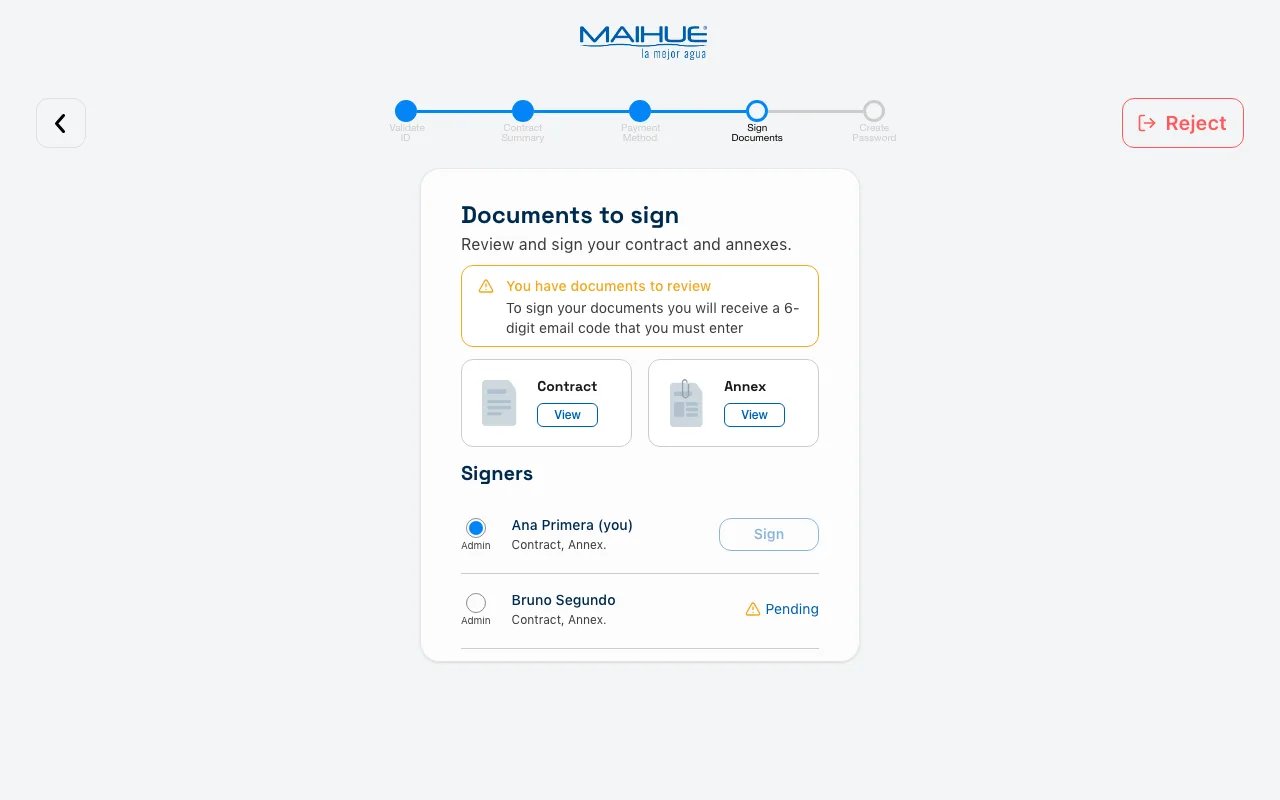
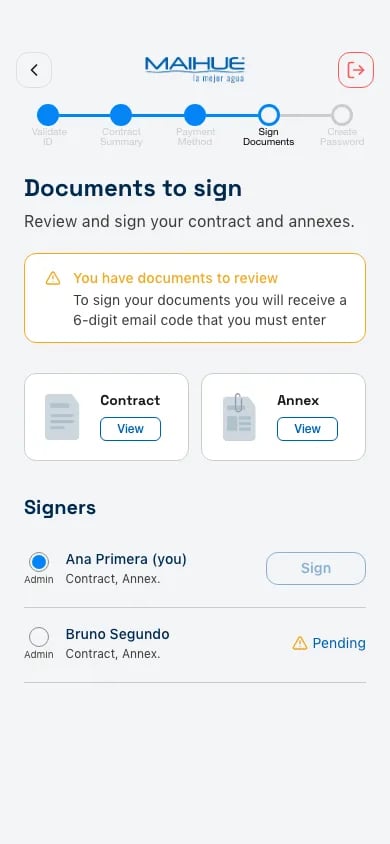
The customer reviews their contract and annex and signs them electronically at once with a 6-digit code sent by e-mail. The simple electronic signature is legally valid (Chilean Law 19.799).How to get there
After confirming the payment method (or after the Summary, for a later company administrator).
Digital contract journey
What the customer sees
- Desktop
- Mobile
Step by step
1
Wait for the documents
If they are still being generated, they see “Preparing your documents…”. It usually takes a few seconds.
2
Review each document
Taps View, scrolls the PDF to the end, ticks the box and taps Continue. Repeats with the annex.
3
Sign
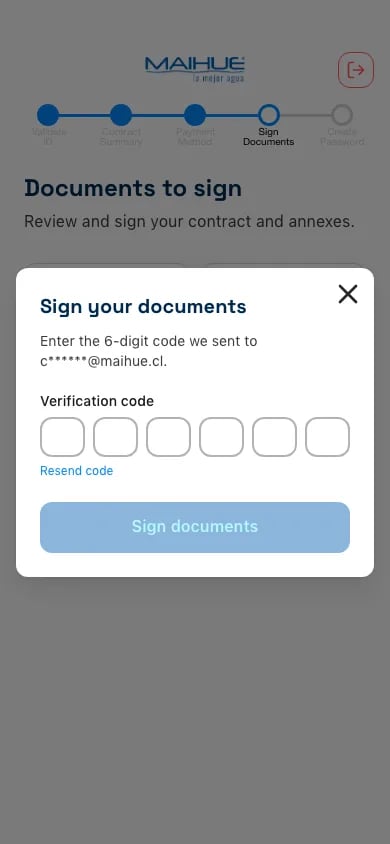
Once the documents are reviewed, Sign is enabled. “Sign your documents” opens and a code is sent to the e-mail.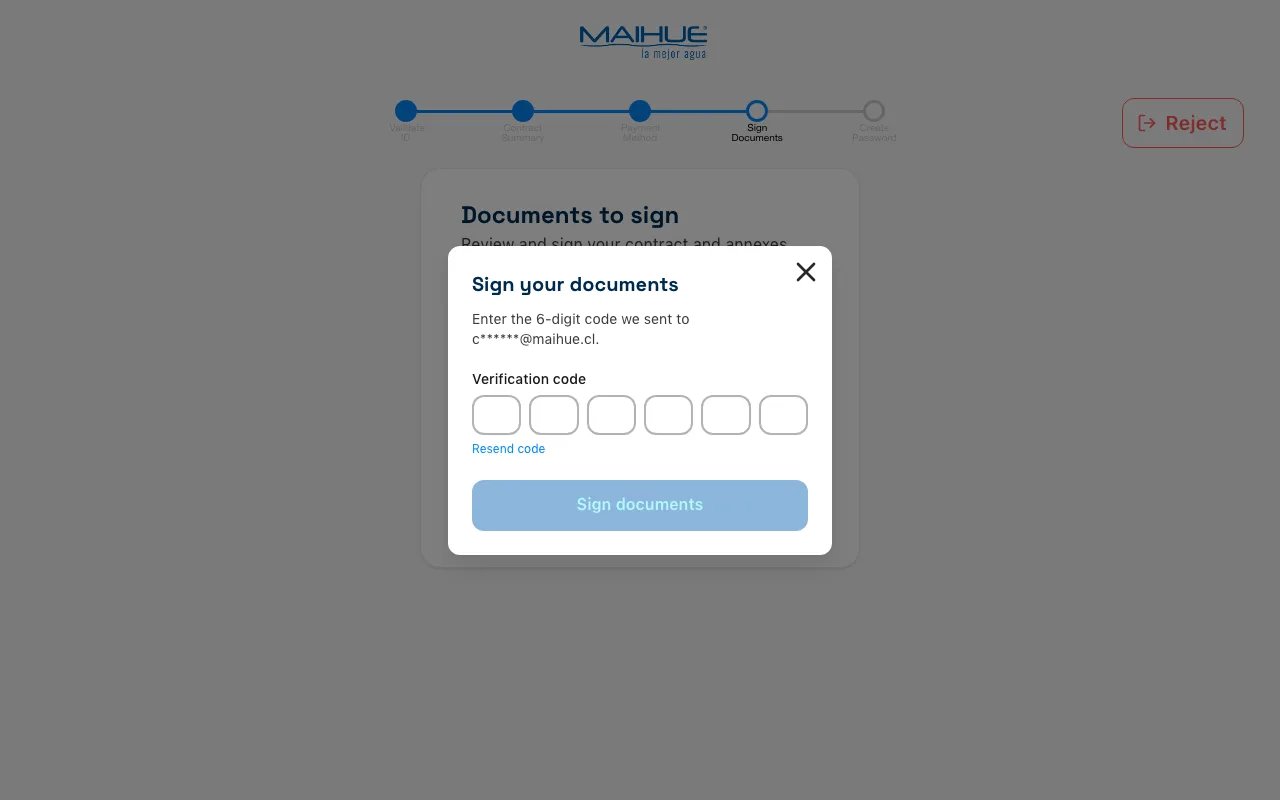
- Desktop
- Mobile
4
Enter the code and sign
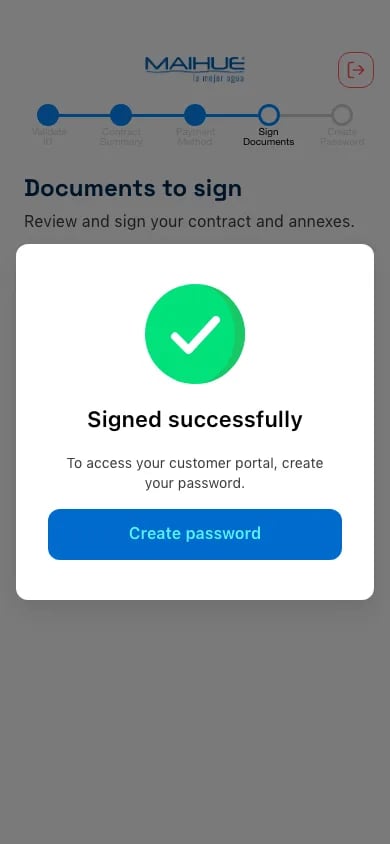
Types the 6 digits and taps Sign documents. They see “Signed successfully” and the Create password button.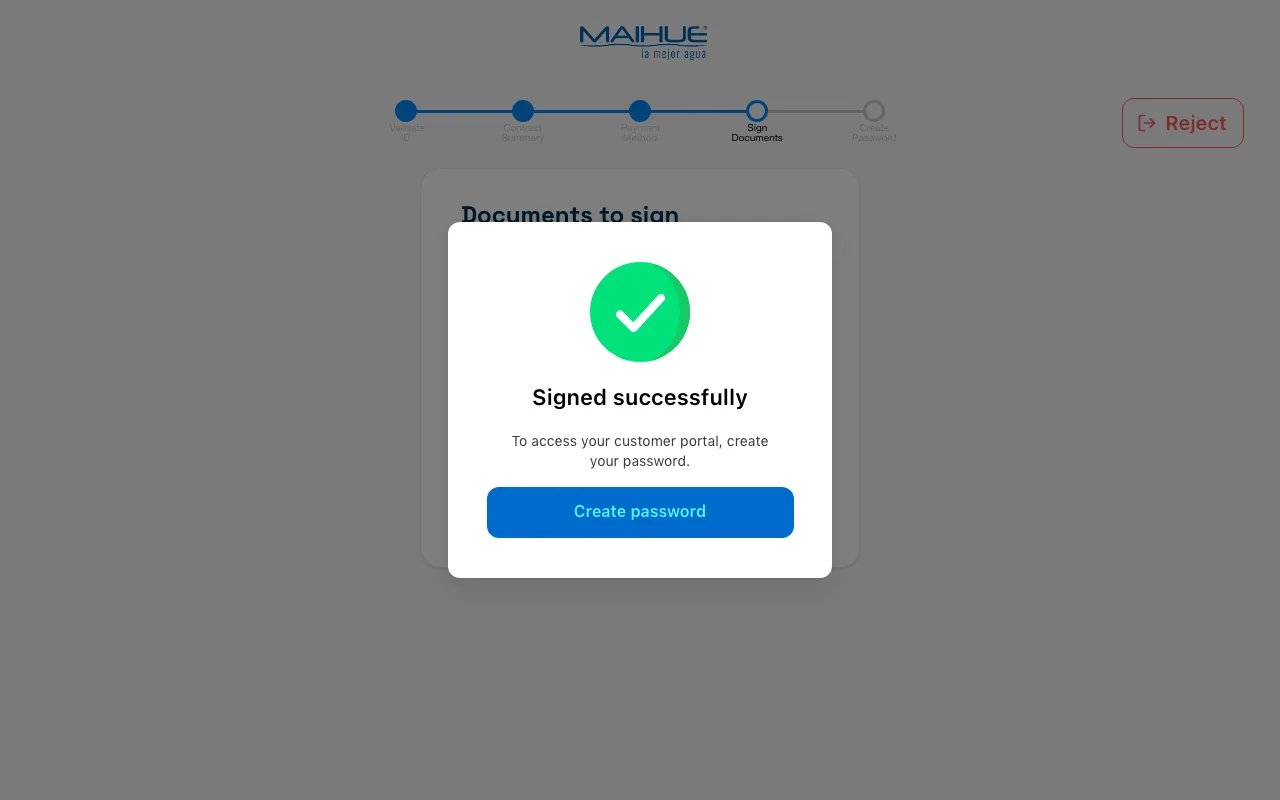
- Desktop
- Mobile
Business rules
States and messages
Errors
Why it works this way

How the contract is signed
Technical detail
More detail in Signing.
FAQ and support cases
The code does not arrive
The code does not arrive
Check spam and that the contract e-mail is right (it is shown masked in the window). Use Resend code.
Can they sign from their phone?
Can they sign from their phone?
Yes, the wizard works on mobile.