

At a glance
What it is for
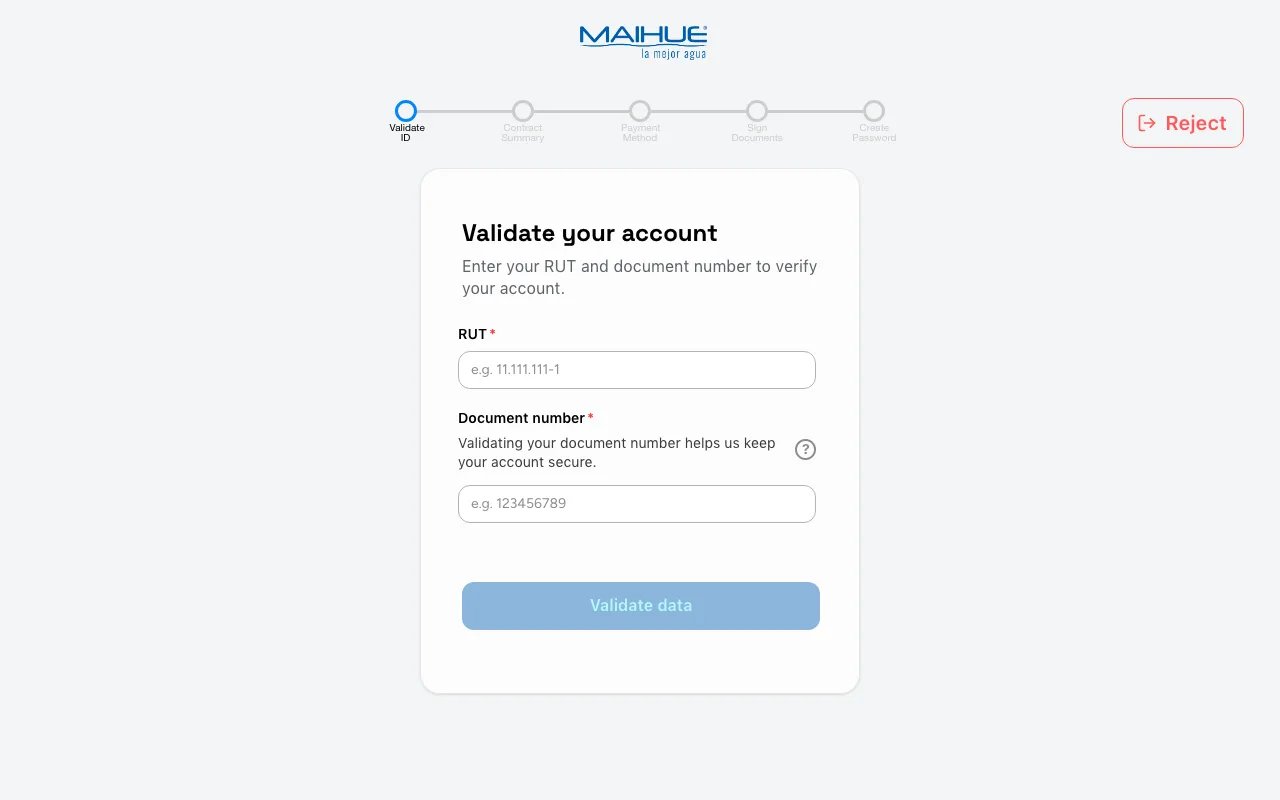
Confirms the signer is who they claim to be. The customer enters their RUT and their ID card document number, and Maihue checks it with the Civil Registry (through Floid).How to get there
After Welcome, or when resuming a contract left at this step.
Digital contract journey
What the customer sees
- Desktop
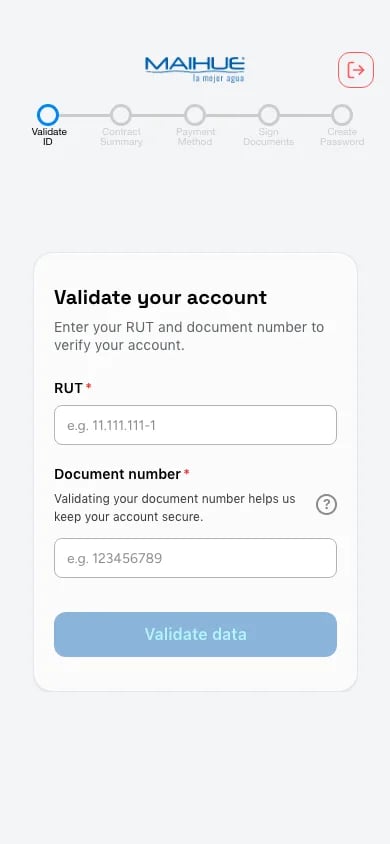
- Mobile
Step by step
1
Enter the RUT
With or without dots; the check digit is mandatory.
2
Enter the document number
The 9 characters of the ID card serial number (it may have a letter at the start or end).
3
Validate data
While it reads “Validating data…” it is being checked; once approved the Summary shows.
Business rules
States and messages
Errors
Why it works this way

How identity is checked
Technical detail
More detail in Identity.
FAQ and support cases
The customer is a foreigner
The customer is a foreigner
They use their foreigner ID card: it has a RUT and a document number like the Chilean one.
They say the RUT is right and it still fails
They say the RUT is right and it still fails
The RUT registered on the contract may differ. Check the registration in Horizon Enterprise.